Widget Visibility Control
Active Installs
200+
Last Updated
October 23, 2026
First Released
December 18, 2025
Download History (Last one month)
Widget Visibility Control lets you decide exactly where each widget appears on your site. Show widgets only on specific pages, hide them for logged-out users, display different content for different categories – all without writing a single line of code.
Looking for Widget Visibility and Scheduling?
This plugin gives you control over where your widgets appear:
- Page targeting – Show widgets on the front page, blog page, specific pages, or 404 error page
- URL targeting – Show or hide widgets by the address of the page, with
*as a wildcard:shop/*covers /shop/ and everything below it - Content targeting – Display widgets only on certain categories, tags, or custom taxonomies
- Cascading taxonomy selector – Quickly find terms in sites with many taxonomies (WooCommerce friendly)
- Include child terms – Match child terms automatically for hierarchical taxonomies
- User targeting – Show different widgets to logged-in users vs. visitors
- Role-based display – Target specific user roles (administrators, editors, subscribers, etc.)
- Capability targeting – Go finer than roles and target a specific capability (manage_options, edit_posts, or any capability your plugins add)
- Single content, sticky posts and paginated archives – Conditions for any single content, for sticky posts, and for page 2 and beyond of an archive
- Author pages – Control visibility on author archive pages
- Date archives – Target daily, monthly, or yearly archives
- Post type support – Works with custom post types and their archives
- Time scheduling – Schedule widgets to appear only during specific date and time ranges. Perfect for promotional banners, seasonal offers, holiday announcements, flash sales, event countdowns, and time-limited content
- JSON export and restore – Download all your visibility rules as a file and load them back when you need them, merging into the current setup or replacing it
Multiple Conditions
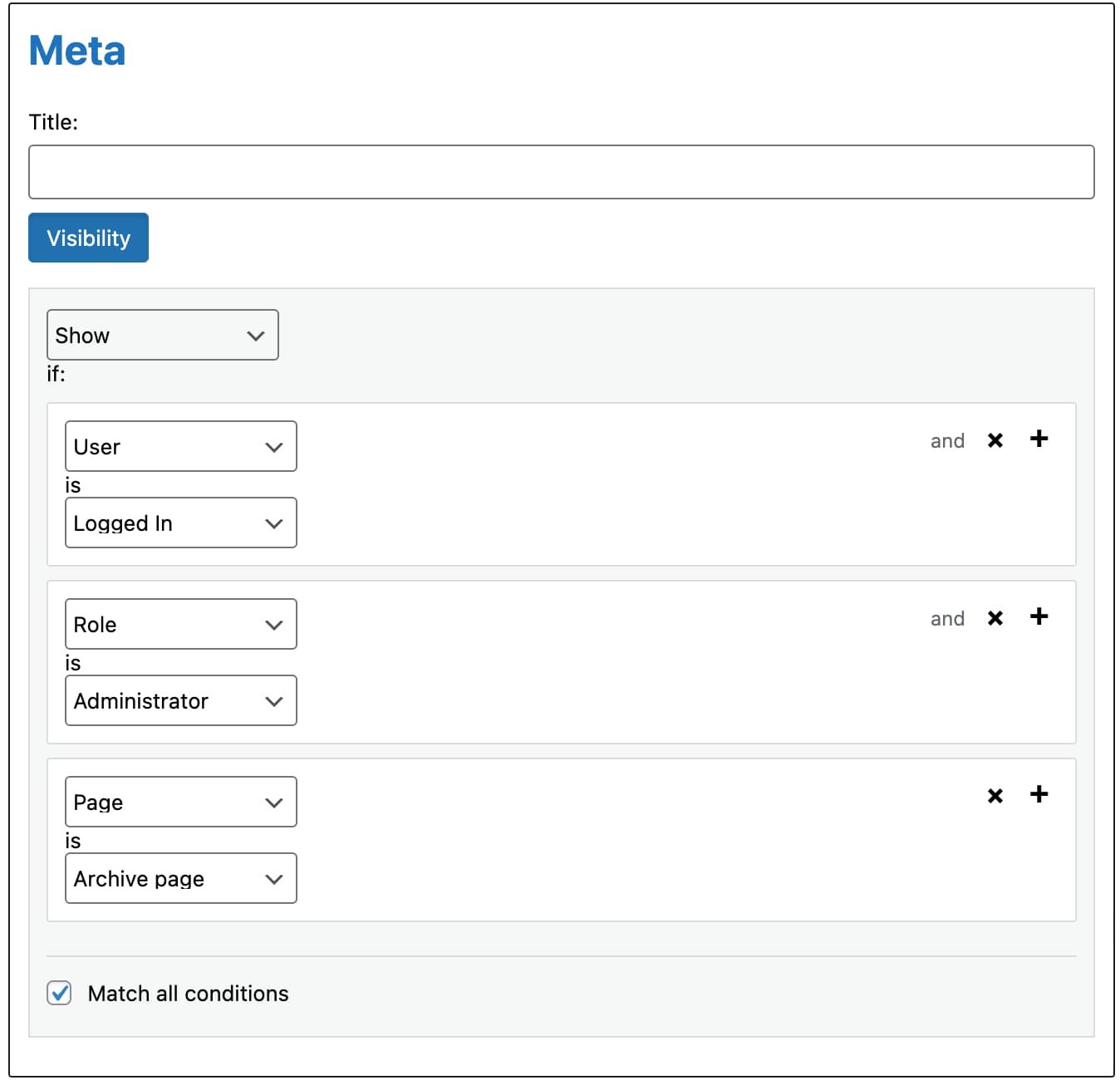
Create sophisticated visibility rules by combining multiple conditions:
- Use OR logic – Show if ANY condition matches
- Use AND logic – Show only if ALL conditions match
- Mix and match – Create exactly the rules you need
Built for Performance
- Minimal database queries with intelligent caching
- Only loads assets where needed (widget screens)
- Clean, optimized code following WordPress standards
Why Choose This Plugin?
- Lightweight – Focused functionality without unnecessary features
- All features included – No premium version required
- Jetpack Compatible – Migrate from Jetpack Widget Visibility without reconfiguring anything
- Independent Storage – Your rules are stored separately, safe from Jetpack changes
- Block Editor Ready – Works with both classic widgets and block-based widgets
- Privacy Focused – No external connections, no tracking, no data collection
- Safe by design – No PHP eval, no arbitrary code execution; rules are stored as structured data
Coming from Jetpack?
If you’ve been using Jetpack just for widget visibility and want to reduce your site’s load, this plugin can help:
- No configuration needed – Your existing visibility rules are automatically imported on activation
- Same familiar interface – The visibility panel works as you’re used to
- Keep or clean legacy data – Choose to maintain Jetpack compatibility or clean up completely
- No disruption – Your widgets will continue working as before
Coming from Widget Logic?
Widget Logic was closed on the WordPress.org plugin directory on 14 April 2026 and no longer receives updates. Widget Visibility Control is a safe, maintained alternative:
- No PHP eval – Visibility rules are stored as structured data, not as executable PHP code
- Assisted import – On detection of Widget Logic data, an importer translates the most common conditional tags (is_home, is_page, is_category, current_user_can, is_user_logged_in…) into proper visibility rules, including value lists, negated conditions and the checks on the current URL that many sites relied on. Works with data from both Widget Logic 5.x and 6.x
- Works even if you already removed it – The importer reads the rules Widget Logic left in your database, so it works whether the plugin is still active, deactivated, or deleted
- You decide what’s tricky – For rules we can’t translate automatically, the importer explains why and asks per widget whether to import as always visible, always hidden, or skip
- Original data preserved – Your Widget Logic data stays in the database until you choose to clean it up, and the original code of each imported widget is kept as a reference even after that
Coming from Widget Options?
If you only use Widget Options for visibility and want a lighter, focused plugin without the pro upsells:
- No pro version – All features included in the free plugin, URL targeting with wildcards among them
- Visibility-first – We do one thing well: show/hide widgets based on pages, URLs, content, users, roles, and schedule
- Compatible interfaces – Works in the block-based widget editor, the classic widget editor, and the Customizer
- Quick try – Install alongside Widget Options to compare; switch when you’re ready
Developer Friendly
- Follows WordPress Coding Standards
- Fully translatable with complete i18n support
- Action and filter hooks for customization
- Clean uninstall – removes only its own data
Support
Need private support or custom development?
Do you need one-on-one help, priority troubleshooting, or a custom feature, integration, or tweak built specifically for your site? I offer private support and custom development. Just contact me and tell me what you need.
Need help or have suggestions?
Love the plugin? Please leave us a 5-star review and help spread the word!
About AyudaWP
We are specialists in WordPress security, SEO, AI and performance optimization plugins. We create tools that solve real problems for WordPress site owners while maintaining the highest coding standards and accessibility requirements.
- Upload the
widget-visibility-controlfolder to/wp-content/plugins/ - Activate the plugin through the ‘Plugins’ menu in WordPress
- Configure visibility rules for your widgets (see “Where to find visibility settings” below)
Where to find visibility settings
The location of visibility settings depends on your widget editing interface:
In Appearance > Widgets (block editor):
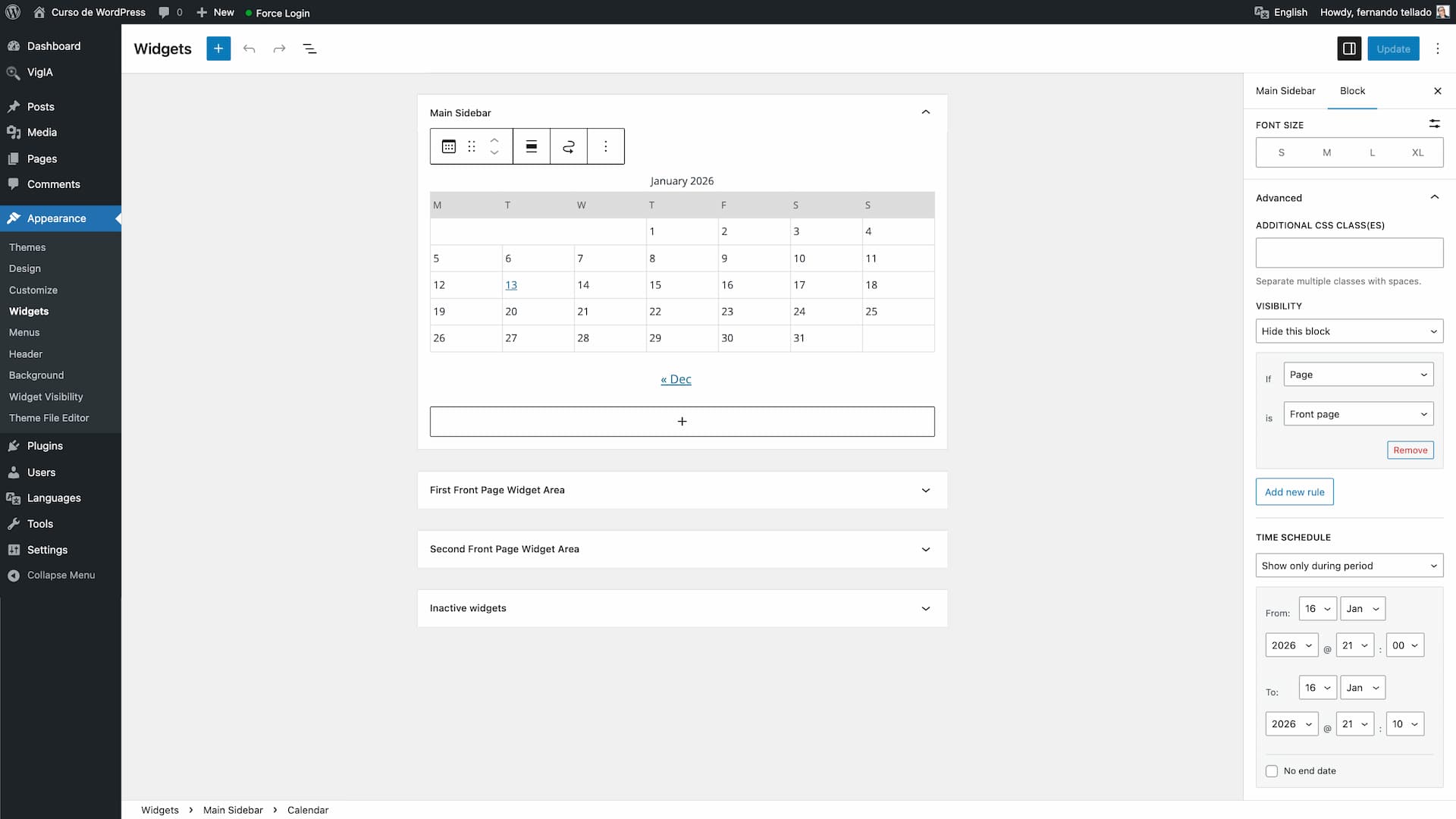
When using native block widgets, select any block in a widget area, then look in the right sidebar for the Visibility panel. Here you can add rules to show or hide the block.
In Appearance > Widgets (with Classic Widgets plugin):
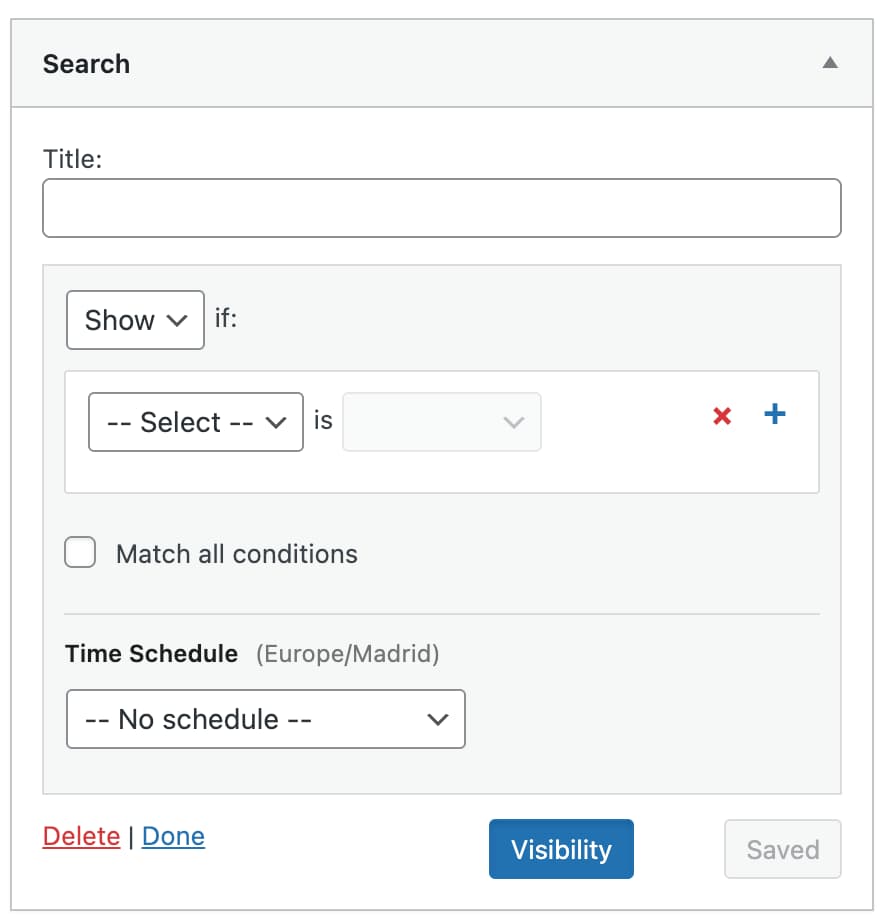
If you have the Classic Widgets plugin active, click the “Visibility” button that appears below each widget’s settings.
In Appearance > Customize > Widgets:
The Customizer uses the same interface as your Widgets screen. With block-based widgets, select a block, choose “Show more settings” in its options menu, and you’ll find the Visibility panel; Legacy Widgets keep their “Visibility” button. With classic widgets, click the “Visibility” button below each widget’s settings.
Legacy Widgets in block editor:
When you add a Legacy Widget block, expand the widget settings and you’ll find the “Visibility” button in the classic interface within the block.
Coming from Jetpack? Your existing visibility rules will be automatically imported. Visit Appearance > Widget Visibility to review your imported data.


In two different places, depending on the widget:
- A block (Paragraph, Categories, Image…): in the Visibility panel of the right sidebar.
- A classic widget shown as a legacy widget: in a Visibility button at the bottom of the widget itself, under its own fields. Not in the right sidebar.
If the right sidebar of a classic widget says so and you still see no button, check whether Jetpack Widget Visibility is active, because then Jetpack provides the controls and this plugin stands aside.
Yes! Widget Visibility Control works with all widget editing interfaces:
- Block-based widgets (Appearance > Widgets): Visibility settings appear in the Visibility panel in the right sidebar.
- Legacy Widgets in the block editor: The classic “Visibility” button appears within the legacy widget interface.
- Classic Widgets plugin: If you prefer the traditional widget interface, the “Visibility” button appears below each widget.
- Customizer (Appearance > Customize > Widgets): Follows your Widgets screen, so you get the Visibility panel with block-based widgets and the “Visibility” button with classic widgets.
Yes. On activation, the plugin automatically imports all your existing Jetpack Widget Visibility rules. No reconfiguration needed.
Yes, but to avoid conflicts, our visibility interface is automatically disabled while Jetpack Widget Visibility module is active, for blocks and for classic widgets alike, and a notice on the Widgets screen tells you so. You can continue using Jetpack’s interface, and when you disable the Jetpack module, our interface will take over automatically. Your visibility rules are stored in both formats, so the transition is seamless. Rules already saved keep being applied either way.
On deactivation, your rules are preserved for when you reactivate. On uninstall, only this plugin’s data is removed. If you haven’t cleaned the legacy data, Jetpack can still read your original rules.
Yes. You can add multiple conditions and choose whether ALL conditions must match (AND logic) or just ONE condition needs to match (OR logic).
No. The plugin is optimized for performance with intelligent caching. Assets only load on admin widget screens, and frontend checks are minimal and cached.
No. This plugin works completely standalone without any external connections or dependencies.
This plugin is designed for widget areas (sidebars, footers, etc.). Full Site Editing themes typically don’t use traditional widget areas – instead, they manage all content through the Site Editor using template parts and blocks.
If your FSE theme includes widget areas, the plugin will work in those areas. If you need conditional visibility for blocks in FSE templates, you would need a different solution designed for the Site Editor.
Time scheduling allows you to show or hide widgets during specific date and time ranges. This is ideal for:
- Promotional banners – Display ads only during sale periods
- Seasonal content – Show holiday greetings or seasonal offers automatically
- Flash sales – Schedule countdown widgets for limited-time deals
- Event announcements – Display event info until the event date passes
- Time-sensitive notices – Show maintenance warnings or temporary announcements
You can configure:
- Show only during period – Widget appears only between the start and end dates
- Hide during period – Widget is hidden between the start and end dates
- No end date – Widget starts showing from a specific date and continues indefinitely
The schedule uses your WordPress timezone setting (Settings > General). If you also have visibility rules configured (like “show only on homepage”), both conditions must be met – the widget will only appear on the homepage AND within the scheduled time range.
When you select “Taxonomy” as a condition, a second dropdown appears where you pick the specific taxonomy (e.g., Product Category, Color, Size). Only then does the third dropdown show the terms for that taxonomy. This cascading approach makes it much faster to find the right term on WooCommerce sites or any site with many custom taxonomies.
For hierarchical taxonomies, you can also check “Include children” to automatically match all child terms of the selected term.
Yes, both from Widget Logic 5.x and 6.x — they use the same storage format in the database. When the plugin detects Widget Logic data, you’ll see a notice and a section in Appearance > Widget Visibility > Import / Export. The importer shows each widget that had Widget Logic code, the original PHP, and the rule we extracted. For widgets whose code we can’t translate automatically, you decide per widget: import as always visible, import as always hidden, or skip.
Most of the common conditional tags: is_home, is_front_page, is_single, is_singular (with or without a post type), is_page (with an ID, a slug, or no arguments at all), is_category, is_tag, is_author, is_archive, is_search, is_404, is_date / is_day / is_month / is_year, is_user_logged_in, is_sticky, is_paged, is_attachment, is_privacy_policy, is_tree, current_user_can, is_tax, has_term, has_category, is_post_type_archive, in_category, and has_tag.
WooCommerce shops are covered too: is_product, is_shop, is_cart, is_checkout, is_account_page, is_product_category, is_product_tag and is_woocommerce.
Rules that are just a constant (true, false, or combinations like !(true || false)) import as always visible or always hidden.
Lists of values are supported too, in both notations: is_page( array( 1, 2, 3 ) ) and is_page( [ 1, 2, 3 ] ). So are negated rules like !is_home(), !is_page(2) && !is_page(3), or !( is_home() || is_category(5) ), which are imported as “hide” rules.
Checks on the current address are translated into URL rules: strpos(), stripos() or str_contains() on $_SERVER['REQUEST_URI'] for “the address contains”, strpos( ... ) === 0 or str_starts_with() for “the address starts with”, and $_SERVER['REQUEST_URI'] == '/some/path/' for an exact address. Their negated forms are imported as “hide” rules.
Combinations using only AND or only OR are supported. What still cannot be translated automatically: mixed AND/OR expressions, a negated condition combined with a positive one, wp_is_mobile, regular expressions, code reading post meta or any variable other than $_SERVER['REQUEST_URI'], and custom functions. For those the importer tells you why and asks what to do with that widget.
Choose “URL” as the rule type and type the address you want to match. A path is enough (shop, /shop/ and shop/ all mean the same page), and you can also paste the full URL from the browser.
Use * as a wildcard for any run of characters:
shop/*matches /shop/ and everything below itshop*matches /shop/, /shop/shoes/ and also /shopping/*/reviewsmatches any address whose last part is “reviews”*sale*matches any address with “sale” in it
Upper and lower case make no difference, and neither does the final slash. Each rule holds one pattern: to cover several addresses, add one rule for each and leave them joined with OR.
To look at the query string, write it after a ?: shop?orderby=price matches /shop/ with exactly that query, ?*promo=* matches any page that carries a “promo” parameter, and *promo=summer* finds that text anywhere in the address. A ? with nothing after it asks for no query string at all, so /? is the home page only when nothing follows it.
Two things worth knowing. If your site uses a page cache, rules that depend on tracking parameters may not vary, because many caches serve the same stored page whatever the utm_ values are. And a URL rule only looks at the address: to show a widget to certain people, use the User, Role or Capability rules instead.
No. The original Widget Logic data stays in the database so you can roll back if needed. From Appearance > Widget Visibility > Import / Export you can delete it later with “Remove Widget Logic data”.
Yes, both. In Appearance > Widget Visibility > Import / Export, the Export section downloads a JSON file with every rule, which widget each one belongs to, the plugin version and the site it came from. The same section restores a file back, so it works as a real backup and as a way to carry a setup from a staging site to production.
When restoring you choose what happens to what is already there: Merge only touches the widgets present in the file and leaves the rest alone, while Replace clears every current rule first so the site ends up exactly as the file describes.
Rules are matched to widgets by their identifier (text-3, categories-2…), so a restore lands correctly on the same site or on a copy of it. On a different site the identifiers may belong to other widgets, so check the result. Anything the file contains that this version does not understand is skipped and reported, never imported half-way.
Not yet. Widget Options stores its visibility data in a format that’s very different from Widget Logic and Jetpack, and an importer is a separate effort. If you only used Widget Options for visibility, you can configure the equivalent rules in our plugin manually — the most common scenarios (pages, post types, taxonomies, user roles, login state) are all supported.
Changelog
1.5.1
Fixes the visibility controls being left on blocks while Jetpack is in charge of them, and several small fixes in how visibility rules are stored and evaluated.
- Improved: The visibility rules of a widget are no longer included in the widget form that the REST API returns to someone who cannot edit widgets. On a site whose widget area is registered as visible in the REST API, WordPress answers that request without asking for any permission.
- Improved: A rule using a capability that WordPress only answers about a specific item, such as edit_post, no longer writes a notice to the debug log. That rule never matched before either, so nothing changes in what visitors see.
- Improved: Visibility rules are stored under the id of the widget WordPress is saving, instead of the one reported by the form.
- Improved: Two rules that could not be encoded no longer share one cached result within the same request.
- Improved: Importing rules in Jetpack format now cleans the URL patterns it finds, as the plugin already did with its own.
- Improved: The visibility panel is also added to the widget form that the REST API returns for a widget that is already saved, which external clients of the API read.
- Fix: While the Jetpack Widget Visibility module is active this plugin stands aside, as the FAQ has always said, and now it does so in the block editor too. Until this version the block panel stayed on while the one for classic widgets was switched off, so a site ended up with controls on blocks and none on classic widgets, writing to a place Jetpack does not read. Rules already saved keep being applied either way.
1.5.0
Adds a URL rule with * as a wildcard, and the Widget Logic importer now translates rules that check the URL. Security fix: the rules of classic widgets could be skipped by some requests. Also fixes saving in the block-based widgets screen and in the Customizer.
- New: “URL” rule type — show or hide a widget by the address of the page. Type a path or paste a full URL, and use
*as a wildcard:shop/*covers /shop/ and everything below it, and*sale*any address with that word in it. Query strings can be matched too, as inshop?orderby=price. Available in classic widgets and in block widgets. - New: The Widget Logic importer translates rules that check the current address, such as
strpos( $_SERVER['REQUEST_URI'], '/shop/' ) !== false,str_contains(), “starts with” checks and exact comparisons, together with their negated forms. They become URL rules instead of asking you to decide. - Improved: The rule row in classic widgets has been laid out again. The dropdown arrow no longer sits under the “or” label and the delete button, and a long page or term name is cut short instead of spilling out of the box, which was most visible in narrow panels.
- Improved: The classic widgets script no longer asks WordPress to load jQuery UI, which it never used.
- Fix: Visibility rules of classic widgets could be bypassed. A request carrying certain parameters was answered with every widget in the page, whatever its rules said, including widgets meant only for logged-in users or for a role. The rules are now applied to every front-end request. Rules set on blocks were not affected.
- Fix: In the block-based widgets screen, saving one widget area could move the legacy widgets of the other areas to Inactive widgets when their rules were not met at that moment, and an area holding such widgets could fail to save with an error. The list of widgets is no longer filtered outside front-end pages.
- Fix: With the classic widgets interface, rules changed in the Customizer were not saved: it reported the changes as published and kept the old rules. They are now previewed while you edit and saved when you publish.
- Fix: In classic widgets, a rule without a value (Always, or a row left unfinished) placed above other rules made the rules below it lose their value when saving, so the widget could stop showing without warning.
- Fix: In classic widgets, the “Include children” option was lost on saving if a rule had been added or removed in that widget since its settings were opened.
- Fix: On PHP 8, a block whose visibility rules were not well formed, for instance after hand-editing its markup, caused a fatal error on every page that showed it. Rules that are not well formed are now ignored.
- Fix: In right-to-left languages the visibility panel of classic widgets was loading without most of its styles.
For older changelog entries, please check the changelog.txt file
