
Table of Contents Plus – Automatic Table of Contents for Posts & Pages
Active Installs
200,000+
Last Updated
July 26, 2026
First Released
July 1, 2011
Download History (Last one month)
Contributors
Table of Contents Plus automatically creates a table of contents for your long posts and pages by reading their headings. Your readers get a clickable summary at the top of the article, jump straight to the section they need, and stay on the page longer. Set it up once and every qualifying post gets a table of contents from then on, with no block to insert and no shortcode to remember.
A clear table of contents also helps search engines understand how your content is structured, and Google sometimes turns those headings into jump-to links in the search results. It is a small addition that improves navigation for readers and gives your long-form articles a better chance of standing out.
Automatic Table of Contents for Every Long Post
Turn the table of contents on for posts, pages, or any custom post type, and it appears automatically once an article has enough headings. You set the threshold, so short posts stay clean and only genuinely long content gets an index. Place the table of contents before the first heading, after the first paragraph, at the top, or at the bottom, so it fits the way you write.
Smooth Scrolling and Clean Anchor Links
Every entry in the table of contents is an anchor link that jumps to the matching heading. Smooth scrolling is on by default, so clicking an item glides down to the section instead of snapping to it. Anchor IDs are lowercase and hyphenated, which keeps your URLs readable and easy to share, for example yoursite.com/guide/#getting-started.
Style the Table of Contents to Match Your Theme
Choose from several ready-made themes or set your own colors for the background, border, title, and links. A live preview shows each theme before you apply it, so you see the result without saving and reloading. Set the width and font size, show a numbered list or a plain list, and nest sub-headings so the table of contents mirrors the structure of your article.
Decide Exactly Where the Table of Contents Appears
Show the table of contents across your whole site or limit it to one section by URL path, keep it off the homepage, and set how many headings an article needs before one shows up. Pick which heading levels to include, exclude individual headings by name with wildcard matching, and add the [no_toc] shortcode to any post to hide the table of contents on that page.
Table of Contents Widget and Shortcode
Want the table of contents in your sidebar? Add the Table of Contents Plus widget or block to any widget area and it follows the post being viewed. For full control over placement, the [toc] shortcode outputs the table of contents wherever you put it in your content, and it works inside synced (reusable) blocks.
A Table of Contents for Any Kind of Content
- Documentation and knowledge bases
- Long-form guides and tutorials
- Recipes and how-to posts
- Wikis and reference pages
- Product and support pages
- Research and academic articles
Built by the AIOSEO Team
Table of Contents Plus is maintained by the team behind All in One SEO, the WordPress SEO toolkit used on over 3 million websites. It fits naturally alongside your SEO setup, since cleaner headings and readable anchor links improve the on-page navigation your SEO plugin already cares about.
Custom post types are supported. Automatic insertion works whenever a post type outputs its content with the_content(), and each registered post type appears in the settings so you can enable the ones you want.
Table of Contents Plus and Other Table of Contents Tools
If you have been comparing table of contents options, you have probably seen Easy Table of Contents, LuckyWP Table of Contents, and Heroic Table of Contents. Table of Contents Plus has been maintained since 2013 with the same focus: automatic insertion and a light footprint, so you get a table of contents on every long post without adding a page builder or dropping a block into each article.
Branding Guidelines
When writing about this plugin, please use the correct branding:
- Table of Contents Plus (correct)
- TOC+ (correct short form)
- Table of Contents+ (incorrect)
- TableOfContents Plus (incorrect)
Shortcodes
The plugin was designed to be as seamless and painfree as possible and did not require you to insert a shortcode for operation. However, using the shortcode allows you to fully control the position of the table of contents within your page. The following shortcodes are available with this plugin.
When attributes are left out for the shortcodes below, they will fallback to the settings you defined under the Table of Contents Plus menu.
[toc]
Lets you generate the table of contents at the preferred position. Useful for sites that only require a TOC on a small handful of pages. Supports the following attributes:
- “label”: text, title of the table of contents
- “no_label”: true/false, shows or hides the title
- “wrapping”: text, either “left” or “right”
- “heading_levels”: numbers, this lets you select the heading levels you want included in the table of contents. Separate multiple levels with a comma. Example: include headings 3, 4 and 5 but exclude the others with
heading_levels="3,4,5" - “class”: text, enter CSS classes to be added to the container. Separate multiple classes with a space.
- “start”: number, show when this number of headings are present in the content.
[no_toc]
Allows you to disable the table of contents for the current post, page, or custom post type.
[sitemap]
Produces a listing of all pages and categories for your site. You can use this on any post, page or even in a text widget. Note that this will not include an index of posts so use sitemap_posts if you need this listing.
[sitemap_pages]
Lets you print out a listing of only pages. The following attributes are accepted:
- “heading”: number between 1 and 6, defines which html heading to use
- “label”: text, title of the list
- “no_label”: true/false, shows or hides the list heading
- “exclude”: IDs of the pages or categories you wish to exclude
- “exclude_tree”: ID of the page or category you wish to exclude including its all descendants
- “child_of”: “current” or page ID of the parent page. Defaults to 0 which includes all pages.
- “post_type”: name of a hierarchical custom post type to list instead of pages, e.g.
[sitemap_pages post_type="docs"]. Defaults to “page”.
[sitemap_categories]
Same as [sitemap_pages] but for categories.
[sitemap_posts]
This lets you print out an index of all published posts on your site. By default, posts are listed in alphabetical order grouped by their first letters. The following attributes are accepted:
- “order”: text, either ASC or DESC
- “orderby”: text, popular options include “title”, “date”, “ID”, and “rand”. See WP_Query for a list.
- “separate”: true/false (defaults to true), does not separate the lists by first letter when set to false.
- “post_type”: name of a custom post type to list instead of posts, e.g.
[sitemap_posts post_type="recipe"]. Defaults to “post”.
Use the following CSS classes to customise the appearance of your listing:
- toc_sitemap_posts_section
- toc_sitemap_posts_letter
- toc_sitemap_posts_list
Credits
Table of Contents Plus was originally created and maintained for many years by Michael Tran (conjur3r). We are grateful for all the hard work he put in, and we are proud to continue building on it.
The normal plugin install process applies, that is search for table of contents plus from your plugin screen or via the manual method:
- Upload the
table-of-contents-plusfolder into your/wp-content/plugins/directory - Activate the plugin through the ‘Plugins’ menu in WordPress
That’s it! The table of contents will appear on posts and pages with at least three headings.
You can change the default settings and more under the Table of Contents Plus menu.
Screenshot Gallery
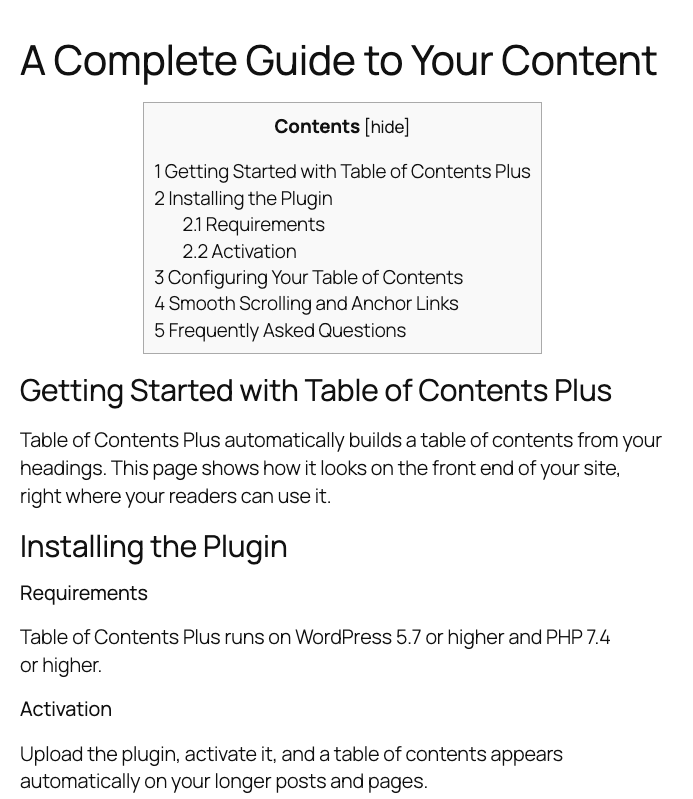
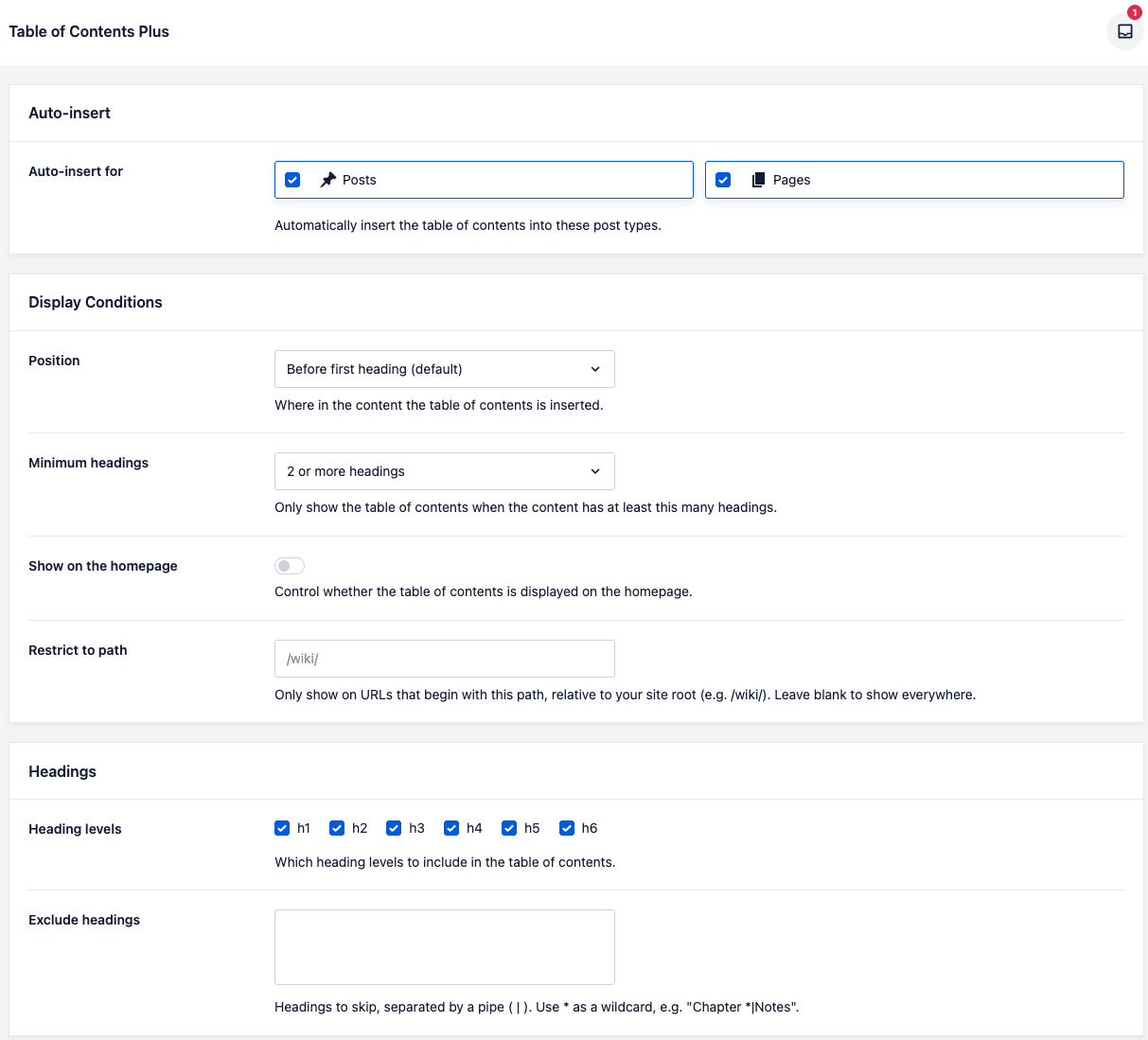
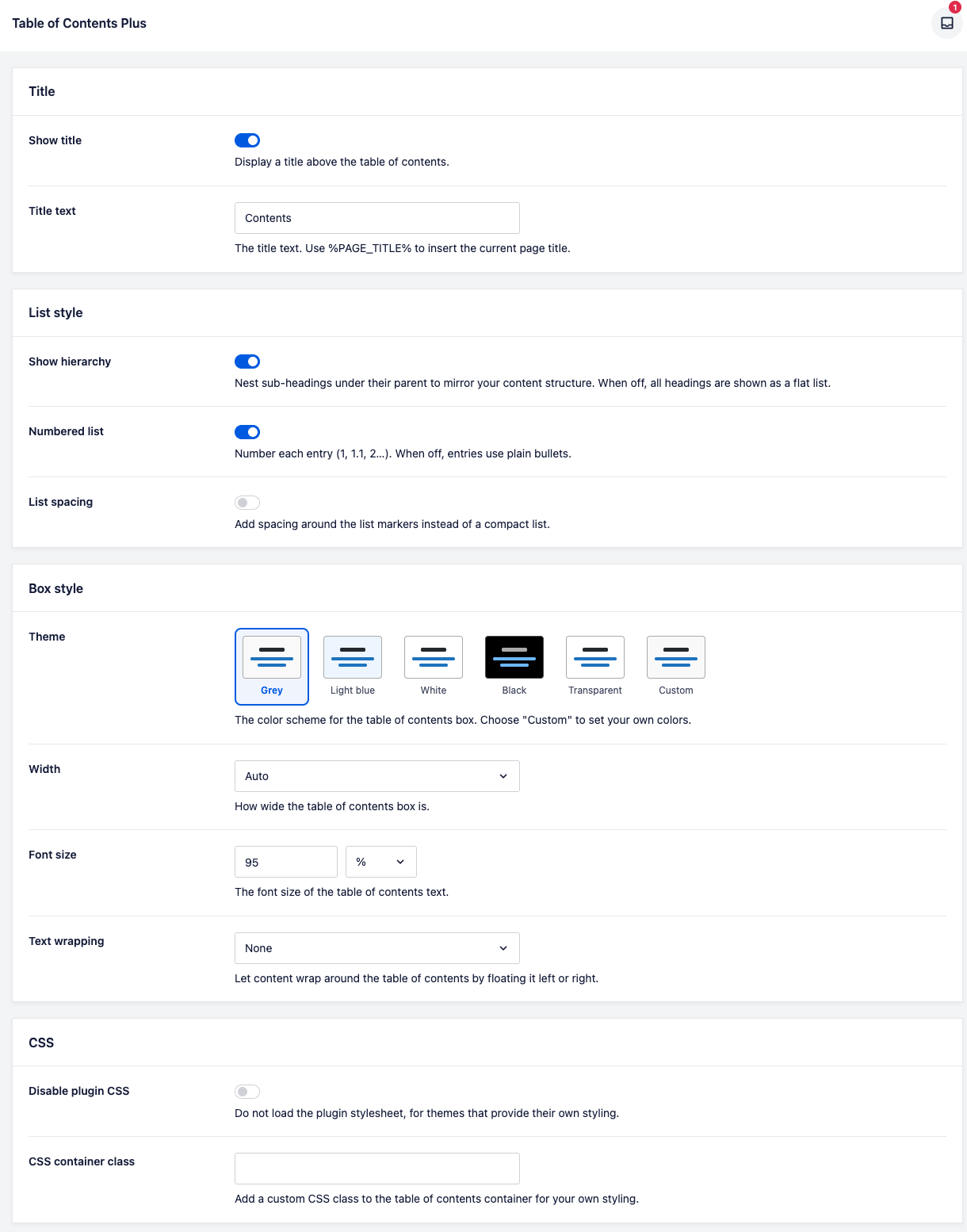
Enable Table of Contents Plus for posts (or pages, or any post type) in the settings, and a table of contents appears automatically on any article with enough headings. You do not have to add a block or shortcode to each post.
Yes. The table of contents is generated from your headings each time the page loads, so it always matches the current content.
Yes. Use the [toc] shortcode to place the table of contents anywhere in your content, or add the widget or block to a sidebar. Use [no_toc] to hide it on a single post.
Yes. You can include or exclude heading levels h1 through h6, and exclude individual headings by name, with wildcard matching for patterns.
Yes. Add the Table of Contents Plus widget or block to any widget area and it follows the post being viewed.
Yes, as long as the post type outputs its content with the_content(). Each registered post type appears in the settings so you can enable the ones you want.
Changelog
202607.1
- Released: 25 July 2026
- New: Numbering style option — hierarchical (1.1.1.), decimal, Roman numerals or letters
- New: Title alignment option — left, center or right
- New: Collapse control style — a plus/minus icon, a caret, or the classic show/hide link in brackets
- New: Live preview panel on the settings screen that updates as you change the appearance options
- New: Refreshed plugin logo and admin menu icon
- Fixed: The table of contents no longer appears on the blog posts index page — only on individual posts and pages
- Fixed: Links in the Black theme are now white
- Note: Existing sites keep the previous centered title and bracketed show/hide link; new installs use the new left-aligned title and plus/minus toggle
202607
- Released: 22 July 2026
- New: Completely redesigned settings screen, rebuilt on the All in One SEO framework and reorganized into Display, Appearance, Behavior and Advanced tabs
- New: Live preview for each table of contents theme so you can see a color scheme before selecting it
- New: Redesigned About page
- New: “Before first paragraph” and “After first paragraph” position options
- New: post_type attribute on the [sitemap_pages] and [sitemap_posts] shortcodes to list custom post types
- New: data-nosnippet attribute on the table of contents so search engines don’t use it as the result snippet
- New: wpml-config.xml so the heading text, show/hide labels and sitemap labels can be translated with WPML/Polylang
- New: navigation role and ARIA label on the table of contents container, and a new toc_title_tag filter to change the title tag for better accessibility
- Fixed: Bullet points no longer appear when the Numbered list option is enabled
- Fixed: The first list item no longer overflows when List spacing is turned off
- Fixed: Text in the Black theme is now light-colored for readability
- Fixed: “Restrict path” option now works when WordPress is installed in a subdirectory (the path is matched against the site root instead of the domain root)
- Fixed: Table of contents no longer appears in auto-generated excerpts
- Fixed: Empty and image-only headings no longer produce blank items in the table of contents
- Fixed: “Exclude headings” now correctly matches headings containing special characters such as ?, /, ( and &
- Fixed: Smooth scroll no longer intercepts clicks on anchor links outside the table of contents (resolves conflicts with theme accordions and toggles)
- Fixed: The show/hide toggle state is now remembered per page instead of applying to the entire site
- Fixed: The show/hide toggle now works on sites using translation plugins such as TranslatePress
- Fixed: The [toc] shortcode now works inside synced (reusable) blocks
- Fixed: Help link in the settings page now points to the current documentation
2411.1
- Released: 21 November 2024
- Security hardening reported by WPScan
2411
- Released: 14 November 2024
- Security hardening reported by Patchstack
- Plugin updates for compatibility with Plugin Check
" width="120" height="120">
