
Code Embed
Active Installs
10,000+
Last Updated
August 21, 2026
First Released
April 5, 2009
Download History (Last one month)
Contributors
IMPORTANT: If updating from an earlier version of the plugin, please check the section named “Plugin Behaviour Changes”, below, for anything which could impact your existing set-up
Code Embed allows you to embed code (JavaScript, CSS and HTML – it can’t be used for server-side code, such as PHP) in a post, without the content being changed by the editor. This is incredibly useful for embedding third-party scripts, etc. The plugin is used by many large sites, including Mozilla.
Key features include…
- Add HTML or JavaScript to posts or pages – particularly useful for embedding videos!
- Embed in widgets using the Widget Logic plugin.
- Global embedding allows you to set up some code in one post or page and then access it from another.
- Modify the keywords or identifiers used for embedding the code to your own choice.
- Search for embedding code via a simple search option.
- Add a simple suffix to the embed code to convert videos to responsive output.
- Embed an external script directly using just the URL.
- Conforms to WCAG 2.1 AA standards.
- And much, much more!
Iconography is courtesy of the very talented Janki Rathod.
Please visit the Github page for the latest code development, planned enhancements and known issues.
Getting Started
To use this plugin, you need to have custom fields enabled on your site. If you’re using the block editor, you may need to switch this on first – please scroll down to the next section to learn how to do this. If you’re using the classic editor, then you’ll find the custom fields at the bottom of the editor screen.
Although this plugin works for both posts and pages, for simplicity I will simply refer to posts – bear in mind that pages work in the same way.
Once you have custom fields switched on, here’s how easy it is to use…
- Once you have the plugin installed, start a new post.
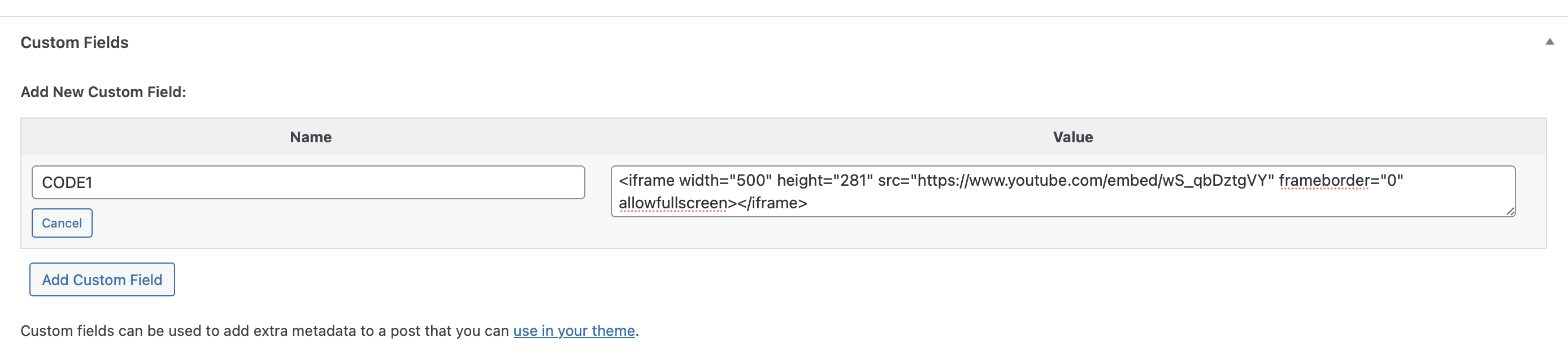
- Scroll down to the bottom of the screen and look for the “Custom Fields” section.
- Under “Add New Custom Field”, enter a name of
CODE1and your embed code as the value. - In your post content, add
{{CODE1}}where you wish the embed code to appear.
And that’s it – when the post is viewed or previewed, {{CODE1}} will be replaced with the code that you asked to be embedded.
This should get you started – for more information and advanced options, please see below. Alternatively, there’s a fantastic guide at Elftronix which I would recommend.
Using this plugin with the block editor (aka Gutenberg)
By default, custom fields are hidden inside the block editor but can be revealed.
- Edit or create a post.
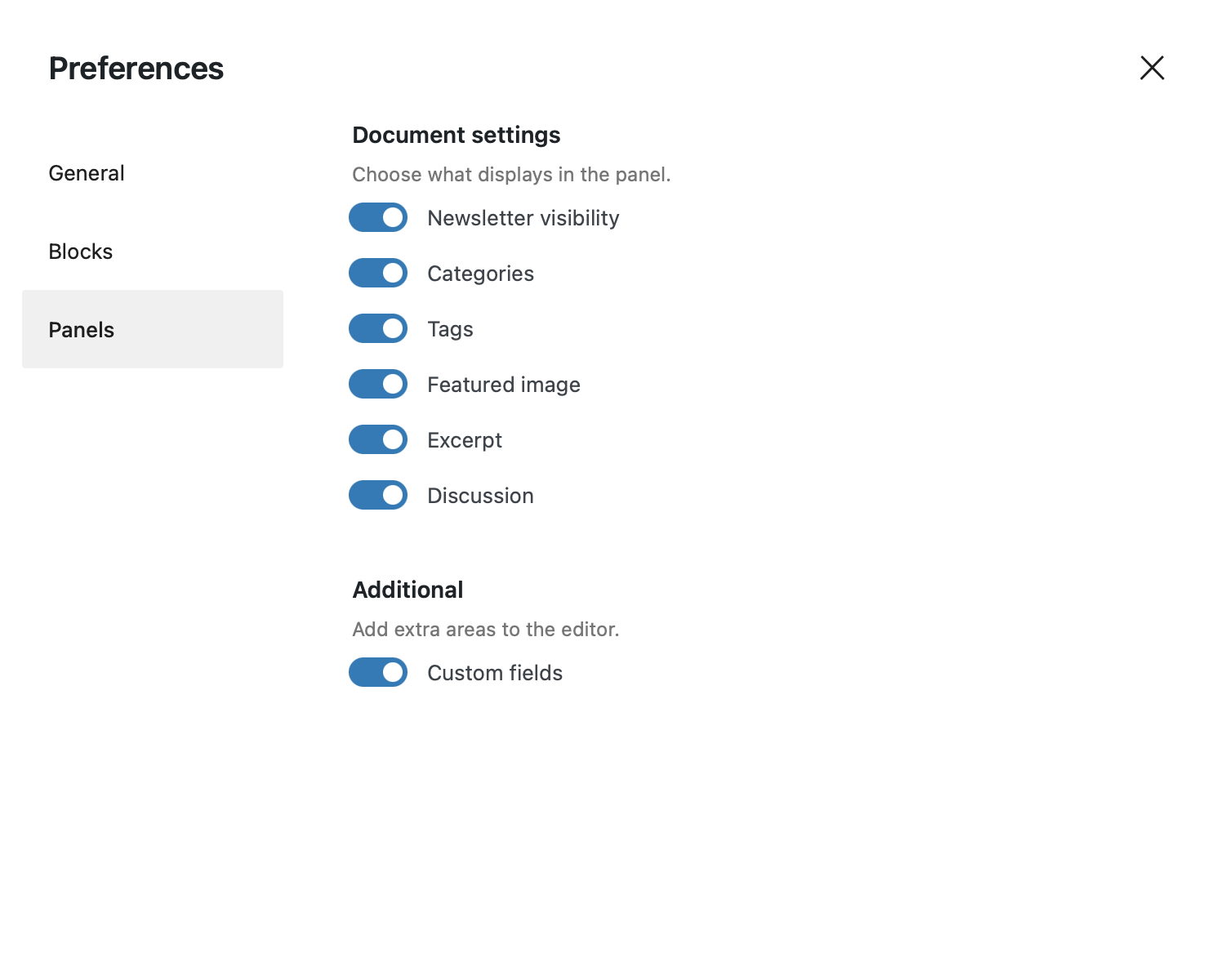
- Click the settings button (three dots) in the top right-hand corner.
- Go to Preferences.
- Click the Panels tab.
- You will find a button to toggle the ‘Custom Fields’ meta box – make sure this is toggled to “on”.
- A button should appear titled “Enable & Reload” – you’ll need to click on that and wait for the page to reload before the custom fields will appear.
Check out the screenshots for how the custom fields should look.
I can’t find the custom fields
For block editor users, I’m assuming you’ve done the above. For classic editor users, the custom fields should be present by default. In all cases they should appear at the bottom of the editor screen.
From version 2.4, anyone without the “unfiltered HTML” capability won’t be able to use custom fields, for added security. Please see the section “Custom Field Security”, below, for more details.
If none of the above applies, then you may have a theme or plugin that removes this or may have a problem with your WordPress installation – you will need to try the usual diagnostics to try and resolve this, including requesting help on the WordPress support forum.
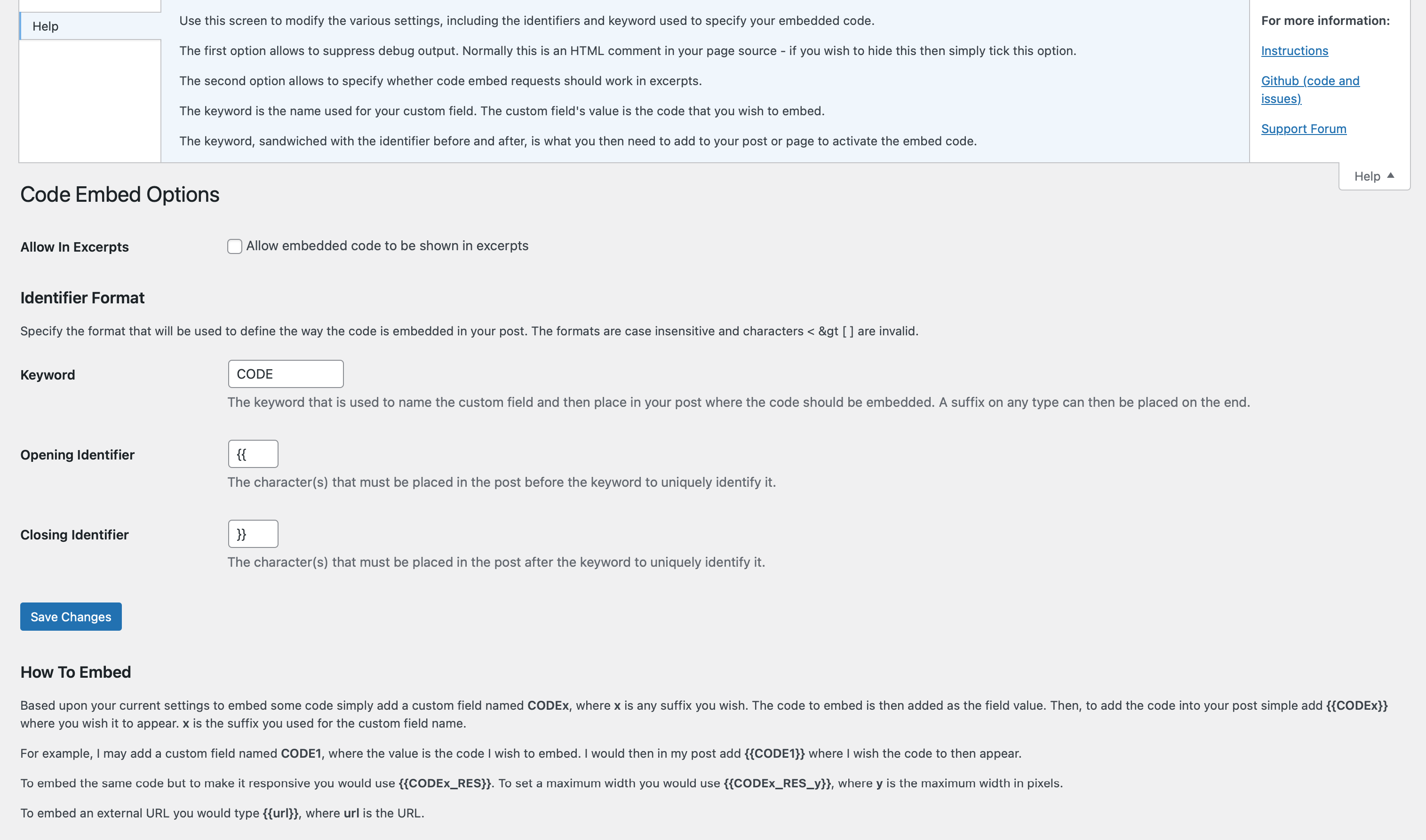
The Code Embed Options Screen
While in WP Admin, if you go to Settings -> Code Embed, you’ll be able to access the options that are available for this plugin.
Code embedding is performed via a special keyword that you must use to uniquely identify where you wish the code to appear. This consists of an opening identifier (something that goes at the beginning), a keyword and then a closing identifier. You may also add a suffix to the end of the keyword if you wish to embed multiple pieces of code within the same post.
From this options screen, you can specify the above identifier that you wish to use. By default, the opening and closing identifiers are double braces and the keyword is CODE. During these instructions these will be used in all examples.
The options screen is only available to those with a capability to manage options or greater. All the other Code Embed menu options are available to users with a capability to edit posts or greater.
How to Embed Code
To embed in a post, you need to find the meta box under the post named “Custom Fields”. If this is missing, you may need to add it by clicking on the “Screen Options” tab at the top of the new post screen.
Now create a new custom field with the name of your keyword – e.g. CODE. The value of this field will be the code that you wish to embed. Save this custom field.
Now, wherever you wish the code to appear in your post, simply put the full identifier (opening, keyword and closing characters). For example, {{CODE}}.
If you wish to embed multiple pieces of code within a post, you can add a suffix to the keyword. So we may set up 2 custom fields named CODE1 and CODE2. Then in our post we would specify either {{CODE1}} or {{CODE2}} depending on which you wish to display.
Don’t forget – via the options screen you can change any part of this identifier to your own taste.
How to Embed Code from an External URL
If you specify a URL within your post, surrounded by your choice of identifiers, then the contents of the URL will be embedded within your post.
Obviously, be careful when embedding a URL that you have no control over, as this may be used to hijack your post by injecting, for example, dangerous JavaScript.
For example, using the default options, you could embed the contents of a URL using the following method…
{{http://www.example.com/code.php}}
or
{{https://www.example.com/code.html}}<h3>How to Use Global Embedding</h3>
You can also create global embeds – that is, creating one piece of embed code and using it in multiple posts or pages.
To do this, simply make reference to an already defined (but unique) piece of embed code from another post or page.
So, let’s say in one post you define a custom field named CODE1. You can, if you wish, place {{CODE1}} not just in that post but also in another and it will work.
However, bear in mind that the embed code name must be unique – you can’t have defined it in multiple posts, otherwise the plugin won’t know which one you’re referring to (although it will report this and list the posts that it has been used in).
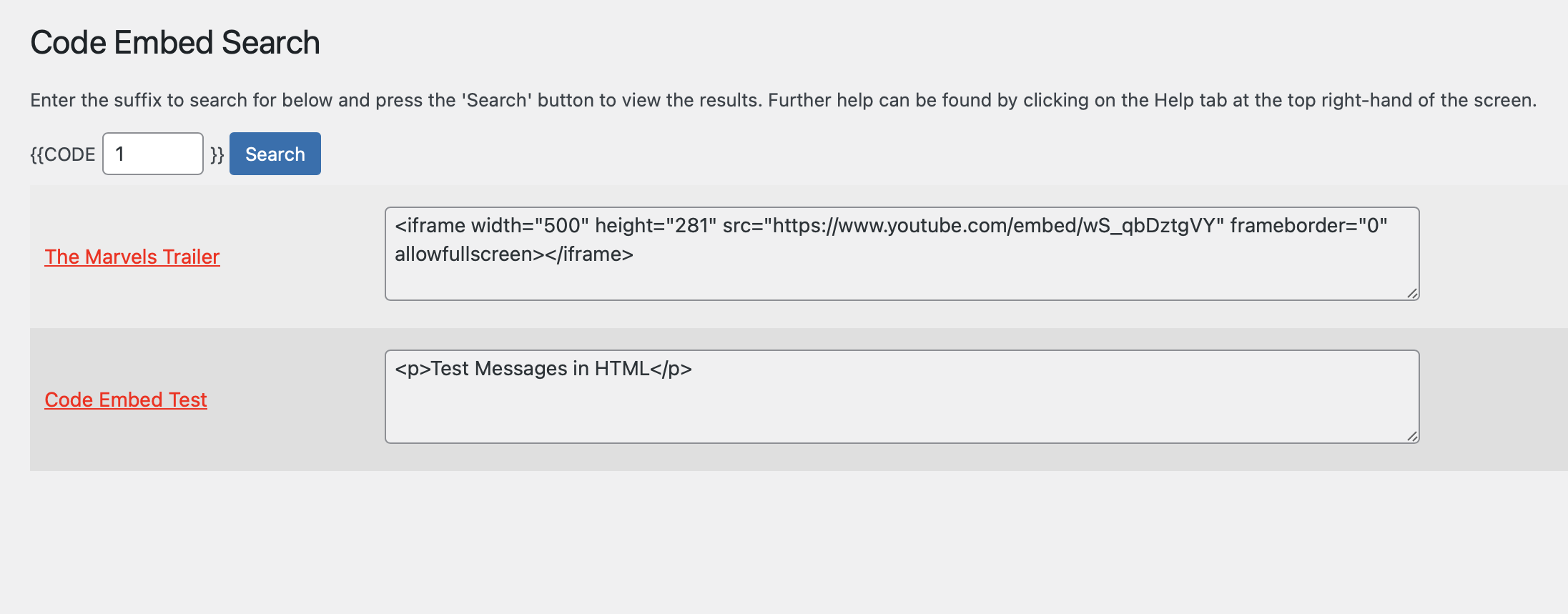
In the administration menu, there is a sidebar menu named “Tools”. Under this is a sub-menu named “Code Search”. Use this to search for specific embed names and it will list all the posts/pages that they’re used on, along with the code for each.
Embedding in Widgets
Natively, you cannot use the embed facilities within sidebar widgets. However, if you install the plugin Widget Logic, then Code Embed has been set up to make use of this and add the ability.
- Install Widget Logic and activate.
- In Administration, select the Widgets page from the Appearance menu. At the bottom there will be a set of Widget Logic options.
- Ensure ‘Use widget_content filter’ is ticked and press Save.
Although you cannot set up embed code within a widget, you can make reference to it, for example by writing {{CODE1}} in the widget.
Responsive Output Conversion
Responsive output is where an element on a web page dynamically resizes depending upon the current available size. Most video embeds, for instance, will be a fixed size. This is fine if your website is also of a fixed size; however, if you have a responsive site then this is not suitable.
Code Embed provides a simple suffix that can be added to an embed code and will convert the output to being responsive. This works best with videos.
To use, when adding the embed code onto the page, simply add _RES to the end, before the final identifier. For example, {{CODE1_RES}}. The _RES should not be added to the custom fields definition.
This will now output the embedded code at full width, dynamically resizing as required.
If you don’t wish the output to be full width, you can specify a maximum width by adding an additional _x on the end, where x is the required width in pixels. For example, {{CODE1_RES_500}} will output CODE1 as responsive but with a maximum width of 500 pixels.
It should be noted that this is an experimental addition and will not work in all circumstances.
Embedding in excerpts
By default, embed code will not appear in excerpts. However, you can switch this ability on via the Code Embed options screen. If you do this, then the standard rules of excerpts will still apply but only once the code embed has been applied. For example, excerpts are just text, a specific length, etc.
Filtering of code
By default, WordPress allows unfiltered HTML to be used by users in post custom fields, even if their role is set up otherwise. This opens up the possibility of leaving a site vulnerable, if any plugins that use this data don’t check it appropriately.
“Out of the box,” neither the contributor nor author roles have unfiltered HTML capabilities but can access custom post fields.
As this plugin requires the use of unfiltered HTML, we need to ensure that only authorized users can use it. From version 2.5, any users without this permission that update a post containing embeds from this plugin will cause the code to be filtered.
Plugin Behaviour Changes
Security hardening has meant that some changes to behaviour have had to change after specific releases. Here I’ll document any known changes…
-
Version 2.6.4 – A global
<script>embed will now have scripts stripped on any post authored by a user withoutunfiltered_html. Safe-HTML global embeds (iframes, video, etc.) are unaffected. Previously scripts rendered everywhere. -
Version 2.6.4 – Global embeds stored on a draft/private post stop resolving on the front end. If you (or your users) deliberately keep a “global embed library” as an unpublished post, that pattern breaks – they’d need to publish it
-
Version 2.6.3 – Global embeds are now case-sensitive (which it always should have been). If any existing live content relies on accidental case-insensitive matching (e.g. {{CODE1}} pulling a code1 field), it will stop resolving
Reviews & Mentions
“Works like a dream. Fantastic!” – Anita.
“Thank you for this plugin. I tried numerous other iframe plugins and none of them would work for me! This plugin worked like a charm the FIRST time.” – KerryAnn May.
Embedding content – WSD Blogging Server.
Animating images with PhotoPeach – Cómo hago.
Code Embed can be found and installed via the Plugin menu within WordPress administration (Plugins -> Add New). Alternatively, it can be downloaded from WordPress.org and installed manually…
- Upload the entire
simple-embed-codefolder to yourwp-content/plugins/directory. - Activate the plugin through the ‘Plugins’ menu in WordPress administration.
Voila! It’s ready to go.

If your code contains the characters ]]>, then you’ll find that it doesn’t – WordPress modifies this itself.
Also, check to see if the post has been modified by a user without unfiltered_html permissions – if it was, they may have caused the code to have been modified (see the “Filtering of code” section above).
Otherwise, it’s likely to be your code and not this plugin. The best way to confirm this is to look at the source of the page and compare the code output with what you embedded. Does it match? If it does, then your code is at fault.
WordPress stores the custom field contents in a MySQL table using the longtext format. This can hold over 4 billion characters.
Yes, you can. If you wish to share one set of embed code across multiple posts, though, then you need to give it a unique name (see “How to Use Global Embedding”, above).
It is, in that it doesn’t save any data that could be at odds with GDPR compliance (i.e. it’s compliant by design). However, if you use this to embed third-party scripts, then those scripts may not be and you will need to speak to the providers for further details.
No. It was developed for WordPress, and so forks remain unsupported. I have no intention of developing and testing this on any other version.
Please report security bugs found in the source code of the Code Embed plugin through the Patchstack Vulnerability Disclosure Program. The Patchstack team will assist you with verification, CVE assignment, and notify the developers of this plugin.
Changelog
I use semantic versioning, with the first release being 1.0.
2.6.4
- Security: As you’ll have seen from recent releases, there’s been a long stream of reported vulnerabilities. We can probably blame/thank AI for this. So, as a pre-emptive strike against more occurrences, I’ve done a thorough security scan and update. It’s not finished because, as I was working through things, another vulnerability was reported, which is included in this change…
- Security: Fixed a reported security vulnerability. Fixing this has meant 2 changes in how the plugin works, which are noted at the top of this README
2.6.3
- Security: Fixed a stored XSS vulnerability that was reported by pphreak-1001
2.6.2
- Security: Fixed a vulnerability, reported by an automated security review from WordPress.org
2.6.1
- Security: Fixed CVE-2026-48093, as reported by manop55555, as the code was vulnerable to stored Cross-Site Scripting (XSS) through the external URL embed feature in post content.
2.6
- Enhancement: A massive review of the code means that it now conforms to WCAG 2.1 AA standards, and is more secure and performant than ever before.
- This is not the end to improvements, however, and expect 2.7 to drop soon with even more quality-of-life enhancements, as well as all the bugs squashed that have been reported to me.
2.5.2
- Security: Fixed CVE-2026-2512, as reported by Muhammad Yudha via WordFence.
2.5.1
- Security: Changed
wp_remote_gettowp_safe_remote_getto improve security.
2.5
- Enhancement: This release is a revised version of 2.4, with less impact on other plugins and users. See the README for more details, but this undoes the changes in 2.4 and adds in filtering of code embed fields for users without the correct permissions.
- Bug: Fixed a long-standing bug that could cause an infinite loop to occur in rare situations.
2.4
- Security: A vulnerability was reported to me but is actually an issue with Core. I’ve implemented a fix that protects not just this plugin but any others you may have installed. Please read the section in the README titled “Custom Field Security” for more details.
- Enhancement: Tweaked a few bits of code here. No visible changes, just quality improvements.
2.3.9
- Enhancement: So, let me tell you a story. To make the output look neat, I was adding carriage returns to the embeds. Except, if you want to embed something partway through a line it can look… well… wrong. And all for it looking clean. Remember, kids, cleanliness isn’t always next to Godliness. Needless to say, those rogue carriage returns are gone.
- Enhancement: While I was at it, I updated some of the settings code to a brand-spanking new version, which I’m sharing across all my plugins.
- Enhancement: Tidied up some of the assets, including adding a blueprint for WordPress Playground.
2.3.8
- Bug: You know that vulnerability I fixed in 2.3.7? It fixed that but broke something else. That should now be resolved. Apologies for that.
2.3.7
- Bug: Fixed a bug that created a potential vulnerability.
- Enhancement: Improved code quality, using the latest version of PHPCS and WordPress sniffs.
2.3.6
- Bug: Fixed a variable that was incorrectly assigned. It happens. I guess.
2.3.5
- Enhancement: Cleared up a big batch of code quality issues. Now it ticks all the boxes for both the WordPress and VIP rulesets in PHPCS.
- Enhancement: A new, richer, header has been added to the plugin file.
- Enhancement: The plugin version number is now used as a revision for the script queueing – this means that it will be cached by the browser until the plugin release changes.
- Enhancement: Lots of changes made to the README – hopefully it should read more easily than before!
2.3.4
- Bug: Fixed a minor error that occurred due to the removal of the debug code in the last release. Sorry about that.
2.3.3
- Enhancement: I’ve removed the debug code. I allowed it to be switched off but I’ve never used it and it may not have switched off properly anyway. So it’s gone.
- Enhancement: Added some additional plugin meta.
2.3.2
- Bug: Fixed another pesky bug that was affecting embedded URLs. My code to do this was years old and I couldn’t understand why I’d written it the way I had. So I’ve rewritten it from scratch.
2.3.1
- Bug: Fixed a variable naming issue that I may, or may not (I did), have created in the latest release.
2.3
- Enhancement: All the code is now compliant with the full-fat VIP coding standards. It was no mean feat but, as a result, the plugin is more secure than ever before.
- Enhancement: The default is to now use double braces around your embed name, which is essentially the universal default for template tags such as this. If you’re an existing user, your current configuration won’t change, though – this only affects new users.
- Enhancement: Improved translation output, including where I’d accidentally added an extra character to the text domain.
- Enhancement: Using the
checkedfunction on fields, rather than the form parameter. - Enhancement: Added a useful links sidebar to the Help for both screens.
- Maintenance: Throughout, use Yoda conditions I now do.
- Maintenance: Added links to the sparkly new Github repo.
- Bug: When updating the options you sometimes didn’t get a confirmation message. You do now!
- Bug: Fixed a weird one where I was referencing a variable that I was never using.
2.2.2
- Maintenance: Updated README to work better with new plugin directory format. Also, now converting all text to US English, which is the WordPress standard. Snazzy.
- Maintenance: Updated all links to artiss.blog and removed donation links. Clickable.
- Maintenance: Minimum WordPress level is now 4.6 for this plugin, meaning I could remove various pieces of code. Strong and stable.
- Maintenance: Lots of language updates, many of which are a consequence of the move to WordPress 4.6 (including removal of language files and links, etc.). Verbose.
2.2.1
- Maintenance: Updated branding, including adding donation links.
2.2
- Enhancement: Added support for embedding code in excerpts.
- Enhancement: Validated, sanitized and escaped the admin screen data.
- Maintenance: Overhauled the way default options are fetched and/or generated. Now a lot more efficient.
- Maintenance: Updated the admin screens so they are formatted in a similar way to the default WordPress screens.
- Maintenance: Removed hardcoding of plugin folder.
- Maintenance: Updated author and removed donation links.
- Maintenance: Renamed files and file functions – removed prefix from files and updated it on functions.
- Maintenance: Added a domain path for translations.
2.1.2
- Maintenance: Added missing text domain, ready for automatic translation.
2.1.1
- Maintenance: Updated help text.
- Maintenance: Modified admin screen headings so they’re compatible with WP4.3.
- Enhancement: Added options to suppress debug output.
- Enhancement: Added donation link to plugin meta. Go on, you know you want to!
2.1
- Maintenance: Updated plugin branding.
- Maintenance: Removed feature pointer – no longer required.
- Enhancement: Removed support screen and moved remaining admin screens.
- Bug: Fixed issues with translations.
2.0.2
- Enhancement: Fixed a minor XSS vulnerability (kindly reported by Mozilla).
- Enhancement: Shows README appropriate to the current installed version, instead of the latest.
2.0.1
- Enhancement: Removed restriction on embed code length.
2.0
- Maintenance: Removed dashboard widget.
- Maintenance: Further code tidying.
- Maintenance: Added new code for contextual help to use new WP 3.3 elements.
- Enhancement: New admin menu option, under which existing option screens now exist along with a support screen. If you have the README Parser plugin installed, then it will also add a sub-menu displaying README instructions.
- Enhancement: Added internationalization to code.
- Enhancement: Will now work with widgets if you install the plugin Widget Logic.
- Enhancement: Added experimental ability to convert to responsive output.
- Enhancement: Added option to specify a URL instead of an embed code.
- Enhancement: Added feature pointer for when plugin is activated.
1.6.1
- Bug: Fixed bug where name of plugin folder was incorrect.
1.6
- Maintenance: Improved code further from 1.5, including separating code into separate includes.
- Enhancement: Added global embeds option.
- Enhancement: New tools option in the administration menu that allows you to search for code embeds.
1.5.1
- Enhancement: Added form security.
1.5
- Maintenance: Renamed plugin to bring in line with new plugin conventions.
- Maintenance: Plugin rewrite to create more efficient code – can now also completely personalize the embed code used in the post.
- Maintenance: PHPDoc used throughout for documentation purposes, plus new coding standards.
- Maintenance: Instructions completely rewritten.
- Enhancement: Support information improved, including contextual help on the settings screen (if supported).
1.4.1
- Bug: Version details as HTML comments were being output whether an embed existed or not – corrected.
1.4
- Enhancement: Option screen that allows you to specify the maximum number of possible embeds per post and the embed word.
1.3
- Enhancement: Increased limit of number of code embeds from 5 to 20.
1.2
- Maintenance: Simplification of code.
1.1
- Maintenance: The instructions have been corrected. Thanks to John J. Camilleri for pointing it out!
- Maintenance: Plugin has been tested with version 2.8 of WordPress. No code changes have been made.
1.0
- Initial release.
Available Versions
| Version | Download | Type |
|---|---|---|
| 2.6.4 | Download | Stable |
| 2.6.3 | Download | Stable |
| 2.6.2 | Download | Stable |
| 2.6.1 | Download | Stable |
| 2.6 | Download | Stable |
| 2.5.2 | Download | Stable |
| 2.5.1 | Download | Stable |
| 2.4 | Download | Stable |
| 2.3.9 | Download | Stable |
| 2.2.2 | Download | Stable |
| 2.1.2 | Download | Stable |
| 2.0.2 | Download | Stable |
| 1.6.1 | Download | Stable |
| 1.5.1 | Download | Stable |
| 1.4.1 | Download | Stable |
| 1.3 | Download | Stable |
| 1.2 | Download | Stable |
| 1.1 | Download | Stable |
| 1.0 | Download | Stable |
| Development | Download | Trunk |
