
Show Support Ribbon
Active Installs
300+
Last Updated
April 21, 2026
First Released
November 14, 2012
Download History (Last one month)
Contributors
Show support for your favorite cause, event, charity, political event, or anything else that’s awesome. Show Support Ribbon includes four built-in ribbon styles and makes it easy to customize with your own CSS.
Features
- Plug-n-play functionality
- No configuration required
- Regularly updated and “future proof”
- Shortcode and template tag to display the ribbon anywhere
- Limit display of the ribbon to any URL(s)
- Choose one of four built-in ribbon styles
- Customize the ribbon with your own CSS
- Control the link text, link URL, and title text
- Includes copy/paste CSS recipes to customize the ribbon
- Includes option to restore default settings
- Super-slick toggling settings page
- Works with or without Gutenberg Block Editor
Ribbon Styles
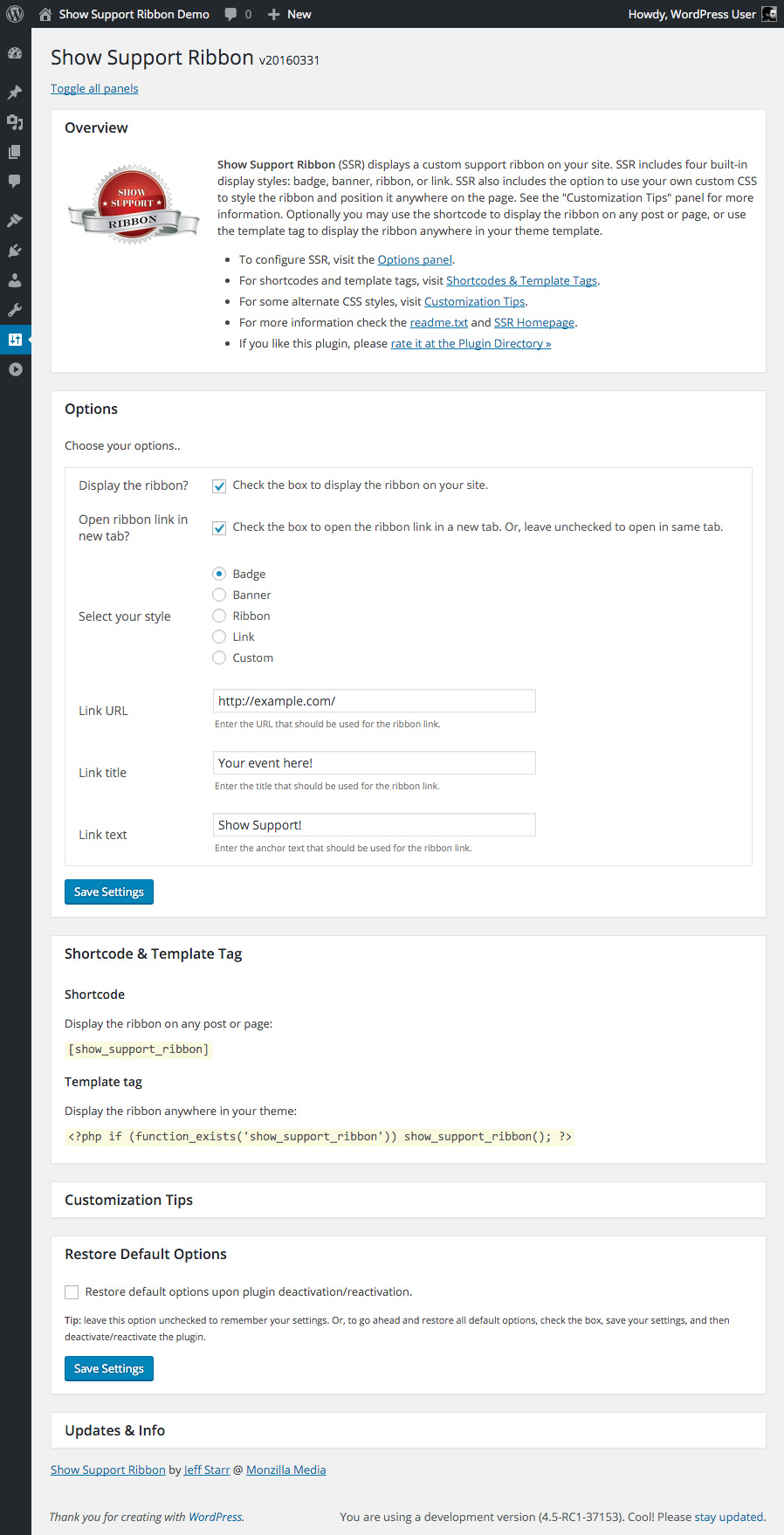
Choose one of the following ways to display your ribbon:
- Badge
- Banner
- Ribbon
- Link
- Custom (any text/HTML/CSS)
Much more is possible via the Custom option, which enables you to add your own CSS for custom styling.
Privacy
This plugin does not collect or store any user data. It does not set any cookies, and it does not connect to any third-party locations. Thus, this plugin does not affect user privacy in any way.
Show Support Ribbon is developed and maintained by Jeff Starr, 15-year WordPress developer and book author.
Support development
I develop and maintain this free plugin with love for the WordPress community. To show support, you can make a donation or purchase one of my books:
- The Tao of WordPress
- Digging into WordPress
- .htaccess made easy
- WordPress Themes In Depth
- Wizard’s SQL Recipes for WordPress
And/or purchase one of my premium WordPress plugins:
- BBQ Pro – Blazing fast WordPress firewall
- Blackhole Pro – Automatically block bad bots
- Banhammer Pro – Monitor traffic and ban the bad guys
- GA Google Analytics Pro – Connect WordPress to Google Analytics
- Head Meta Pro – Ultimate Meta Tags for WordPress
- REST Pro Tools – Awesome tools for managing the WP REST API
- Simple Ajax Chat Pro – Unlimited chat rooms
- USP Pro – Unlimited front-end forms
Links, tweets and likes also appreciated. Thank you! 🙂
Installation
- Upload the plugin to your blog and activate
- Visit the settings to configure your options
More info on installing WP plugins
Custom Markup
Note: For the “Custom” markup option, you can use the following shortcodes to display related information:
{{css_div}} = adds the CSS from the custom option, "CSS for <div>"
{{css_a}}   = adds the CSS from the custom option, "CSS for <a>"
{{url}}     = adds the URL from the option, "Link URL"
{{title}}   = adds the title from the option, "Link title"
{{text}}    = adds the text from the option, "Link text"
Restore Default Options
To restore default plugin options, either uninstall/reinstall the plugin, or visit the plugin settings > Restore Default Options.
Like the plugin?
If you like Show Support Ribbon, please take a moment to give a 5-star rating. It helps to keep development and support going strong. Thank you!
Uninstalling
This plugin cleans up after itself. All plugin settings will be removed from the WordPress database when the plugin is deleted via the WP Plugins screen.
Screenshot Gallery
Images may be displayed using CSS. Upload the desired file and then display it using CSS, like so:
background-image { url(/path/to/image.png) fixed no-repeat center top; }
Fine-tune as needed to dial it in. To add via plugin settings, select “Custom” for the “Select your style” option and include for either <div> or <a> styles.
That setting enables you to limit the display of the ribbon to any specified URLs. So if you enter some URLs (separated by a comma), the plugin will display the ribbon only on those pages. Otherwise if no URLs are entered and the option is empty/blank, then the ribbon will be displayed on all pages on the site.
First, you can customize any of the CSS/HTML for the “Custom” button option. For the other predefined options, you can override the default inline styles as follows:
To override the button’s outer <div> tag:
.show-support-ribbon[style] { font-size: 14px !important; }
To override the button’s inner <a> tag:
.show-support-ribbon a[style] { font-size: 14px !important; }
Then you can change the font-size to whatever properties are required.
Select “Custom” for the option “Select your style”. Then replace the “Markup” option with the following code:
<div id="show-support-ribbon" class="show-support-ribbon" style="{{css_div}}">{{text}}</div>
Actually you can customize the markup however you want. And as explained in the Installation section of these docs, you can use {{css_div}} and other shortcodes to display related information from the plugin options. Or you can just skip the shortcodes and add whatever text/markup is required.
This can be done with a CSS @media query. Here is an example that you can add via the plugin settings:
@media (max-width: 400px) {
    .show-support-ribbon[style] { right: 15px !important; top: 15px !important; }
}
That will apply to screens up to 400px wide, so you can adjust to whatever is needed. You can add whatever styles you want. In the example, we’re just moving the ribbon a little bit on the page. The !important declaration is needed only if overriding default styles.
By default, the message displayed in the ribbon/badge is linked. To change that to display the message only (with no link), follow these steps:
1) For the option, “Select your style” choose “Custom”
2) In the “Markup” setting that appears, replace whatever is there with this:
<div id="show-support-ribbon" class="show-support-ribbon" style="{{css_div}}">{{text}}</div>
3) Then in the “CSS for div” setting, replace whatever is there with this:
position:fixed;right:-60px;top:30px;z-index:9999;box-sizing:border-box;display:block;width:220px;padding:10px 0;color:#fff;background:rgba(102,153,204,.9);font-size:12px;line-height:16px;font-family:'Lucida Grande','Lucida Sans Unicode','Lucida Sans',Geneva,Verdana,sans-serif;text-align:center;text-decoration:none;border:1px solid rgba(255,255,255,.7);transform:rotate(40deg);box-shadow:1px 1px 3px 0 rgba(0,0,0,.3);
Save changes and done. You may want to customize the CSS and/or other settings as desired. Results in a non-linked ribbon.
To ask a question, suggest a feature, or provide feedback, contact me directly.
Changelog
If you like Show Support Ribbon, please take a moment to give a 5-star rating. It helps to keep development and support going strong. Thank you!
Version 20260421
- Fixes bug with plugin activation
Full changelog @ https://plugin-planet.com/wp/changelog/show-support-ribbon.txt
" width="120" height="120">
Available Versions
| Version | Download | Type |
|---|---|---|
| 0 | Download | Stable |
| 1 | Download | Stable |
| 2 | Download | Stable |
| 3 | Download | Stable |
| 4 | Download | Stable |
| 5 | Download | Stable |
| 6 | Download | Stable |
| 7 | Download | Stable |
| 8 | Download | Stable |
| 9 | Download | Stable |
| 10 | Download | Stable |
| 11 | Download | Stable |
| 12 | Download | Stable |
| 13 | Download | Stable |
| 14 | Download | Stable |
| 15 | Download | Stable |
| 16 | Download | Stable |
| 17 | Download | Stable |
| 18 | Download | Stable |
| 19 | Download | Stable |
| 20 | Download | Stable |
| 21 | Download | Stable |
| 22 | Download | Stable |
| 23 | Download | Stable |
| 24 | Download | Stable |
| 25 | Download | Stable |
| 26 | Download | Stable |
| 27 | Download | Stable |
| 28 | Download | Stable |
| 29 | Download | Stable |
| 30 | Download | Stable |
| 31 | Download | Stable |
| Development | Download | Trunk |
