
Settings Manager for Elementor
Active Installs
10+
Last Updated
February 28, 2026
First Released
January 31, 2026
Download History (Last one month)
Contributors
Settings Manager for Elementor provides granular control over Elementor settings export and import with more flexibility than native tools.
Why is granular important? It allows you to export or import only what you need, e.g., you may create several variants of breakpoints settings, which you can later reuse on the same site or some other site without overwriting other settings.
Features
- Site Settings – Export/import site settings (Site Settings from Elementor editor)
- Backend Settings – Export/import backend settings (Elementor > Editor > Settings from WP admin dashboard)
- Hello Theme Settings – Export frontend and backend Hello Elementor theme settings
- Selective Export/Import – Export/import only the categories you need
- 20+ Categories – Granular control over export/import for minimum errors and maximum flexibility
- Merge or Replace – Choose how Global Colors and Global Fonts are imported (keep or remove existing custom items)
- Media Separation – Export site name without logo, background style without image
- Clean JSON format – Version control friendly
- Multisite Network Import – Import to multiple sites at once (PRO)
- WP-CLI Automation – Command-line export/import for DevOps workflows (PRO)
- Automatic Backup – Creates a backup before every import for easy recovery
Available Categories
Design System
* Global Colors – Predefined and custom global colors
* Global Fonts – Predefined and custom global fonts
Theme Style
* Typography – Body, headings, links, paragraph spacing
* Buttons – Default button styling and hover states
* Images – Border, shadow, filters for images
* Form Fields – Label, field, and focus state styling
* Hello Theme Header/Footer Settings (when Hello Elementor is active)
Settings
* Site Identity (Text) – Site name and description
* Site Identity (Media) – Logo and favicon (separate from text)
* Background (Style) – Color, gradient, and settings
* Background (Image) – Background image (separate from style)
* Layout – Container width, padding, widget spacing
* Breakpoints – Responsive breakpoint values
* Lightbox – Colors and behavior
* Page Transitions – Page transition animations (requires Elementor Pro) (PRO)
* Preloader Settings – Animation and style (requires Elementor Pro) (PRO)
* Preloader Media – Icon and image (requires Elementor Pro) (PRO)
* Custom CSS – Global custom CSS code (requires Elementor Pro) (PRO)
Backend Settings
* General – Post types, colors, fonts, tracking
* Integrations – API keys (Google Maps, reCAPTCHA, etc.)
* Advanced – Editor settings, file uploads, Google Fonts
* Performance – CSS print method, lazy loading
* Features – Elementor experiments and stable features
* Hello Theme Settings (when Hello Elementor is active)
Extra PRO Features
Multisite Network Import:
* Import settings to multiple network sites simultaneously
* Real-time progress tracking with site-by-site status
* Cancel import anytime
* Sites without Elementor are automatically skipped
WP-CLI Commands:
wp semfe export <file> [--categories=<categories>]
Export settings to JSON file.
wp semfe import <file|url> [--categories=<categories>] [--strategy=merge|replace] [--sites=<sites>]
Import settings from file or URL. Use –sites for multisite network import.
wp semfe list-categories [--format=table|json]
List available categories.
Use Cases
- Development to Production – Export from staging, import to live site with selected categories
- Client Projects – Create reusable brand guideline templates
- Multisite Networks – Sync design system across network sites (PRO)
- Backup & Recovery – Create versioned backups of your settings
- Team Collaboration – Share settings files between team members
⚠️ Important:
This plugin manages Elementor settings only.
It does not export content, templates, themes, plugins, or custom files.
Requirements
- WordPress 6.0+
- Elementor 3.23.0+
- PHP 7.4+
- Upload the plugin files to
/wp-content/plugins/settings-manager-for-elementor/or install through the WordPress plugins screen. - Activate the plugin through the ‘Plugins’ screen in WordPress.
- Navigate to Settings Manager for Elementor to access the interface.
- Or, access from Elementor editor’s hamburger menu > Settings Manager.
Quick Start: Export
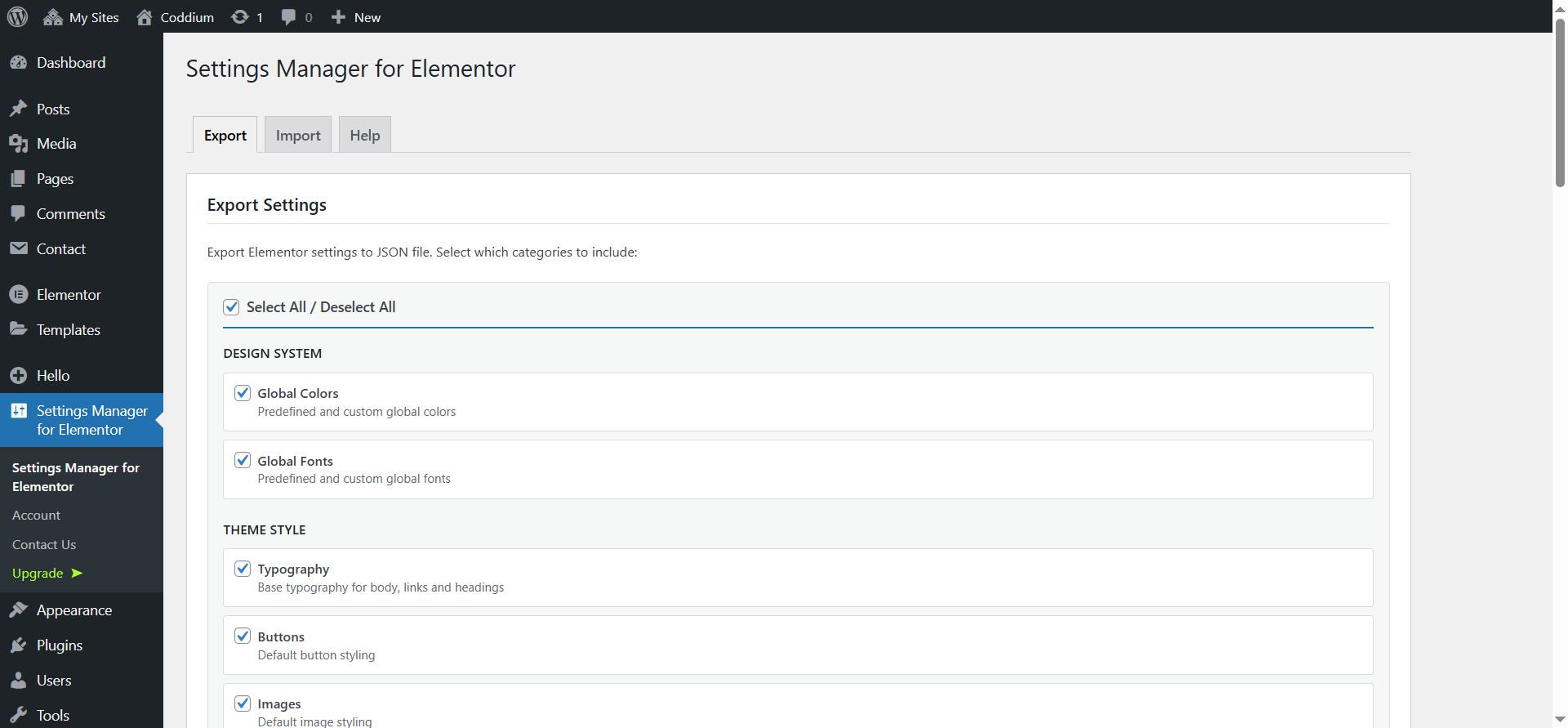
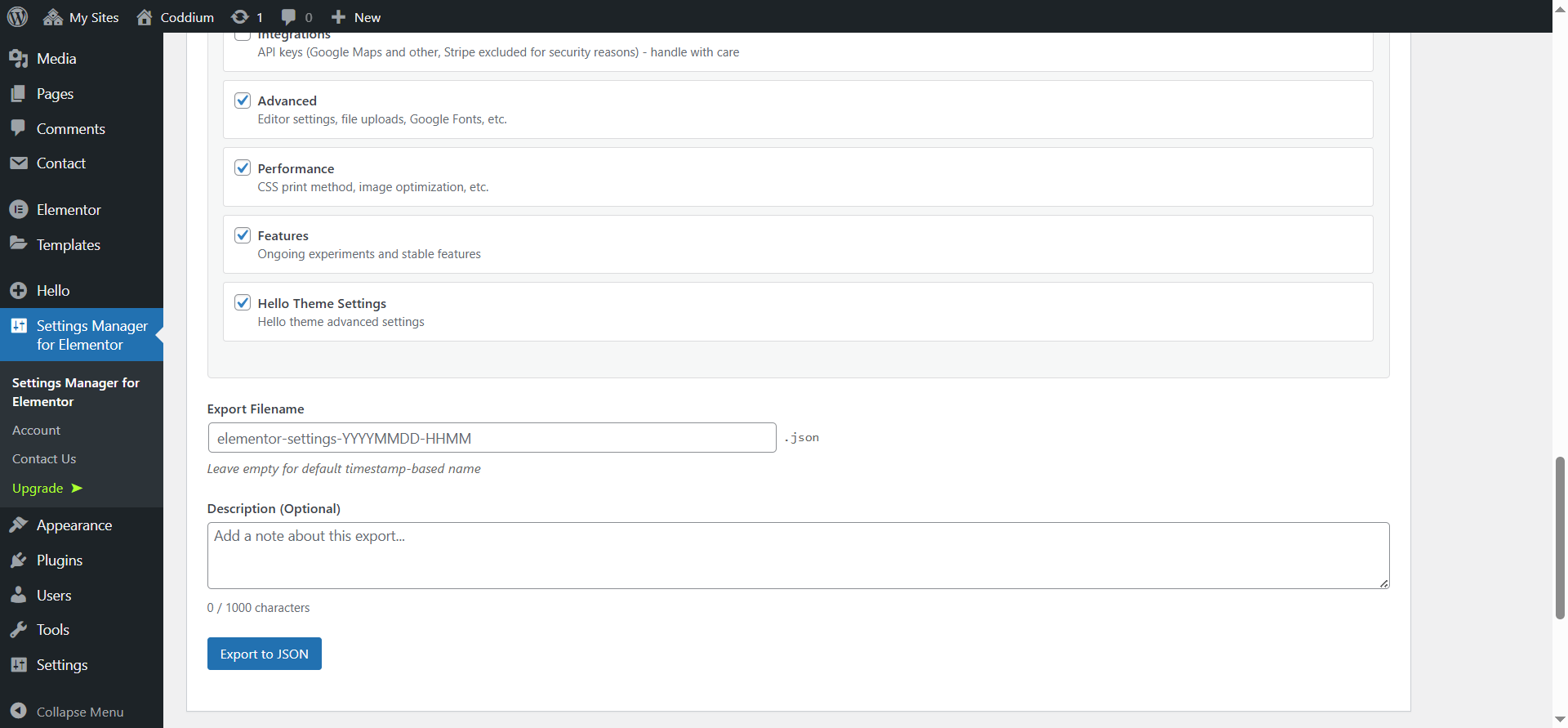
- Go to Settings Manager for Elementor > Export tab
- Select the categories you want to export
- Click “Export to JSON”
- Save the generated JSON file
Quick Start: Import
- Make sure you have a site backup
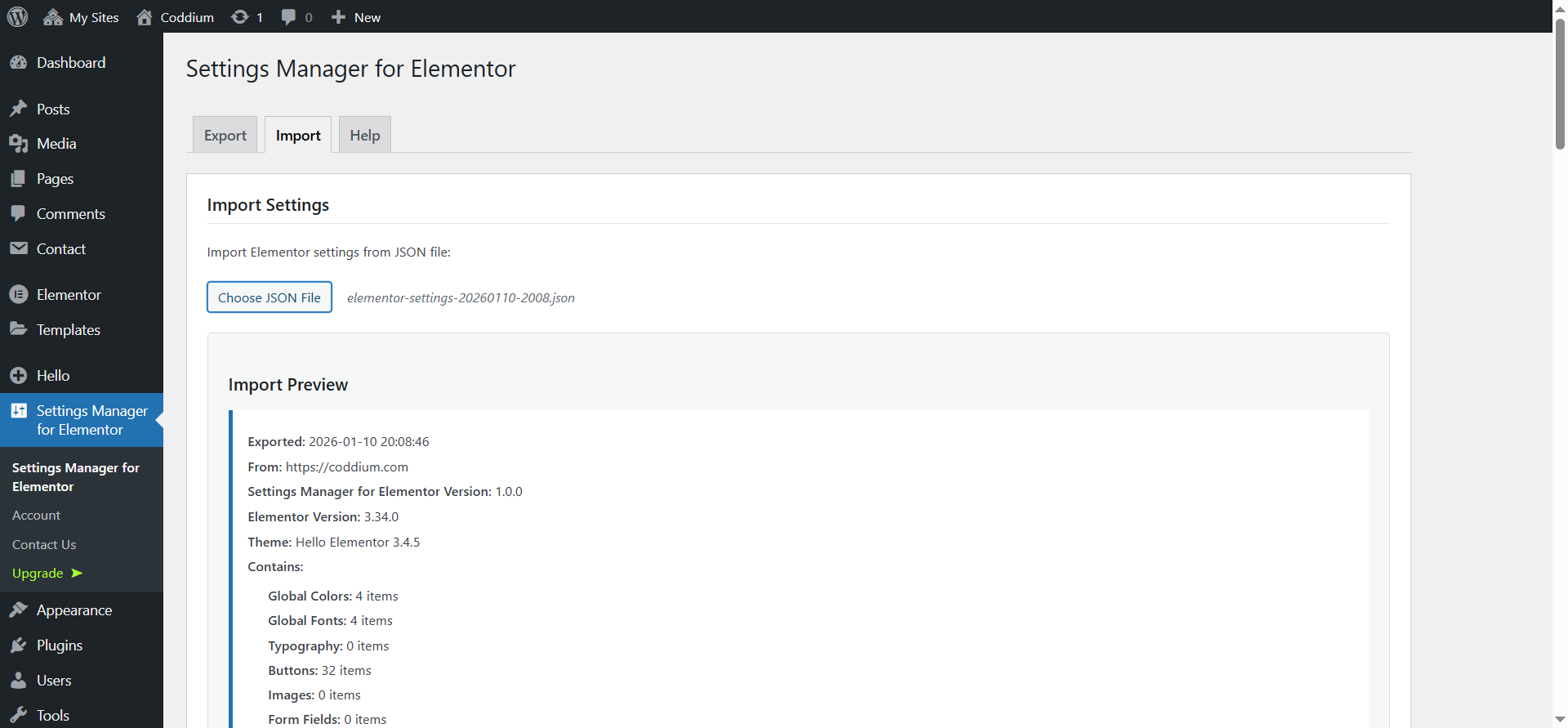
- Go to Settings Manager for Elementor > Import tab
- Click “Choose JSON File” and select your export file
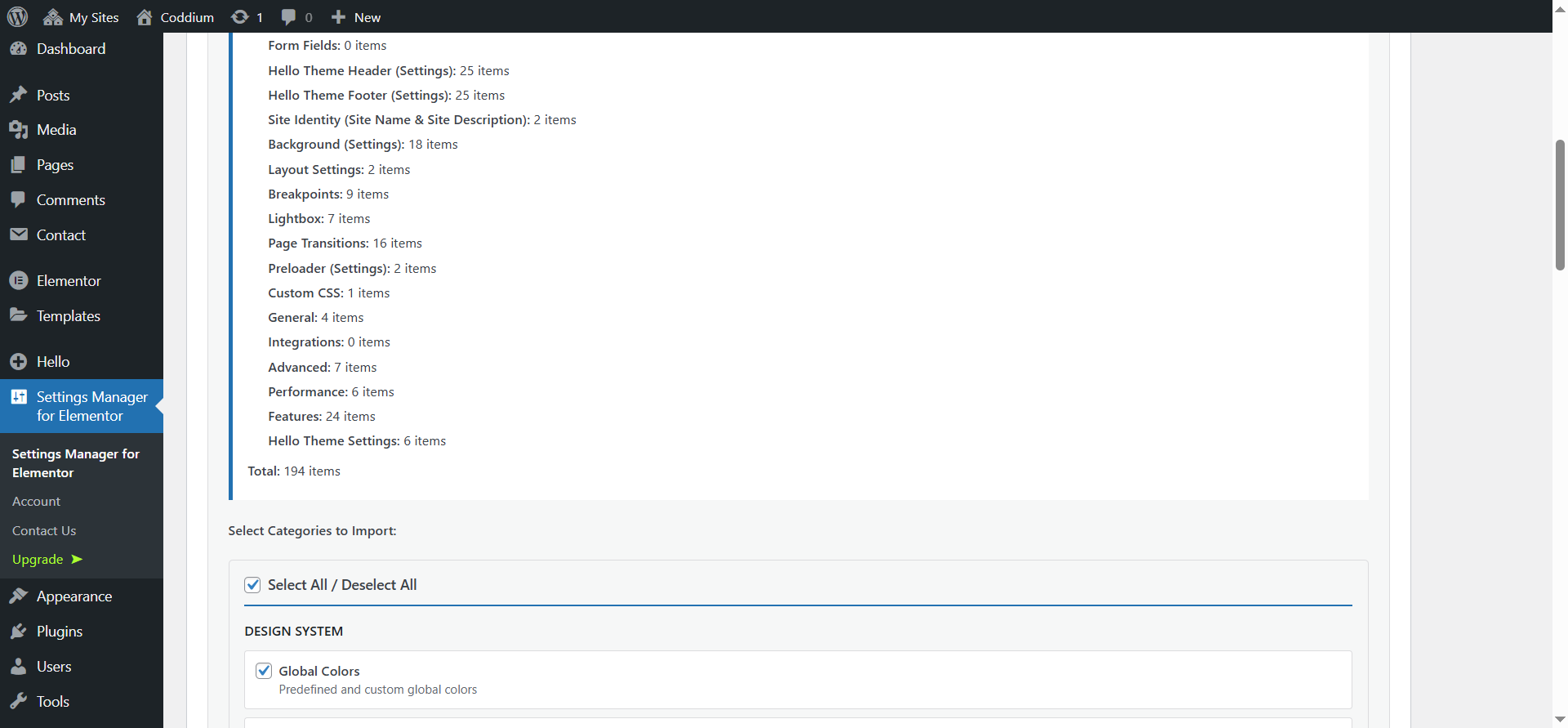
- Review the preview showing what will be imported
- Select which categories to import
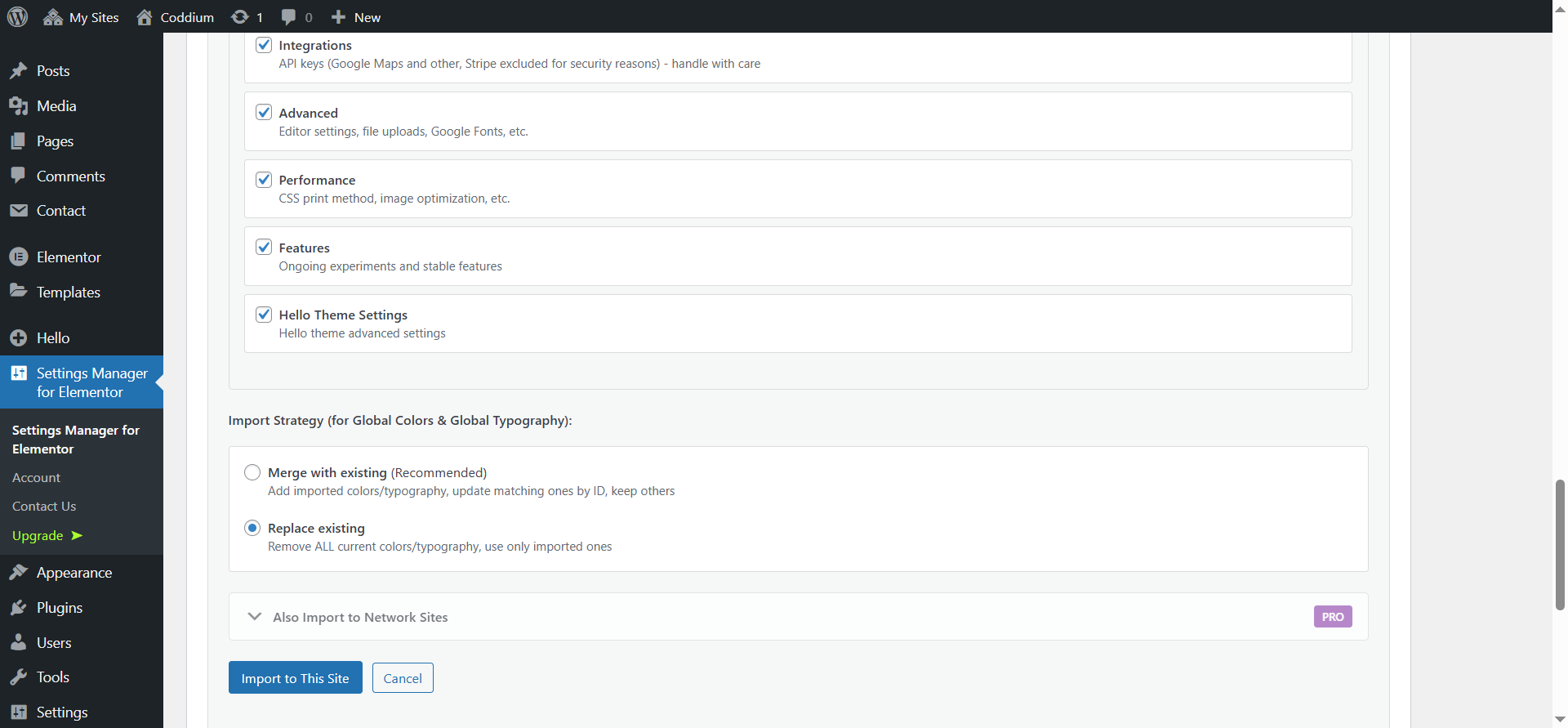
- Choose import strategy (Merge or Replace) for colors and typography
- Select additional sites from multisite network (optional) (PRO)
- Click the import button
No. Settings Manager for Elementor works with the free version of Elementor. However, some categories (Page Transitions, Preloader, Custom CSS) require Elementor Pro because those features only exist in Elementor Pro.
The strategy applies to Global Colors and Global Fonts only:
Merge (recommended):
* Matches items by their unique ID
* Updates existing items with imported values
* Adds new items from import
* Preserves existing custom items not in the import file
Replace:
* Completely replaces all colors or typography
* Existing custom items are removed
* Use when you want exact replication
These categories are unchecked by default because they typically need manual setup per site:
- Site Identity Media (logo, favicon)
- Background Image
- Preloader Media (PRO)
- Hello Theme Header/Footer Background Images
The Integrations category can contain API keys, so it is also not selected by default. Important notes:
- Never share export files containing API keys publicly
- Stripe keys are intentionally excluded for security
Generally yes. The plugin exports version information for reference, but settings are imported based on category structure. Minor version differences usually work fine. For major version jumps, test on a staging site first.
Click the hamburger menu (three lines) in the top-left corner of the Elementor editor, then click “Settings Manager”. This opens the admin page in a new tab.
The free version works on multisite installations for single-site export/import. Batch importing to multiple network sites simultaneously requires the PRO version.
Settings Manager PRO includes three WP-CLI commands:
Export:
wp semfe export /path/to/settings.json
wp semfe export /path/to/settings.json –categories=global_colors,global_typography
Import:
wp semfe import /path/to/settings.json
wp semfe import /path/to/settings.json –strategy=replace
wp semfe import https://example.com/settings.json
Multisite import:
wp semfe import /path/to/settings.json –sites=2,3,4
wp semfe import /path/to/settings.json –sites=all
List categories:
wp semfe list-categories
wp semfe list-categories –format=json
- Upload your JSON file on the main site
- Expand “Also Import to Network Sites” accordion
- Select which network sites should receive the settings
- Click “Import to This Site + X Network Sites”
- Watch real-time progress as each site is updated
Sites without Elementor active are automatically skipped.
Yes! Settings Manager automatically creates a backup of all your current settings before every import operation. Backups are stored in wp-content/uploads/[sites/{id}/]semfe/auto-backup/ and kept for 30 days. The backup files use the same JSON format as exports, so you can restore them using the normal import process.
This happens automatically – no action required. If something goes wrong during import, simply import the backup file to restore your previous settings. Still, we recommend that you also have a full site backup.
Changelog
1.0.3
- Added affiliation option
1.0.2
- Elementor 3.35.3 support
1.0.1
- Elementor 3.35.0 support
1.0.0
- Initial release
" width="120" height="120">
