
Section Blocks – Landing Page Sections for the Block Editor
Active Installs
10+
Last Updated
October 16, 2026
First Released
April 10, 2019
Download History (Last one month)
Contributors
Build beautiful landing pages in the WordPress block editor — no page builder needed. Pick a section, change the text, publish. Every block follows your theme’s colors and fonts and looks great on desktop and mobile.
Why Section Blocks
- 25 blocks: 13 complete page sections + 12 design elements
- 100% free: no locked features, no account, no upsell nags in the editor
- Works with any theme and follows its colors, fonts and spacing
- Responsive and accessible: keyboard friendly, reduced-motion aware
- Lightweight: each block only loads its own CSS and JS on pages that use it
- Per-block Responsive Visibility (hide on desktop, tablet or mobile) and Custom CSS
- Built-in FAQ schema for search engines
Sections
Hero Section — Eye-catching hero with background image, overlay, heading, subtitle and call-to-action button.
Features Section — Showcase features in a 3–6 column responsive grid with icons and an optional side image.
Services Section — Service cards with icons or images, 2–4 columns, hover effects and buttons.
Steps Timeline — Multi-step processes in vertical, horizontal or zigzag layouts with connectors and scroll animations.
Video CTA Section — Video call to action for YouTube, Vimeo or self-hosted video.
Testimonials Section — Customer quotes with star ratings and photos, as a grid or carousel.
Pricing Tables — Plan comparison with feature lists, monthly/yearly toggle and a highlighted plan.
Team Members — Team grids in Card, Overlay, Minimal or Professional styles with social links.
FAQ / Accordion — Accessible accordion with search, categories and FAQ schema.
Gallery Portfolio — Masonry or grid galleries with filterable categories and a lightbox.
Newsletter Signup — Email capture with Mailchimp, a custom API or WordPress storage, privacy consent and spam protection.
Call to Action — Conversion sections with solid, gradient or image backgrounds and two buttons.
Advanced Container — A layout container for any blocks: boxed, wide or full width, with color, gradient or image backgrounds.
Elements
Advanced Heading — Heading with eyebrow text, subheading, decorative separator and optional gradient text.
Icon Box — Icon, title and text in several styles; the whole box can be a link.
Button Group — Several buttons side by side with styles, icons, alignment and stacking on mobile.
Icon List — Checklists and feature lists with custom icons, columns and dividers.
Image Box — Image with title and text as a card, overlay or side-by-side layout.
Star Rating — Accessible star ratings with half stars and an optional label.
Logo Cloud — Partner and client logos in a grid or an infinite scrolling marquee with a Pause button (static for visitors who prefer reduced motion).
Callout — Info, success, warning, tip and danger notices with icons.
Social Share — Share links for X, Facebook, LinkedIn, WhatsApp, Reddit and email. No tracking, no external scripts.
Author Box — Author bio from the post author or custom details, with avatar and links.
Promo Banner — Image banner with badge, heading, text and button for offers and announcements.
Shape Divider — Wave, curve, tilt, zigzag and other SVG dividers between sections.
- Upload the plugin files to
/wp-content/plugins/section-blocks, or install directly through the WordPress plugins screen. - Activate the plugin through the ‘Plugins’ screen in WordPress.
- In the block editor, open the inserter and find the blocks under “Section Blocks” and “Section Blocks – Elements”.
- For newsletter features, configure settings under Settings > Newsletter Settings.
Screenshot Gallery
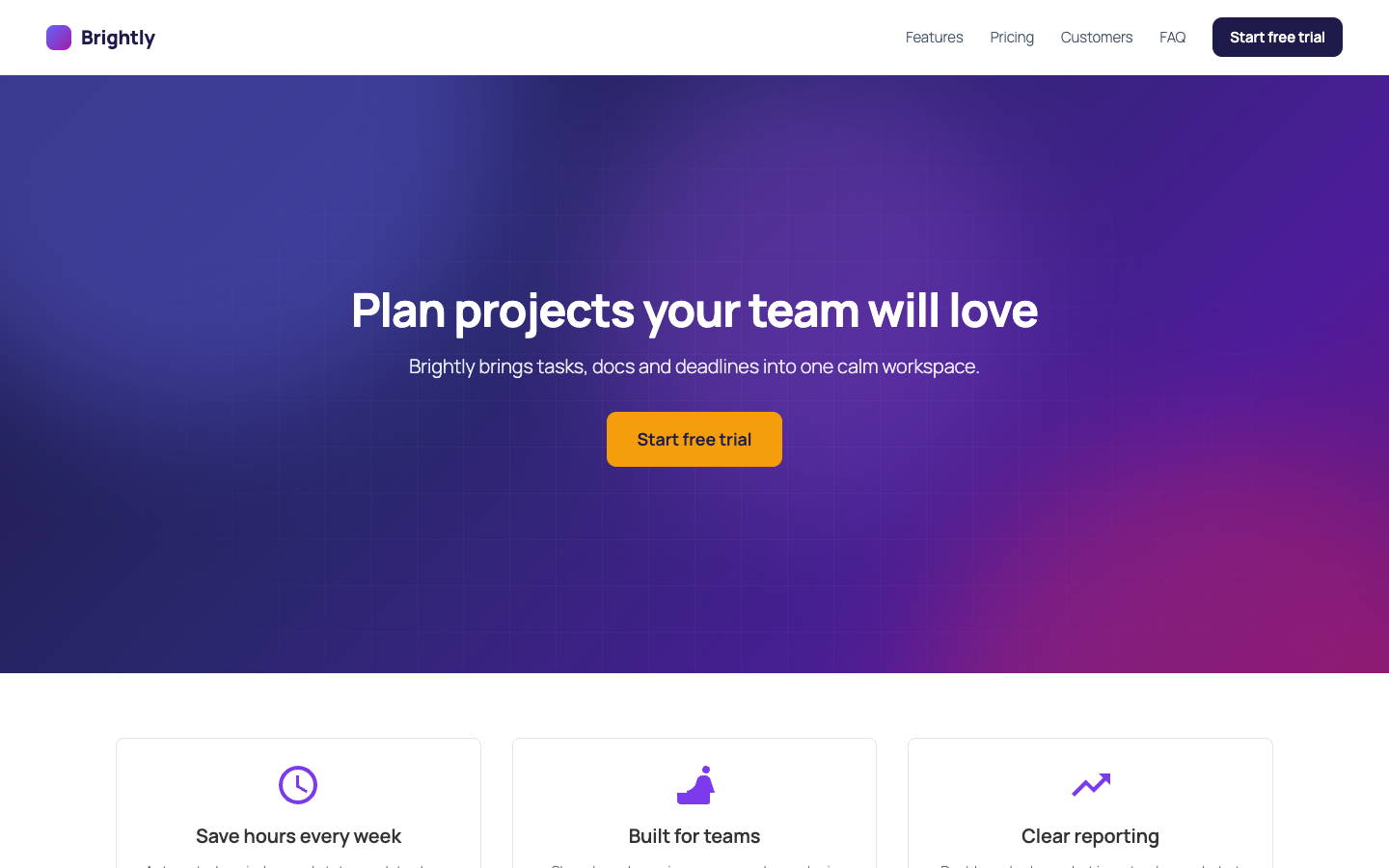
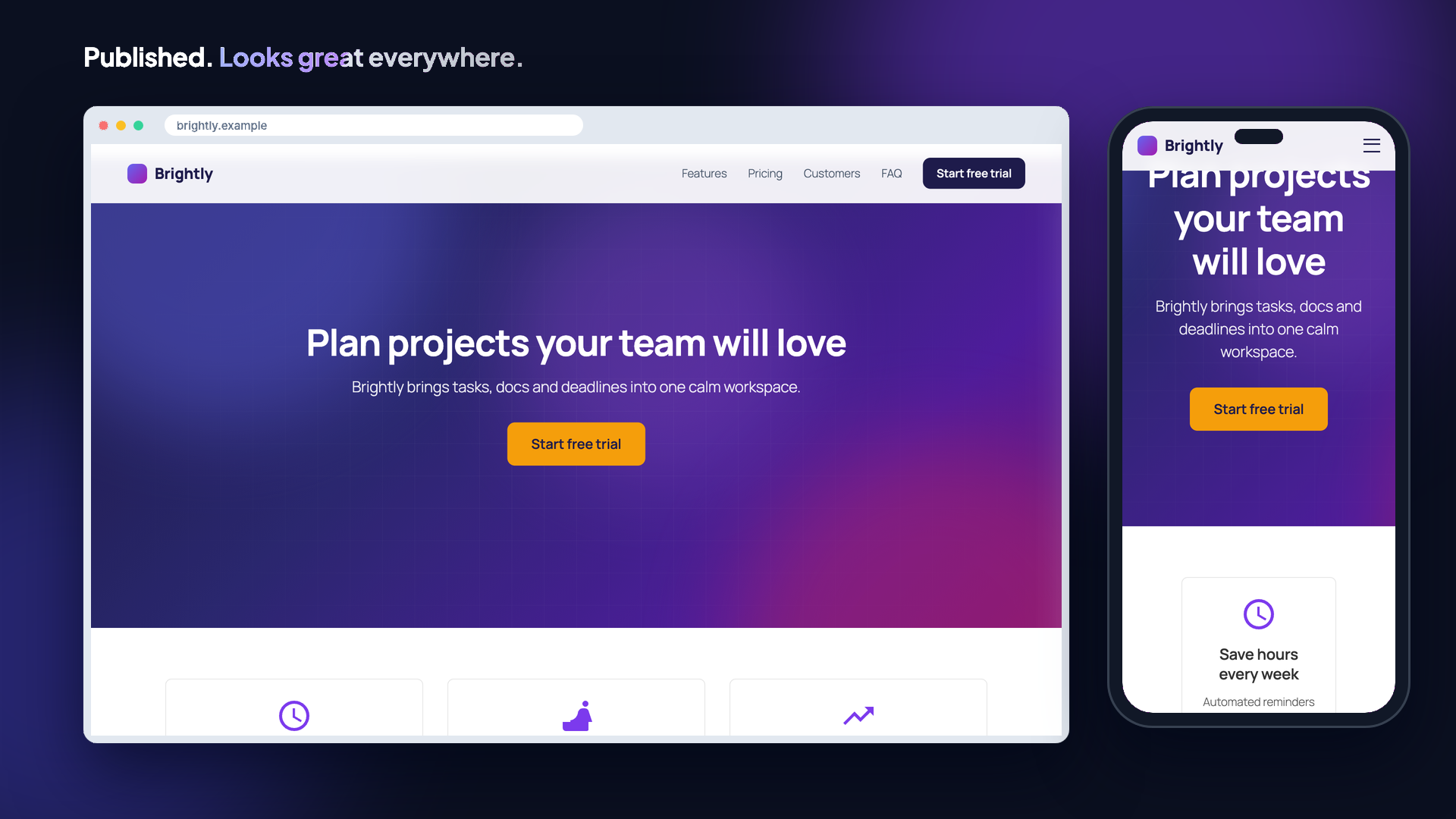
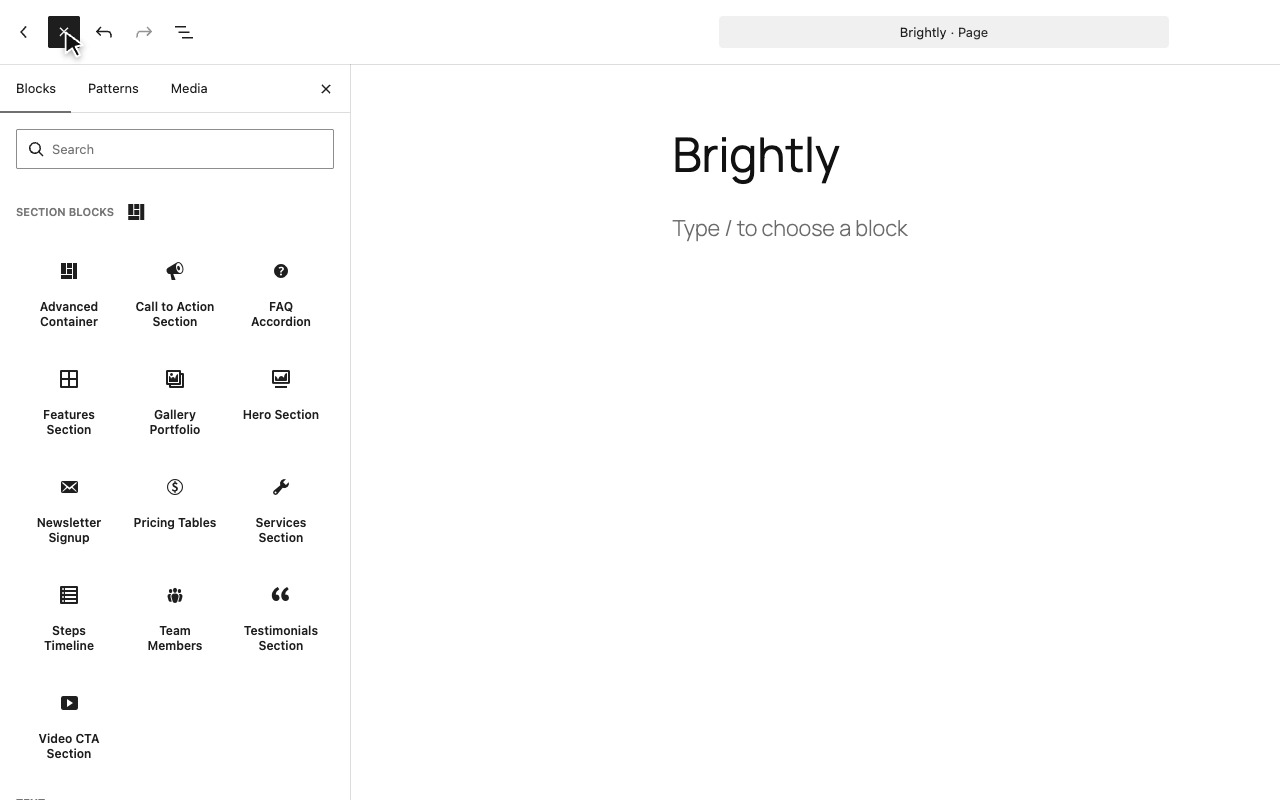
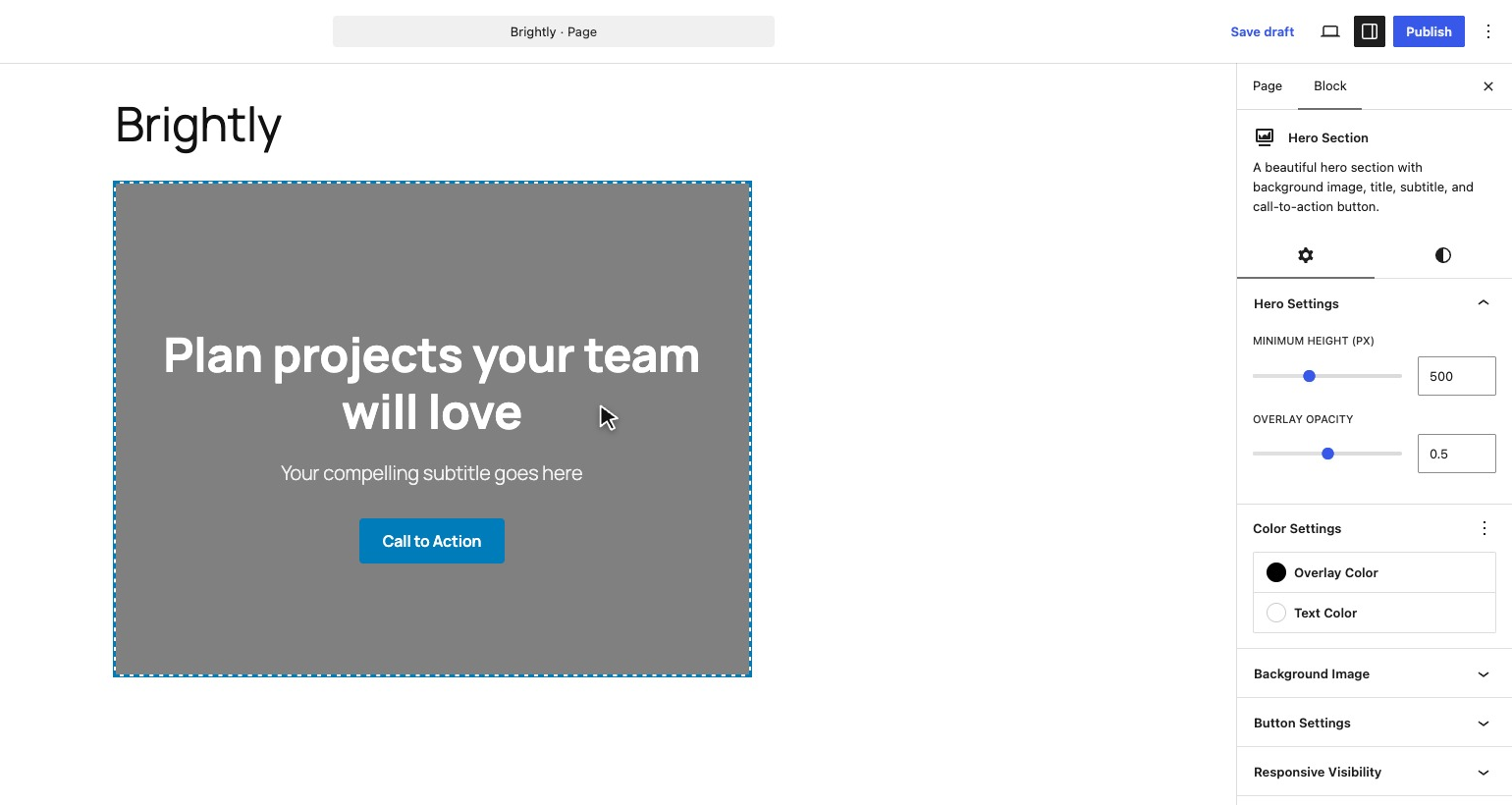
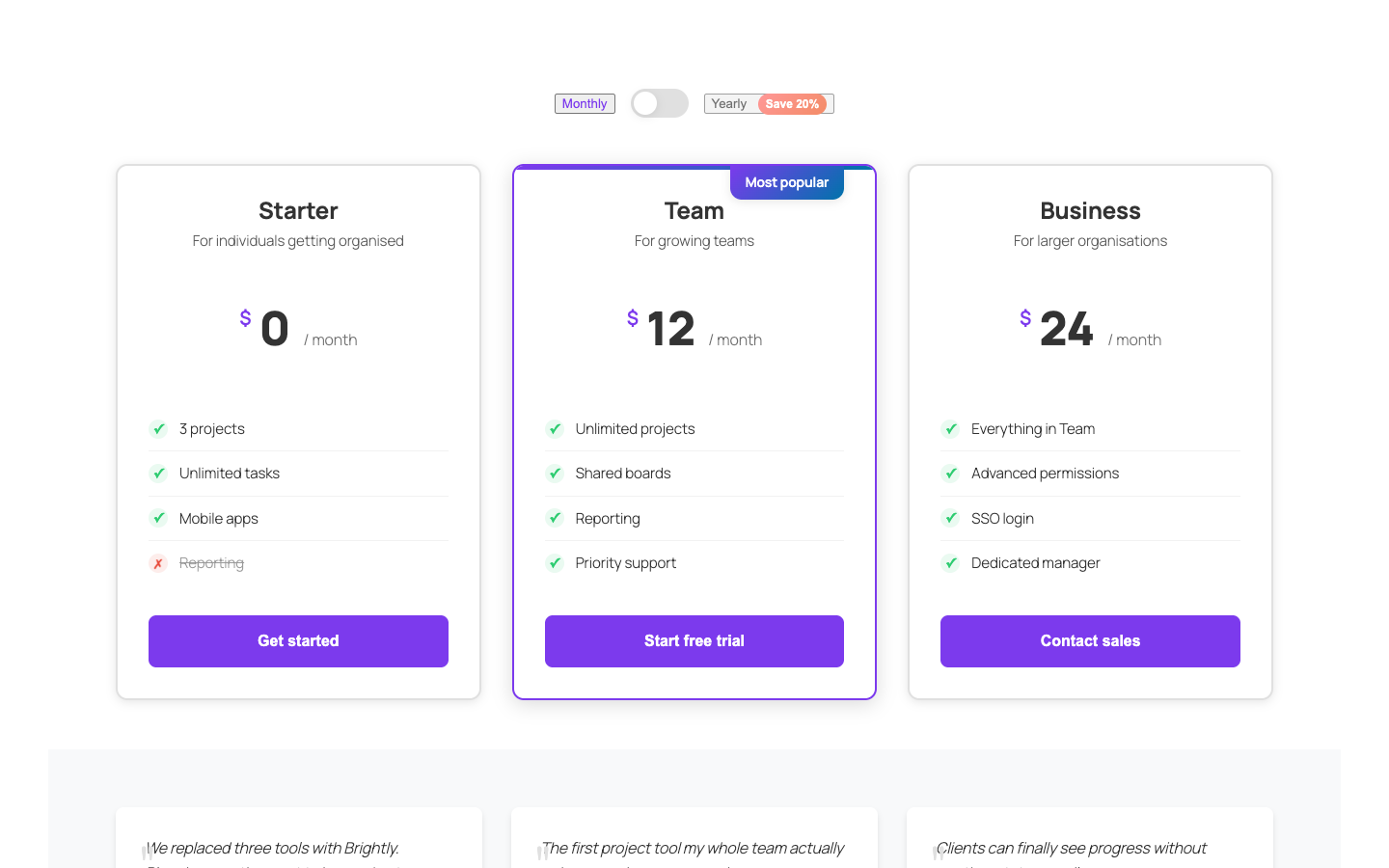
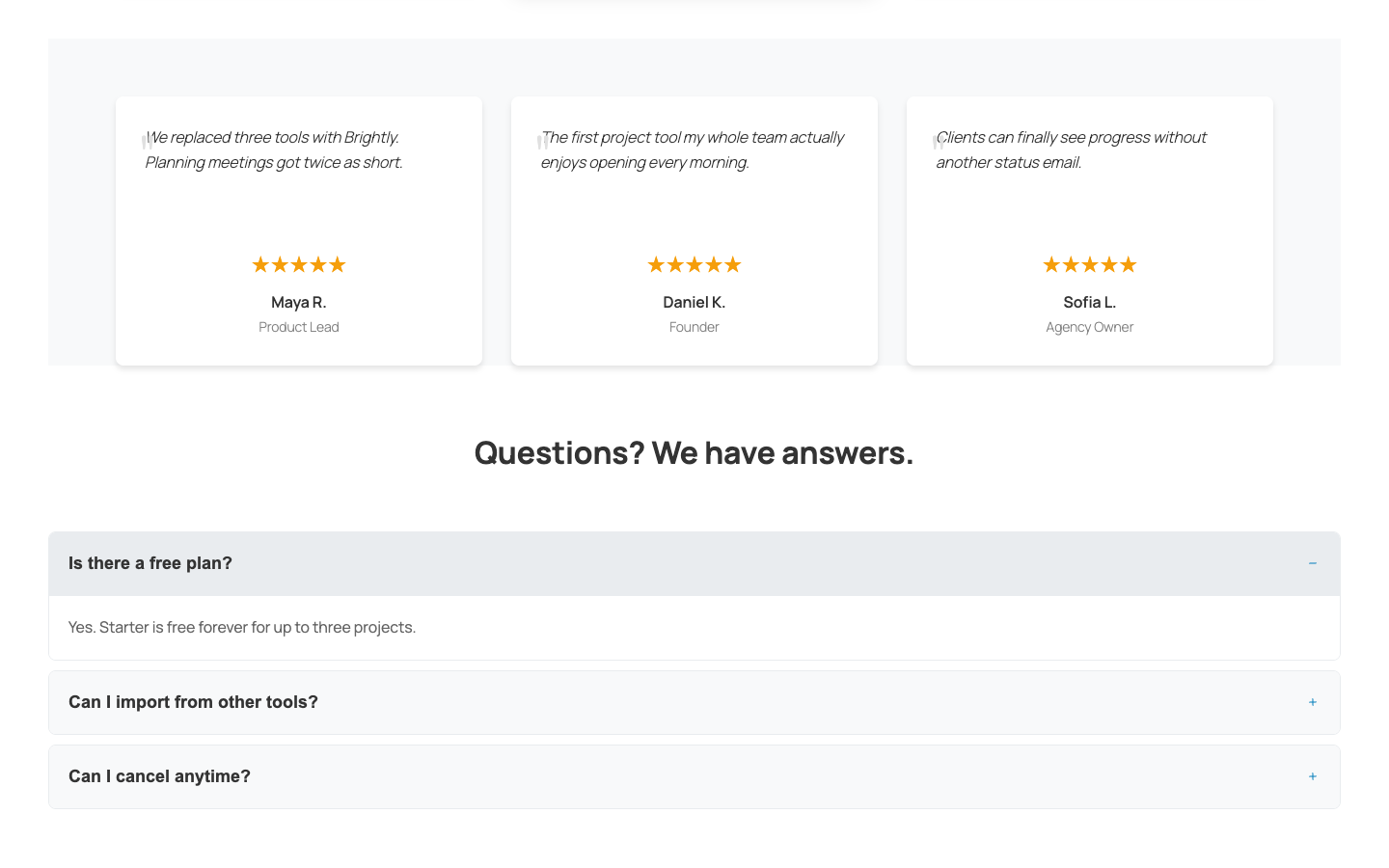
25: 13 page sections (Hero, Features, Services, Steps Timeline, Video CTA, Testimonials, Pricing Tables, Team Members, FAQ, Gallery Portfolio, Newsletter Signup, Call to Action, Advanced Container) and 12 design elements (Advanced Heading, Icon Box, Button Group, Icon List, Image Box, Star Rating, Logo Cloud, Callout, Social Share, Author Box, Promo Banner, Shape Divider).
Go to Settings > Newsletter Settings in your WordPress admin to configure your Mailchimp API key, custom API endpoint, reCAPTCHA settings, and view the subscriber list.
Yes. All blocks are built mobile-first and automatically adapt to different screen sizes.
Yes. Every block has extensive customization options for colors, typography, spacing, and layout in the block editor sidebar.
Yes. The blocks are designed to work with any properly coded WordPress theme that supports the block editor.
Yes. All blocks include proper ARIA labels, semantic HTML markup, and follow WordPress accessibility guidelines.
When using the default WordPress storage option, email addresses are stored in your WordPress database. You can view and manage them under Settings > Newsletter Settings. An uninstall routine removes this data when the plugin is deleted.
Yes. Enter your Mailchimp API key and list ID under Settings > Newsletter Settings, then select “Mailchimp” as the integration type in the Newsletter Signup block settings.
Changelog
1.3.0
- New: 12 element blocks — Advanced Heading, Icon Box, Button Group, Icon List, Image Box, Star Rating, Logo Cloud, Callout, Social Share, Author Box, Promo Banner and Shape Divider. 25 blocks in total.
- New: “Section Blocks – Elements” category in the block inserter.
- New: Promo video on the plugin page.
- Change: The plugin is now called “Section Blocks – Landing Page Sections for the Block Editor”.
- Fix: A button whose link is not a valid URL now renders as a plain button instead of an empty link.
1.2.9
- Fix: Features Section now shows the chosen number of columns (3–6) on desktop and tablet. It was always a single column.
- Fix: Pricing Tables and Newsletter Signup now respect wide/full alignment, anchors, additional CSS classes, Responsive Visibility and Custom CSS.
- Fix: Pricing Tables now stack into a single column on phones instead of squeezing three columns.
- Fix: Per-block Custom CSS now overrides the block’s default styles, even when other Section Blocks appear further down the page.
- Improvement: Removed the misleading “Tablet Preview” / “Mobile Preview” label from the Hero Section in the editor.
- Updated screenshots.
1.2.8
- Security: Per-block Custom CSS can now only be added or changed by users who can post unfiltered HTML (administrators and editors). Enforced on save; CSS an administrator already added is kept when other users edit the post.
- Security: Escaped output in all block templates, including a fix for unescaped attributes in the FAQ / Accordion block.
- Fix: Duplicating or copy-pasting a block no longer makes the copy share the original’s custom CSS.
- Fix: Custom CSS is now printed as a stylesheet in the page head instead of inside the content.
- Improvement: Responsive visibility and custom CSS settings are registered on the server, so they are always available in the editor.
- Improvement: Groundwork for upcoming blocks (shared components, separate Elements and Interactive inserter categories).
- Change: Requires WordPress 6.6 or later.
1.2.7
- Added: Advanced Container block — dynamic structural container with width modes (boxed/wide/full), max-width control, and background options (color, gradient, image with overlay opacity); supports inner blocks, anchor, spacing, and align controls
- Added: Responsive Visibility extension — per-block Hide on Desktop/Tablet/Mobile toggles (Inspector) that inject sb-hide-desktop/tablet/mobile classes via render_block_data and editor hooks
- Added: Per-block Custom CSS — scoped CSS field per block instance using sbBlockId + selector placeholder; inline
- Added: Block pattern library — Section Blocks category with Landing Page (Hero + Features + CTA), Pricing & FAQ, and About & Team patterns via includes/block-patterns.php
- Added: Anchor support across all section blocks — block.json supports.anchor enabled for direct linking / smooth scroll navigation
- Enhancement: Plugin bootstrap updated to load responsive-visibility, custom-css, and block-patterns includes; build config updated for new extensions
1.2.6
- Hotfix: resolve fatal error on activation
1.2.5
- Security: Sanitize all user-controlled colors via centralized hex validator
- Security: AJAX handler hardened with honeypot check, reCAPTCHA siteverify, rate-limit moved after validation
- Security: Strip Appsero license_key/pass/secret from telemetry data
- Security: Removed custom API endpoint exposure from newsletter front-end markup
- Security: Added capability check to newsletter settings save handler
- Security: Added rate limiting (5 submissions per IP per hour) to newsletter signup
- Security: Added direct-access (ABSPATH) guards to all block render templates
- Security: All AJAX input sanitized and unslashed consistently
- Accessibility: Add screen-reader-text labels to newsletter form inputs
- Accessibility: Replace span interactive elements with button (hero, pricing, newsletter)
- Accessibility: Add aria-hidden to decorative SVG icons (services, steps, features, pricing)
- Accessibility: Add aria-live to testimonials carousel slide announcements
- Accessibility: FAQ accordion uses proper ARIA roles (tablist/tab/tabpanel)
- Accessibility: Billing toggle labels in pricing table are now real button elements
- Responsive: Services section columns-3 tablet breakpoint at 992px
- Responsive: Features section columns-4 tablet breakpoint at 1024px
- Responsive: Pricing table columns-3 tablet 2-column layout
- Responsive: Steps timeline horizontal connectors hidden on mobile when stacked
- Responsive: Steps timeline zigzag layout geometry and connector sizing fixed
- Performance: Gate all JS-dependent animations behind @media (scripting: enabled)
- Performance: Use independent translate/scale CSS properties to prevent recommended plan scale conflicts
- Performance: Gallery portfolio pagination now filters correctly over filtered items
- Performance: Gallery portfolio lightbox with keyboard nav, focus trap, dialog role
- Performance: Testimonials CSS-var-driven grid with responsive breakpoints
- Performance: Team members overlay bio capped at 3 line-clamp
- Performance: Newsletter backdrop-filter fallback with -webkit- prefix
- Performance: Gallery portfolio aspect-ratio inline on items (replaces dead :has() selector)
- Fix: Video CTA block.json asset refs corrected (editor.css to index.css, style.css to style-index.css)
- Fix: Services edit.js stale-closure double-setAttributes fixed
- Fix: Testimonials edit.js image save &&-chain bug fixed
- Fix: Gallery portfolio console.log removed from edit.js
- Fix: Hero media select stores url/alt not raw WP media object
- Fix: Steps view.js id-guarded style injection, passive scroll, z-index stacking
- Fix: FAQ localStorage race condition (use page-stable key with 24h expiry)
- Fix: FAQ view.js trackView dead code removed
- Fix: Newsletter form method=post added explicitly
- Fix: Newsletter colors sanitized (background, text, button, input, overlay)
- Fix: CTA section colors sanitized, dead block_id removed
- Fix: CTA focus outlines use currentColor instead of hardcoded rgba
- Fix: CTA secondary button hover uses currentColor, removed !important overrides
- Fix: Features SVG icons switched to currentColor for proper color inheritance
- Fix: Team members social links use CSS var instead of hardcoded color
- Fix: Team members edit.js imageId synced when image is selected
- Fix: Team members bio limited to 300 characters in editor
- Fix: Team members render.php socialLinks array guard added
- Fix: Pricing billing toggle labels wired as clickable buttons in view.js
- Fix: Pricing icon map extended with heart, thumbs-up, awards, performance
- Fix: Pricing feature items guarded with isset and is_array checks
- Fix: Pricing render.php colors sanitized via centralized helper
- Fix: Pricing animation keyframes replaced with independent translate/scale
- Fix: Dead FAQ voting UI and view tracking removed (no server-side handler existed)
- Fix: uninstall.php multisite-aware (iterates all sites, cleans options and drops tables)
- Fix: Appsero filter strips license_key, pass, secret from source data
- Fix: DB upgrade check moved to proper transient check with admin_init fallback
- Tested up to WordPress 7.1
1.2.3
- Security: Added CSRF nonce verification to the Newsletter Settings admin form.
- Security: Removed server-side use of client-supplied API endpoint (SSRF prevention); endpoint is now configured in admin settings only.
- Security: Fixed XSS vulnerability in Gallery Portfolio image attribute builder.
- Security: Fixed onclick injection vulnerability in Video CTA Section scroll buttons; replaced with safe data-attribute approach.
- Security: Added validation for base64 data URL images in Team Members block.
- Bug fix: Removed inline
<script>tags from Pricing Tables, Testimonials, CTA Section, and Video CTA renders — scripts are now properly enqueued via view.js files. - Bug fix: Removed leftover debug HTML comments from Pricing Tables render.
- Bug fix: Fixed fatal error on double-render — helper functions in Video CTA and CTA Section renders now use function_exists() guards.
- Bug fix: Fixed team member image upload in editor — now correctly saves {url, alt, id} object instead of raw media library object.
- Bug fix: Fixed masonry gallery layout breaking on repeated filter/sort calls — positions now reset before each recalculation.
- Bug fix: Fixed IntersectionObserver memory leak in Gallery Portfolio infinite scroll — observer now disconnects when all items are loaded.
- Bug fix: Fixed ResizeObserver memory leak in Video CTA Section.
- Bug fix: Fixed reCAPTCHA silent failure in Newsletter Signup — submission is now blocked if reCAPTCHA is required but unavailable.
- Bug fix: Fixed CTA Section buttons — empty URL now renders a semantic
<button>element instead of<a onclick="return false">. - Bug fix: Fixed Pricing Tables — all plans now render regardless of column count (no silent plan truncation).
- Improvement: Added plugin activation hook to create the newsletter subscribers database table on install.
- Improvement: Added uninstall routine to remove all plugin data (options and database table) on deletion.
- Improvement: Added “Settings” action link on the Plugins list page.
- Improvement: Testimonials carousel now pauses on hover and supports keyboard arrow navigation.
- Improvement: Added native loading=”lazy” to Team Members images.
- Improvement: Social icon aria-labels now use natural language (“Visit [Name]’s LinkedIn profile”).
- Improvement: Video caption tracks now use the WordPress site locale instead of hardcoded English.
- Improvement: Custom API endpoint moved to admin settings for security.
1.2.2
- Added analytics integration with Appsero for plugin usage insights.
- Updated minimum PHP requirement to 7.4.
- Improved plugin architecture for better maintainability.
1.2.1
- Added Services Section block with service cards and CTA buttons.
- Added Steps Timeline block with vertical, horizontal, and zigzag orientations.
- Added Video CTA Section block with YouTube, Vimeo, and self-hosted video support.
- Enhanced testimonials with autoplay and animation effects.
- Improved responsive design across all blocks.
1.2.0
- Added cover image and logo to plugin assets.
1.1.0
- Added Newsletter Signup block with Mailchimp integration and WordPress native storage.
- Added Gallery Portfolio block with masonry/grid layouts and lightbox.
- Added FAQ/Accordion block with schema markup.
- Added Team Members block with four layout styles and social media links.
- Added Hero Section block with background image and overlay controls.
- Added Features Section block with responsive grid and Dashicons.
- Added Testimonials Section block with star ratings.
- Added Pricing Tables block with feature comparison.
- Added Call to Action block.
- Created custom “Section Blocks” category in the Gutenberg editor.
0.1.0
- Initial release — plugin scaffolding and basic structure.
Available Versions
| Version | Download | Type |
|---|---|---|
| 1.3.0 | Download | Stable |
| 1.2.9 | Download | Stable |
| 1.2.8 | Download | Stable |
| 1.2.7 | Download | Stable |
| 1.2.6 | Download | Stable |
| 1.2.5 | Download | Stable |
| 1.2.4 | Download | Stable |
| 1.2.3 | Download | Stable |
| 1.2.2 | Download | Stable |
| 1.2.1 | Download | Stable |
| 1.2 | Download | Stable |
| 1.1 | Download | Stable |
| Development | Download | Trunk |
