
Rewrite Rules Inspector
Active Installs
10,000+
Last Updated
January 6, 2026
First Released
May 9, 2012
Download History (Last one month)
Contributors
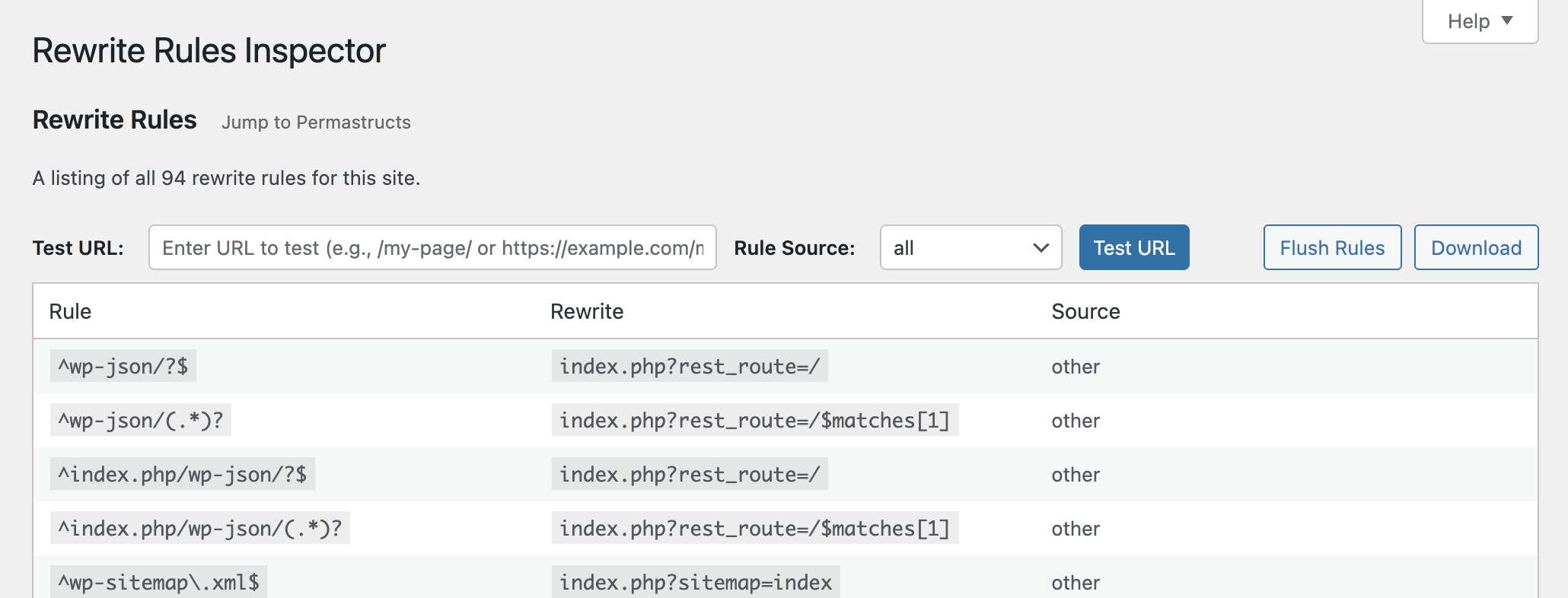
A simple WordPress admin tool for inspecting rewrite rules. View a listing of all your rewrite rules, see which rewrite rules match a given URL (and the priorities they match in), or filter by different sources of rewrite rules. Perform a soft flush of your rewrite rules to regenerate them.
Developed on GitHub — pull requests are always welcome. Please leave feedback, questions, bug reports, and feature requests in the GitHub issues.
Where to find it
Go to Tools Rewrite Rules in the WordPress admin.
URL Tester
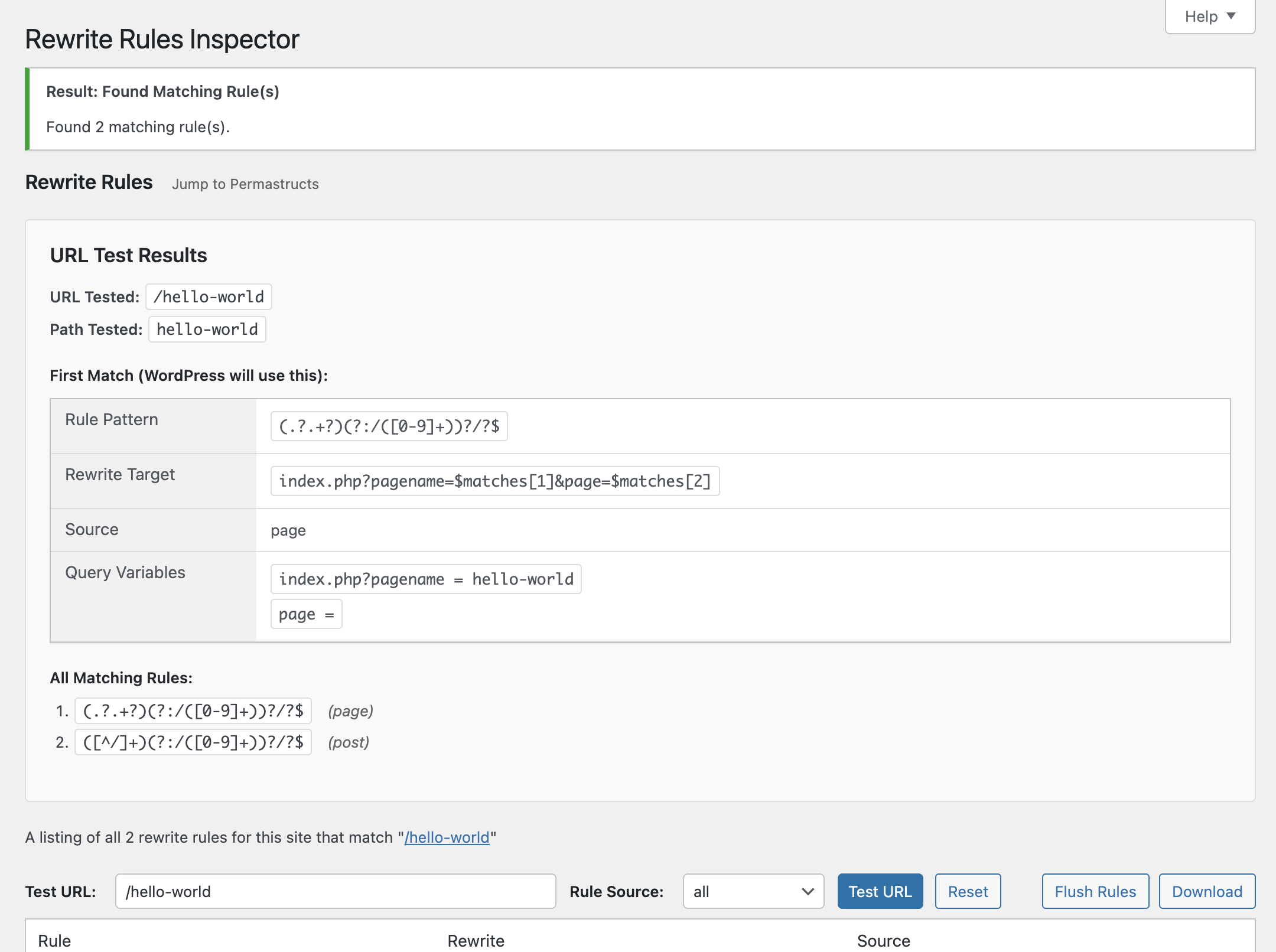
Quickly test any URL (or path) against your site’s rewrite rules:
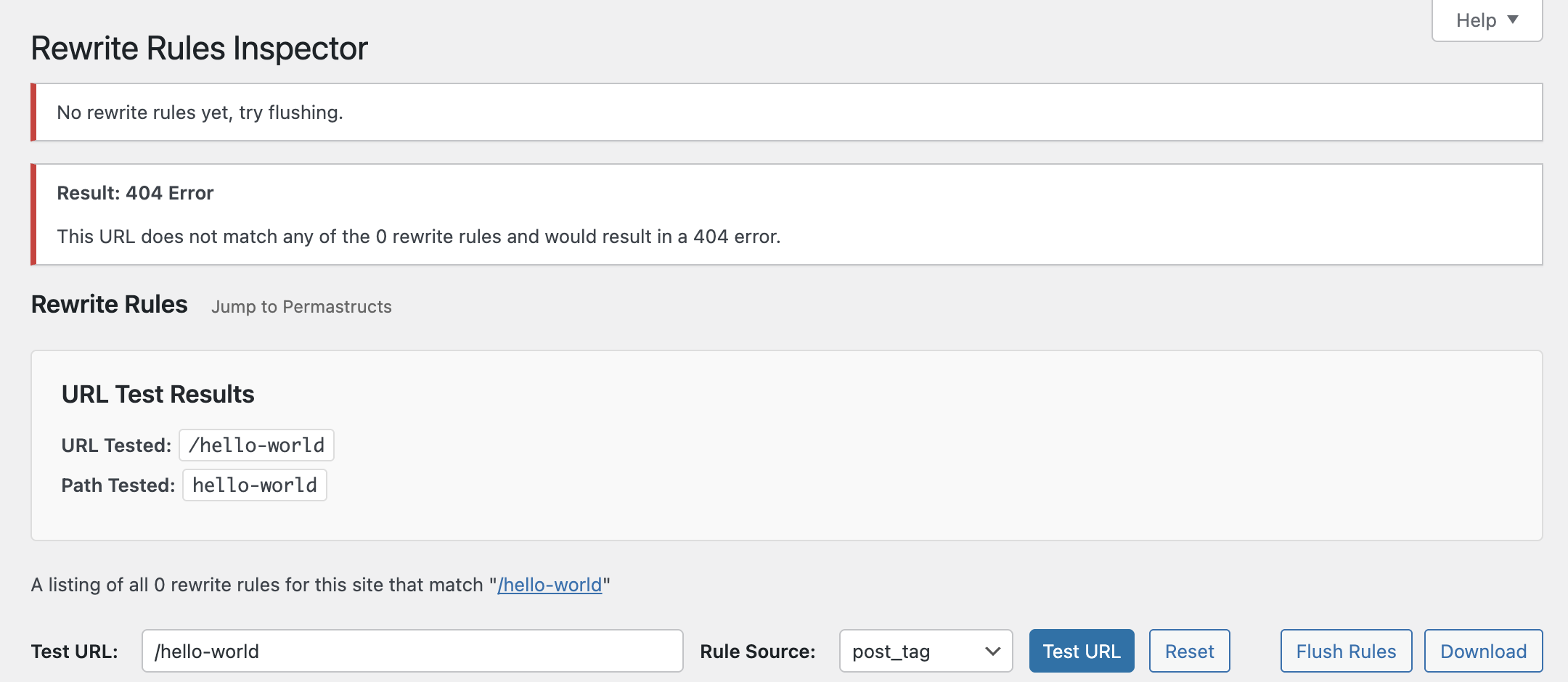
- See whether the URL would be a 404 or which rule would match first (the one WordPress uses).
- View the list of all matching rules, in match priority order.
- Inspect the query variables extracted from the match and the resulting final query WordPress would run.
Works with full URLs or paths and automatically handles sites installed in a subdirectory.
Permastructs
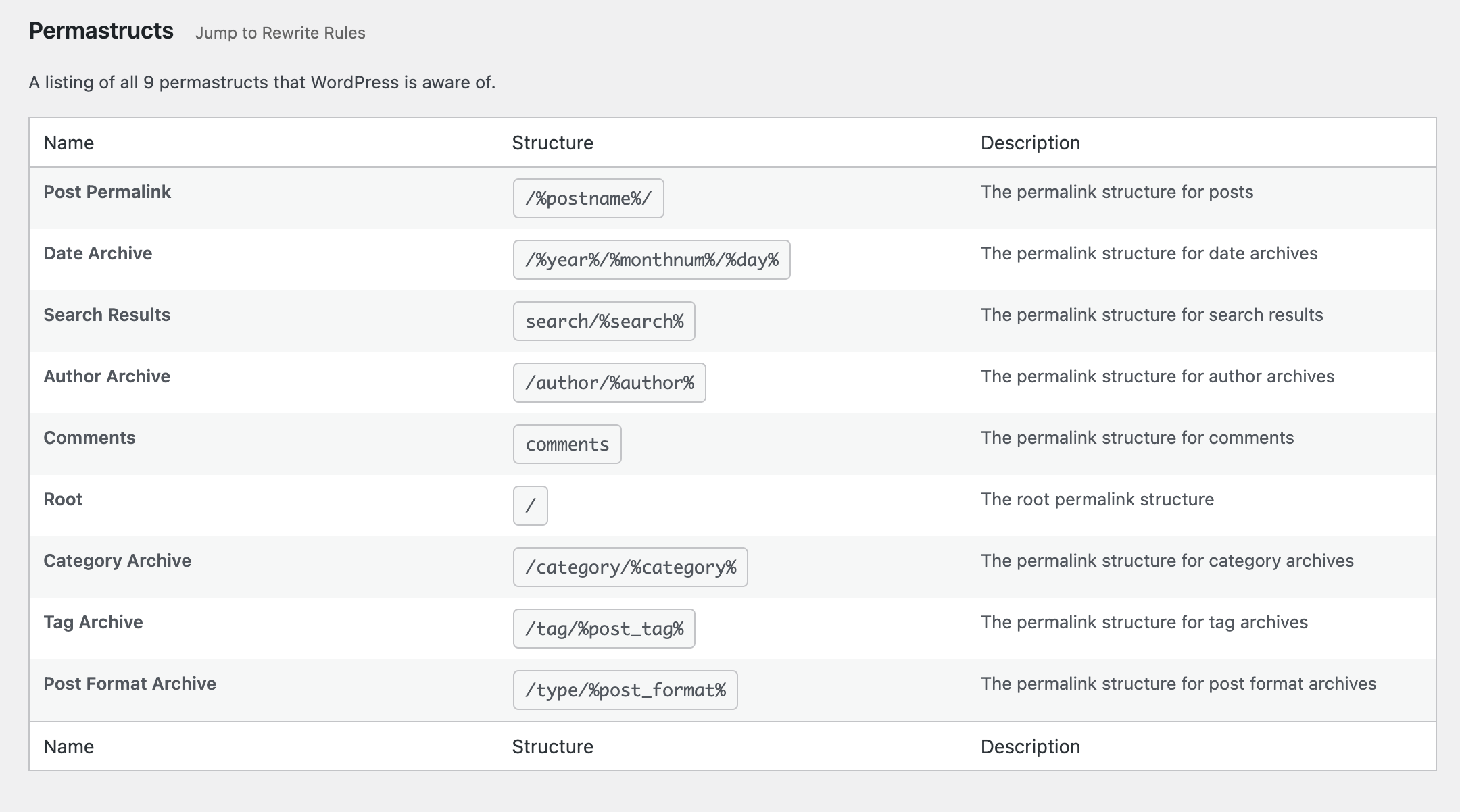
Browse a table of all permastructs that WordPress is aware of, including:
- Name — the permastruct key (e.g. for posts, taxonomies, authors).
- Structure — the permalink structure pattern used to generate rules.
- Description — a human-friendly summary of what the permastruct controls.
Flush Rules
The “Flush Rules” button allows you to regenerate your site’s rewrite rules. Here’s exactly what happens when you click it:
What the Flush Rules Button Does
When you click the “Flush Rules” button, the following sequence occurs:
-
Security Check: The system verifies you have the proper permissions (
manage_optionscapability) and validates the security nonce to prevent unauthorized access. -
Cache Clearing: WordPress deletes the cached rewrite rules from the options cache using
wp_cache_delete('rewrite_rules', 'options'). -
Rule Regeneration: WordPress calls
flush_rewrite_rules(false)to regenerate all rewrite rules based on:- Current permalink structure settings
- Custom post types and taxonomies
- Any custom rewrite rules added by themes or plugins
-
Hook Execution: The
rri_flush_rulesaction hook is fired, allowing other plugins to perform additional cleanup or actions after the flush. -
Success Feedback: You’re redirected back to the Rewrite Rules Inspector page with a success message confirming the rules have been flushed.
When to Use Flush Rules
Use the “Flush Rules” button when:
- Missing Rules: You see rules marked as “missing” (red background) in the inspector
- Custom URLs Not Working: Your custom permalinks or post type URLs aren’t working properly
- After Plugin Changes: You’ve activated/deactivated plugins that register custom rewrite rules
- Permalink Structure Changes: You’ve modified your site’s permalink structure
- Custom Post Type Issues: New custom post types or taxonomies aren’t generating proper URLs
Important Notes
- Soft Flush: This performs a “soft” flush (using
flush_rewrite_rules(false)), which is safer than a hard flush as it doesn’t force regeneration of all rules unnecessarily. - Permissions Required: Only users with
manage_optionscapability can flush rules. - No Data Loss: Flushing rules doesn’t delete any content or settings, it only regenerates the URL routing rules.
- Immediate Effect: Changes take effect immediately after flushing.
Install the plugin from within WordPress
- Visit the Plugins page from your WordPress dashboard and click “Add New” at the top of the page.
- Search for “rewrite-rules-inspector” using the search bar on the right side.
- Click “Install Now” to install the plugin.
- After it’s installed, click “Activate” to activate the plugin on your site.
Install the plugin manually
- Download the plugin from WordPress.org or get the latest release from our GitHub Releases page.
- Unzip the downloaded archive.
- Upload the entire
rewrite-rules-inspectorfolder to your/wp-content/pluginsdirectory. - Visit the Plugins page from your WordPress dashboard and look for the newly installed plugin.
- Click “Activate” to activate the plugin on your site.
Screenshot Gallery
No FAQ provided.
Changelog
See the change log.
" width="120" height="120">
