
Prismatic
Active Installs
2,000+
Last Updated
April 18, 2026
First Released
October 24, 2016
Download History (Last one month)
Contributors
Display Beautiful Code
Display beautiful code snippets with Prism.js, Highlight.js, or plain code escaping:
- Prism.js – Code escape + syntax highlight using Prism.js
- Highlight.js – Code escape + syntax highlight using Highlight.js
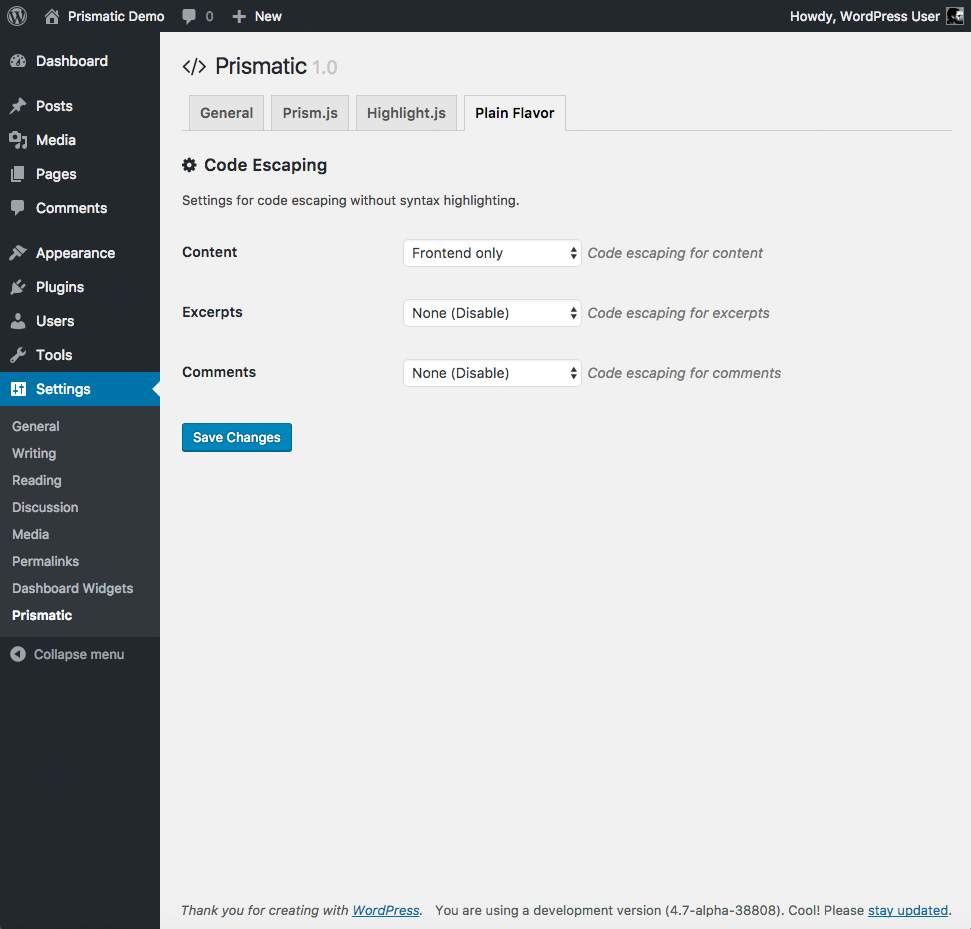
- Plain Flavor – Code escape without syntax highlighting
👉 The only 3-in-1 syntax highlighter!
Live Examples
Here are some live examples showing Prismatic displaying colorful code snippets:
- PHP highlighting
- CSS highlighting
- JavaScript highlighting
- HTML highlighting
- Escaped code without highlighting
Prismatic is used to display thousands of code snippets on the above sites. Also here is a post showing some favorite Highlight.js styles 🙂
Prism.js Features
- Supports 60+ coding languages
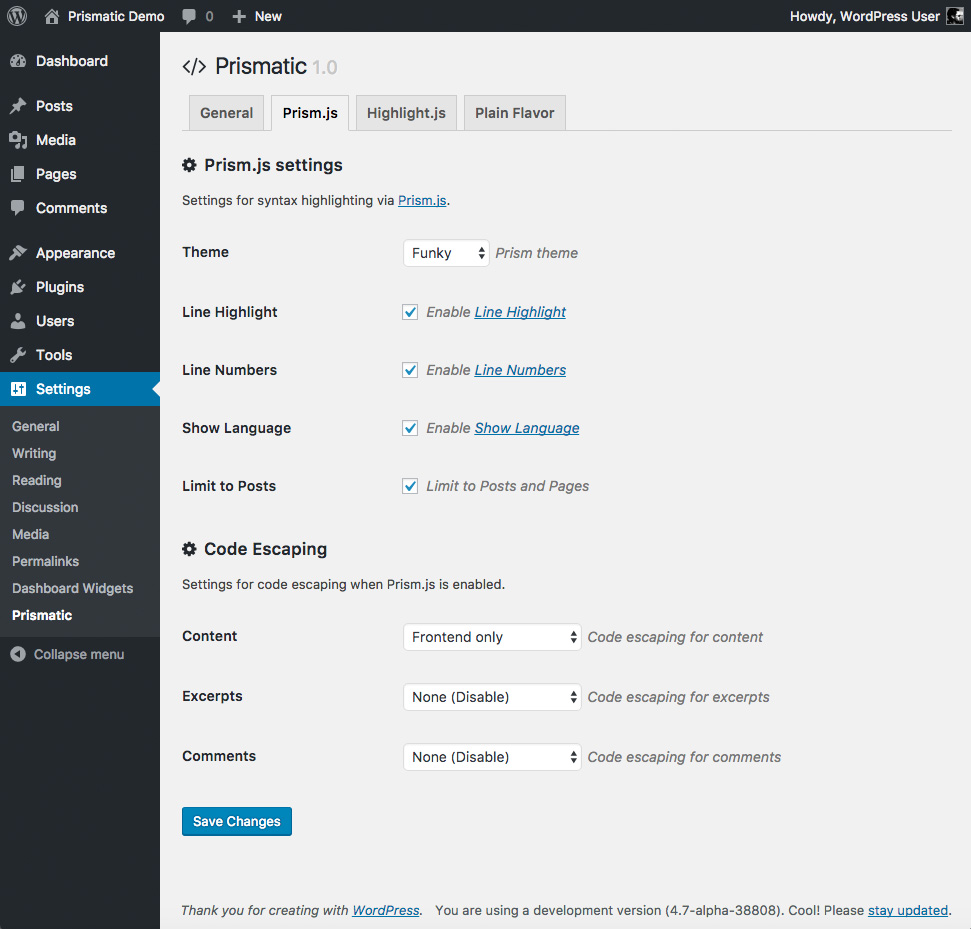
- Choose from all 8 available Prism themes
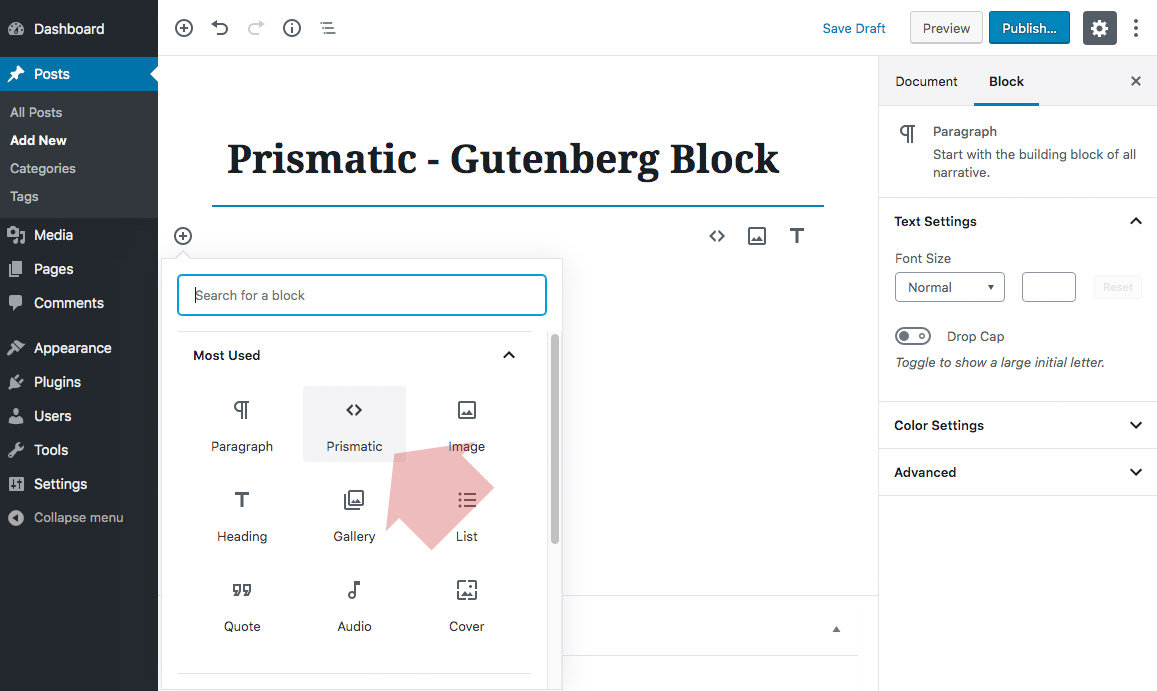
- Provides a Gutenberg block for adding code snippets
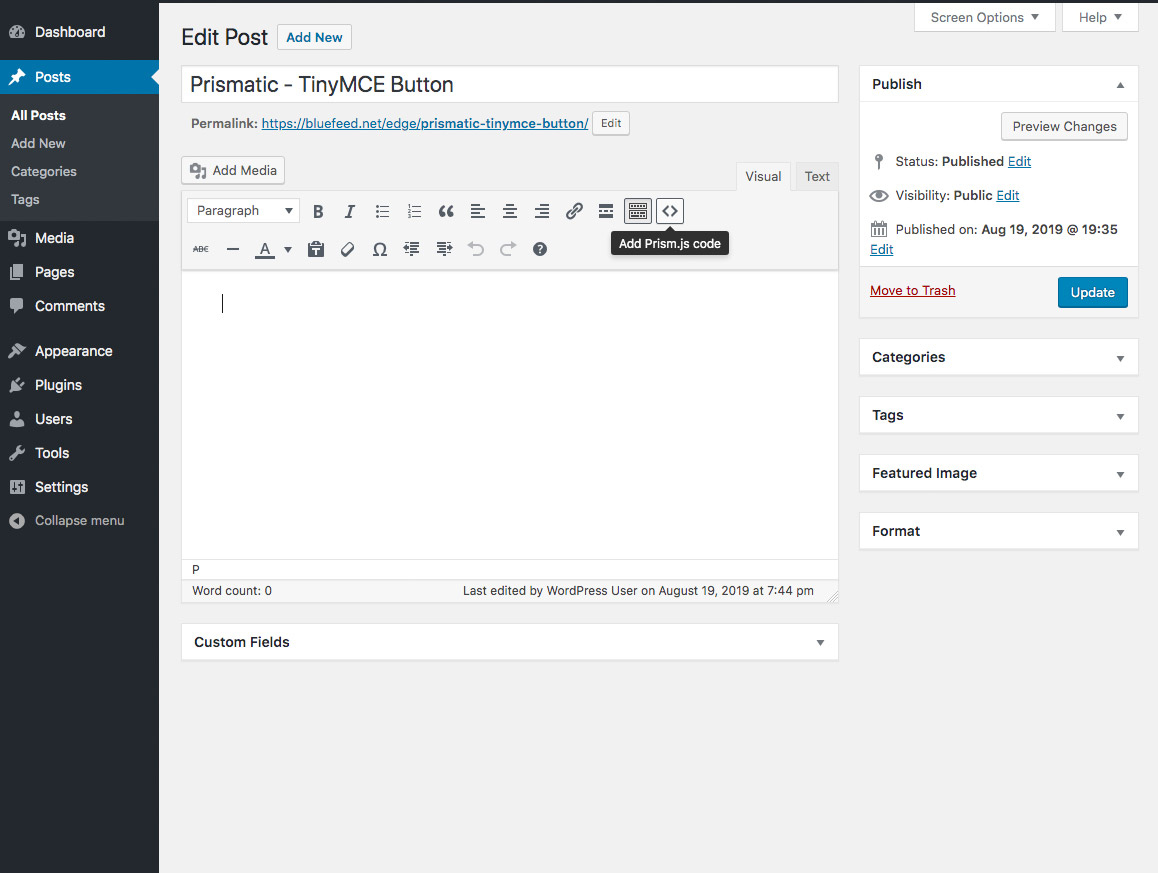
- Provides TinyMCE/Visual buttons for adding code snippets
- Option to enable Prism plugin Line Numbers
- Option to enable Prism plugin Line Highlight
- Option to enable Prism plugin Show Language
- Option to enable Prism plugin Copy Code Button
- Option to enable Prism plugin Command Line
- Highlights code in post content, excerpts, and comments
- Detects
language-andlang-class prefixes - Limit syntax highlighting to Posts and Pages
- Highlight single-line and multi-line code
- Granular control over code escaping
- Smart loading of CSS & JS assets
- Support for ACF on single post views
Highlight.js Features
- Supports 50+ coding languages
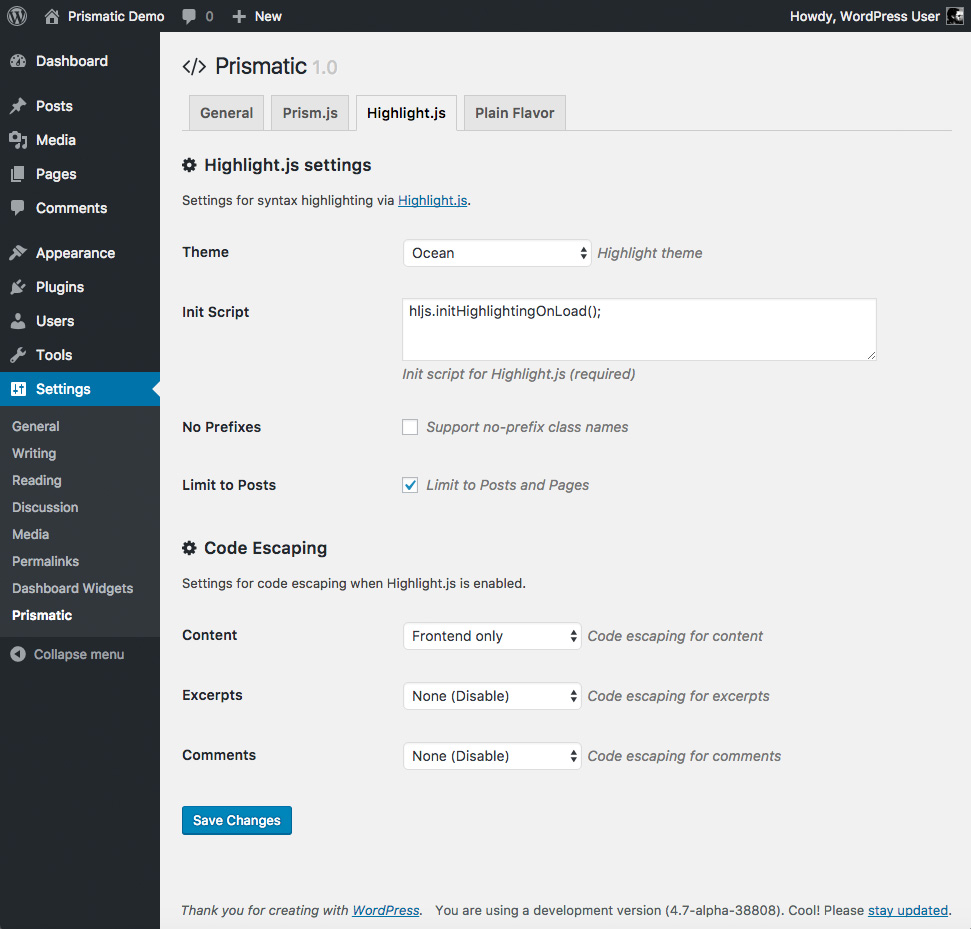
- Choose from all 90+ available Highlight themes
- Provides a Gutenberg block for adding code snippets
- Provides TinyMCE/Visual buttons for adding code snippets
- Customize the Highlight.js init JavaScript
- Highlights code in post content, excerpts, and comments
- Limit syntax highlighting to Posts and Pages
- Highlight multi-line blocks of code
- Detects
language-andlang-class prefixes - Enable support for no-prefix class names
- Granular control over code escaping
- Smart loading of CSS & JS assets
Plain Flavor Features
- Enable code escaping for post content, excerpts, and/or comments
- Enable code escaping on the frontend, Admin Area, or both
- Provides a Gutenberg block for adding code snippets
- Provides TinyMCE/Visual buttons for adding code snippets
- Escapes single-line and multi-line code snippets
- Escapes
<code>tags (based on configuration)
General Features
- Easy to set up and use
- Built with WordPress APIs
- Born of simplicity, no frills
- Squeaky clean, error-free code
- Lightweight, fast and flexible
- Focused on performance and security
- Loads CSS/JS assets only when required
- Adheres to HTML coding best practices
- Works with the Gutenberg Block Editor
- Regularly updated and “future proof”
👉 Prismatic escapes only the essentials to keep your code clean.
👉 Check out the screenshots for more details.
Privacy
This plugin does not collect or store any user data. It does not set any cookies, and it does not connect to any third-party locations. Thus, this plugin does not affect user privacy in any way.
Prismatic is developed and maintained by Jeff Starr, 15-year WordPress developer and book author.
Support development
I develop and maintain this free plugin with love for the WordPress community. To show support, you can make a donation or purchase one of my books:
- The Tao of WordPress
- Digging into WordPress
- .htaccess made easy
- WordPress Themes In Depth
- Wizard’s SQL Recipes for WordPress
And/or purchase one of my premium WordPress plugins:
- BBQ Pro – Blazing fast WordPress firewall
- Blackhole Pro – Automatically block bad bots
- Banhammer Pro – Monitor traffic and ban the bad guys
- GA Google Analytics Pro – Connect WordPress to Google Analytics
- Head Meta Pro – Ultimate Meta Tags for WordPress
- REST Pro Tools – Awesome tools for managing the WP REST API
- Simple Ajax Chat Pro – Unlimited chat rooms
- USP Pro – Unlimited front-end forms
Links, tweets and likes also appreciated. Thank you! 🙂
Installing Prismatic
- Make a backup of your database
- Upload the plugin to your blog and activate
- Visit the plugin settings to configure options
More info on installing WP plugins
Quick Start Guide
Here is a quick guide to get started with Prismatic:
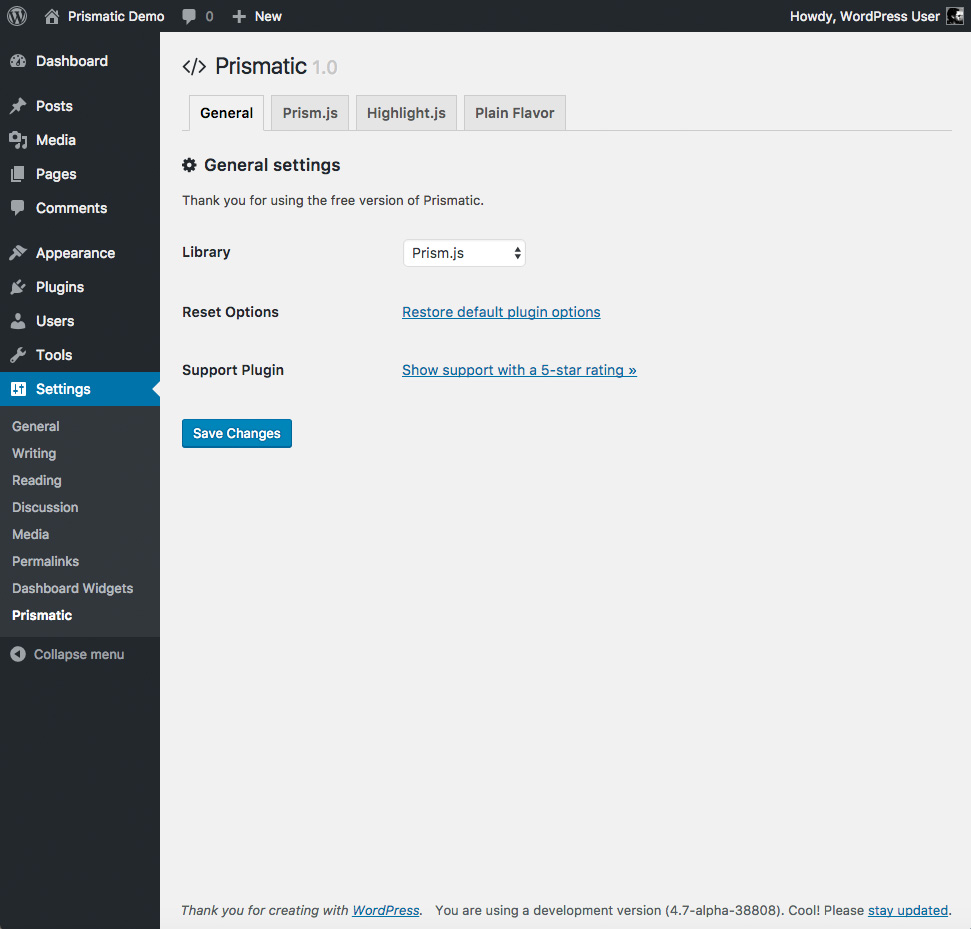
- Activate the plugin and visit the Prismatic settings page
- Choose Prism.js or Highlight.js for syntax highlighting
- Optionally visit the Prism.js or Highlight.js tab to customize options
You are now ready to go. To add a code snippet to any WP Post or Page:
- If using Gutenberg Block Editor, click on the Prismatic block
- If using Classic Editor, click on the Prismatic TinyMCE button
To get a better idea, view the screenshots on the Prismatic homepage.
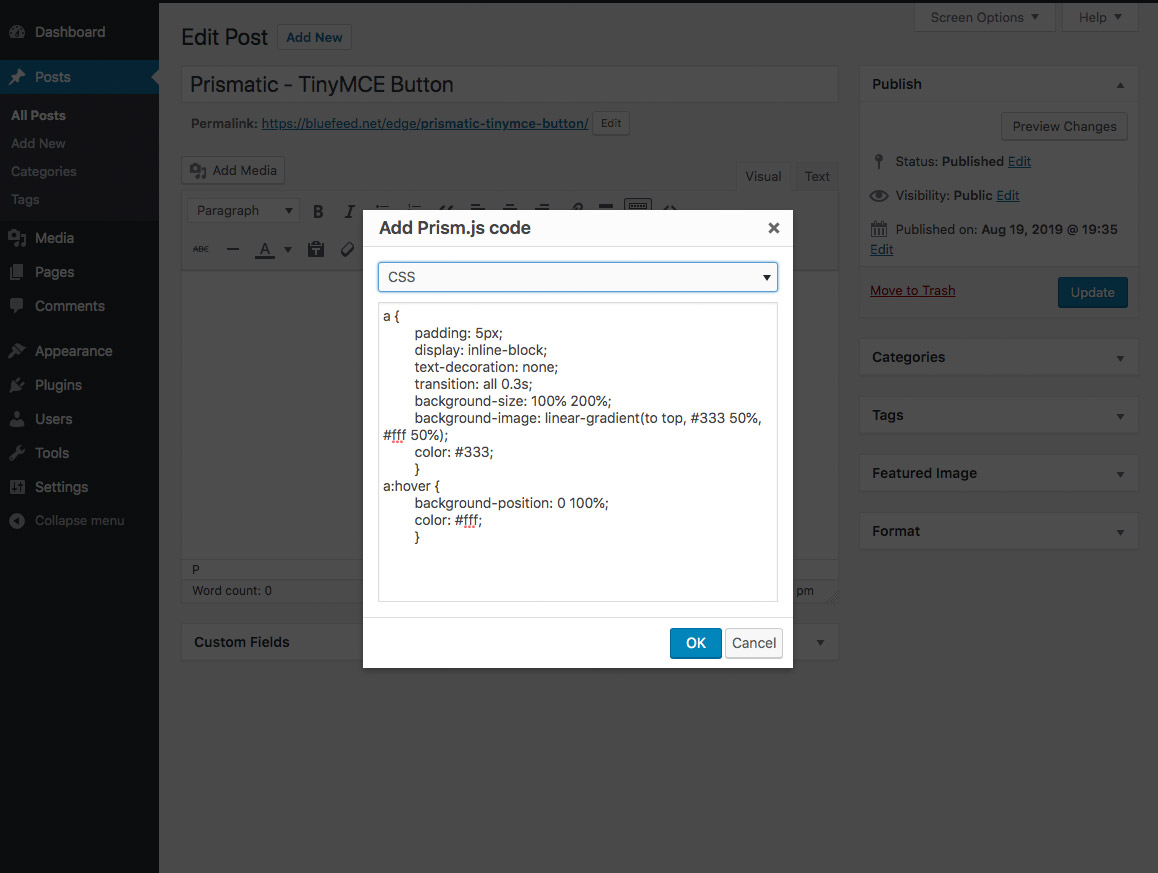
The Prismatic block or button makes it easy to add your code snippet and choose a language. The plugin automatically will output the correct markup to display your code with syntax highlighting. No code editing required!
Add code via block for Highlight.js
When Highlight.js library is enabled in Prismatic plugin settings:
- When creating your post or page, select the Prismatic block
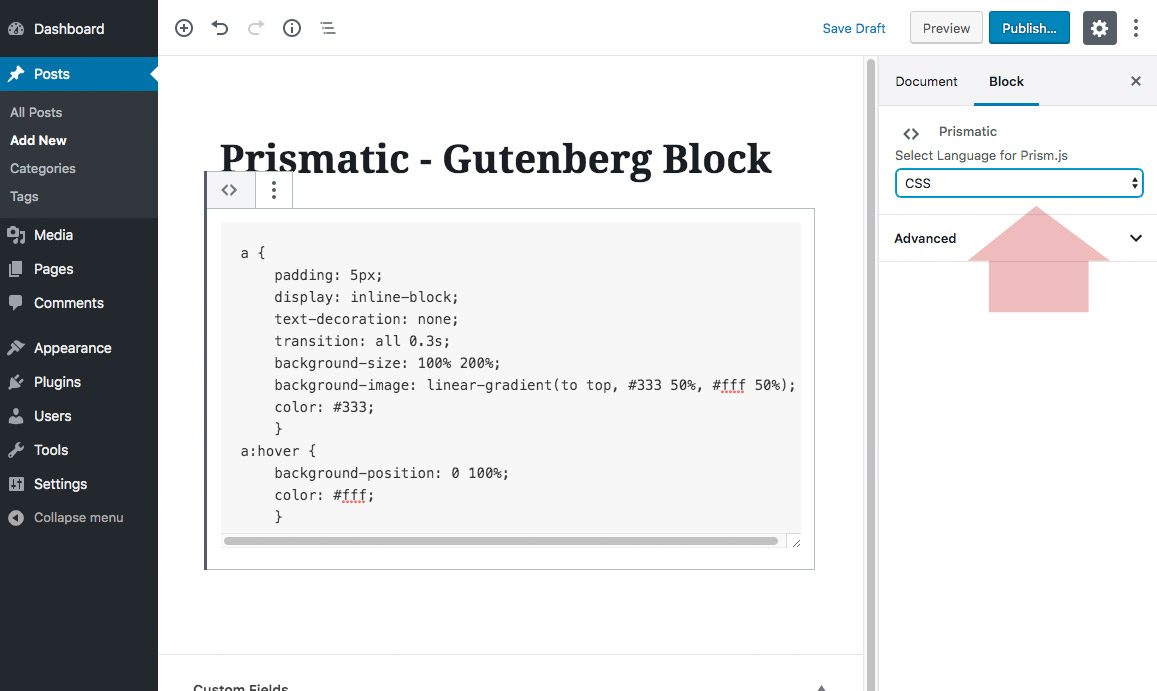
- Enter your code in the provided input field
- In block settings, select code language from the dropdown menu
- Optional: in block settings under Advanced tab, add extra CSS classes
Add code via block for Prism.js
When Prism.js library is enabled in Prismatic plugin settings:
- When creating your post or page, select the Prismatic block
- Enter your code in the provided input field
- In block settings, select code language from the dropdown menu
- Optional: in block settings under Advanced tab, add extra CSS classes
- Optional: in block settings, enter any line numbers to be highlighted
Add code via Classic Editor
When any library is enabled in Prismatic plugin settings:
- When creating your post or page, switch to the Visual Editor
- Click the Prismatic Quicktag button in the Toolbar, looks like <>
- Enter your code in the provided input field
Complete usage documentation
Learn more about Prismatic. Check out the extended documentation for complete information and tips.
Like the plugin?
If you like Prismatic, please take a moment to give a 5-star rating. It helps to keep development and support going strong. Thank you!
Restore Default Options
To restore default plugin options, either uninstall/reinstall the plugin or visit the Prismatic General Settings > Restore default plugin options.
Uninstalling
This plugin cleans up after itself. All plugin settings will be removed from the WordPress database when the plugin is deleted via the WP Plugins screen.
Note: that uninstalling the plugin will NOT touch any of your post content. Only the plugin options are removed when the plugin is uninstalled via the Plugins screen.
Screenshot Gallery
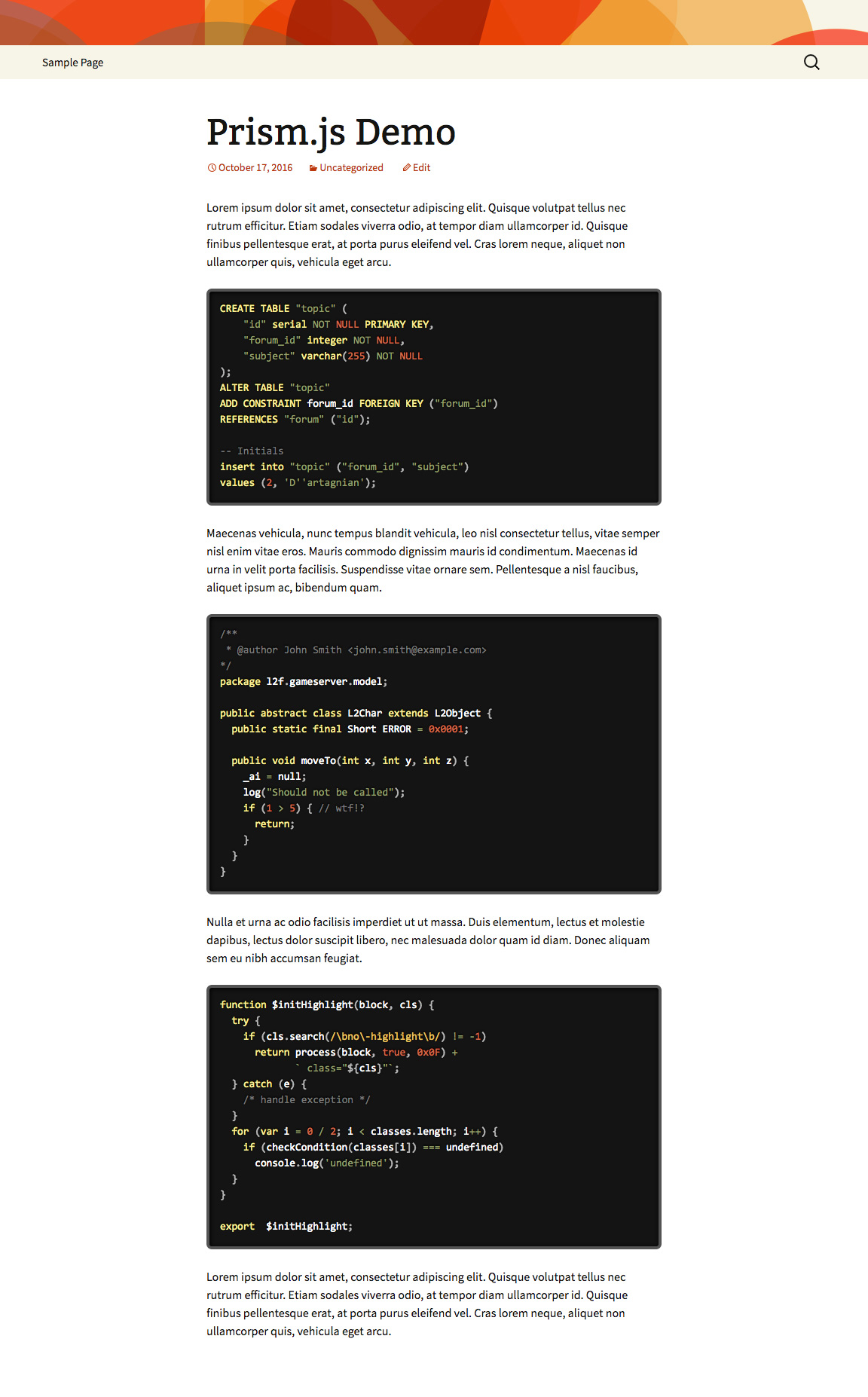
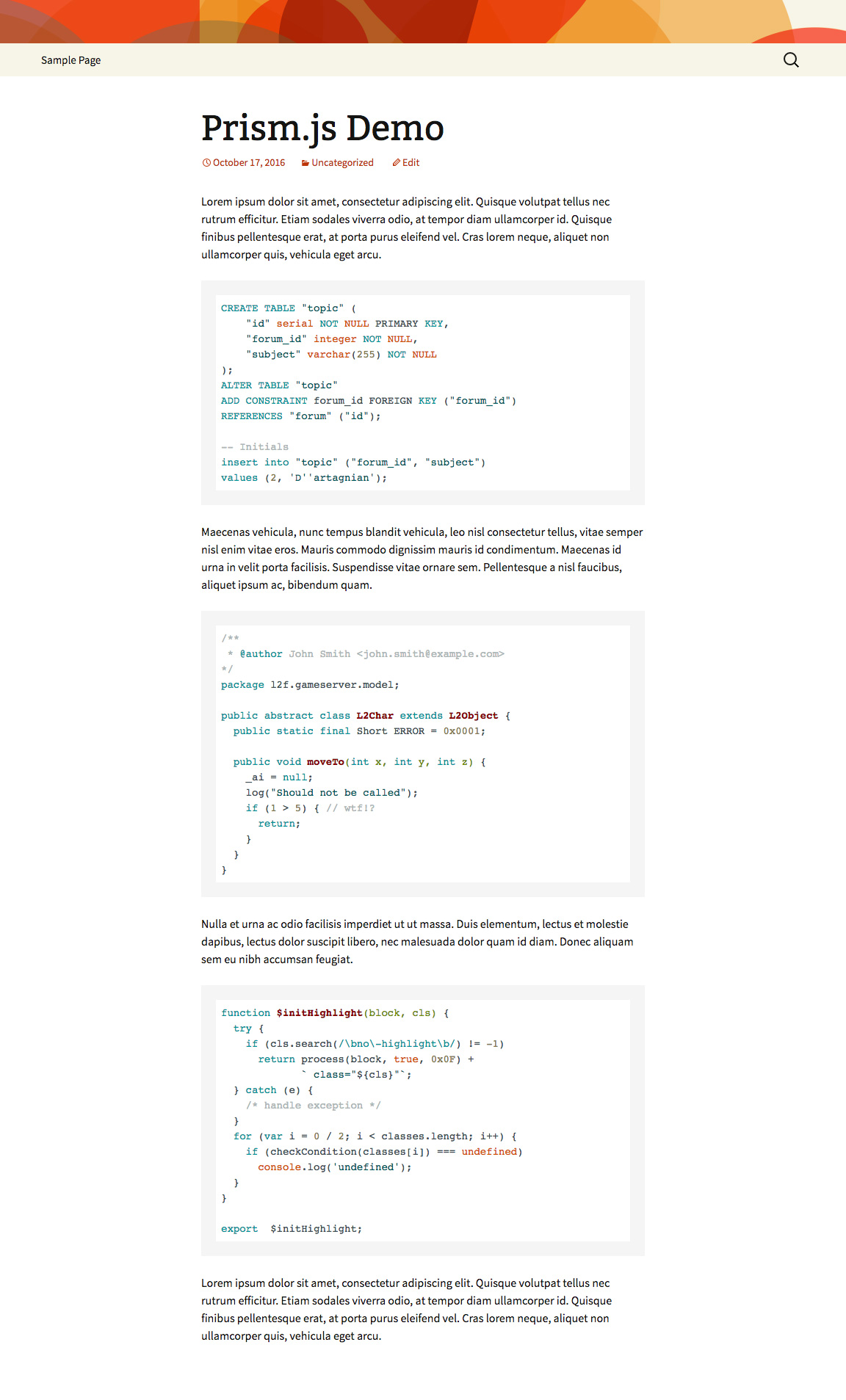
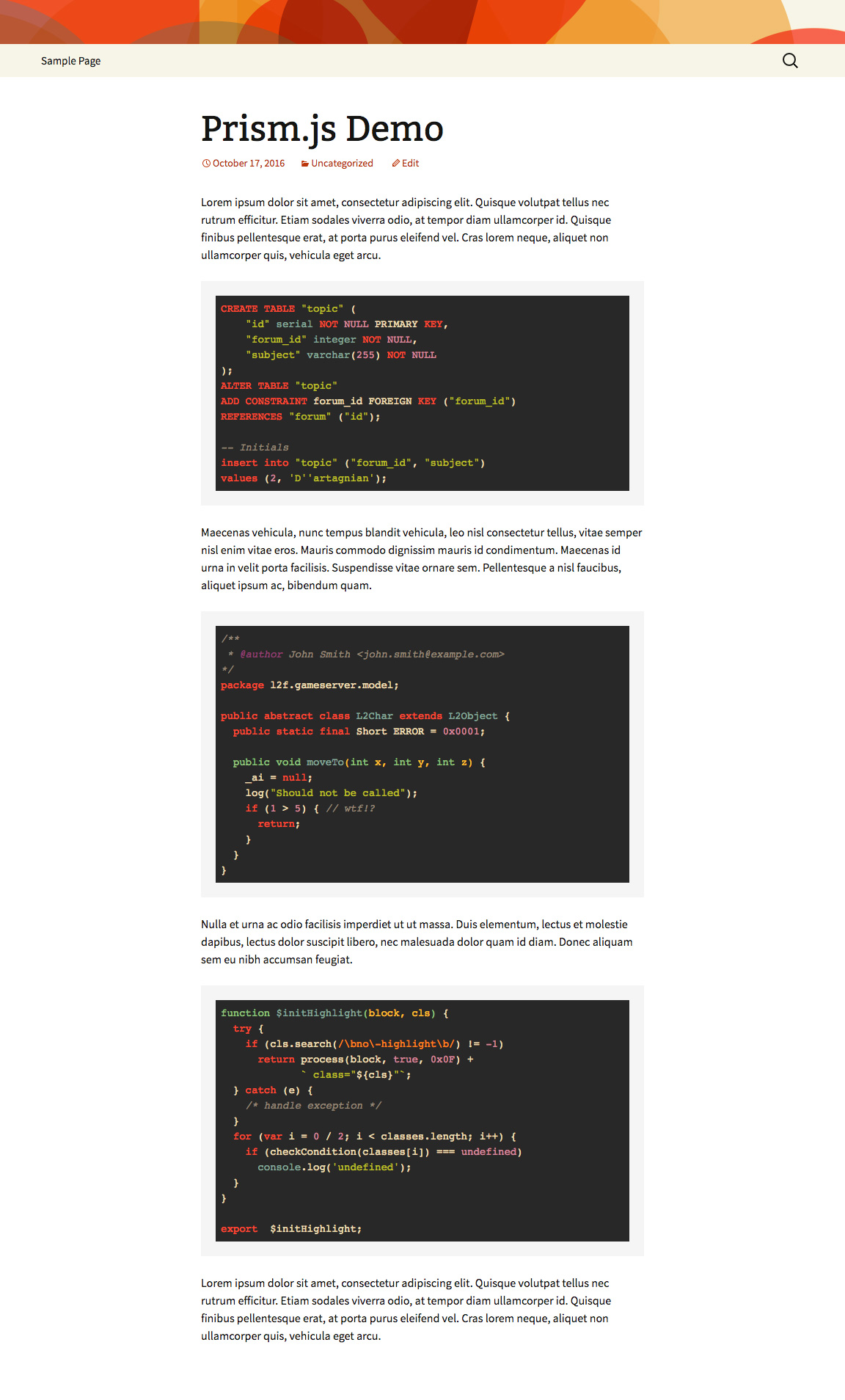
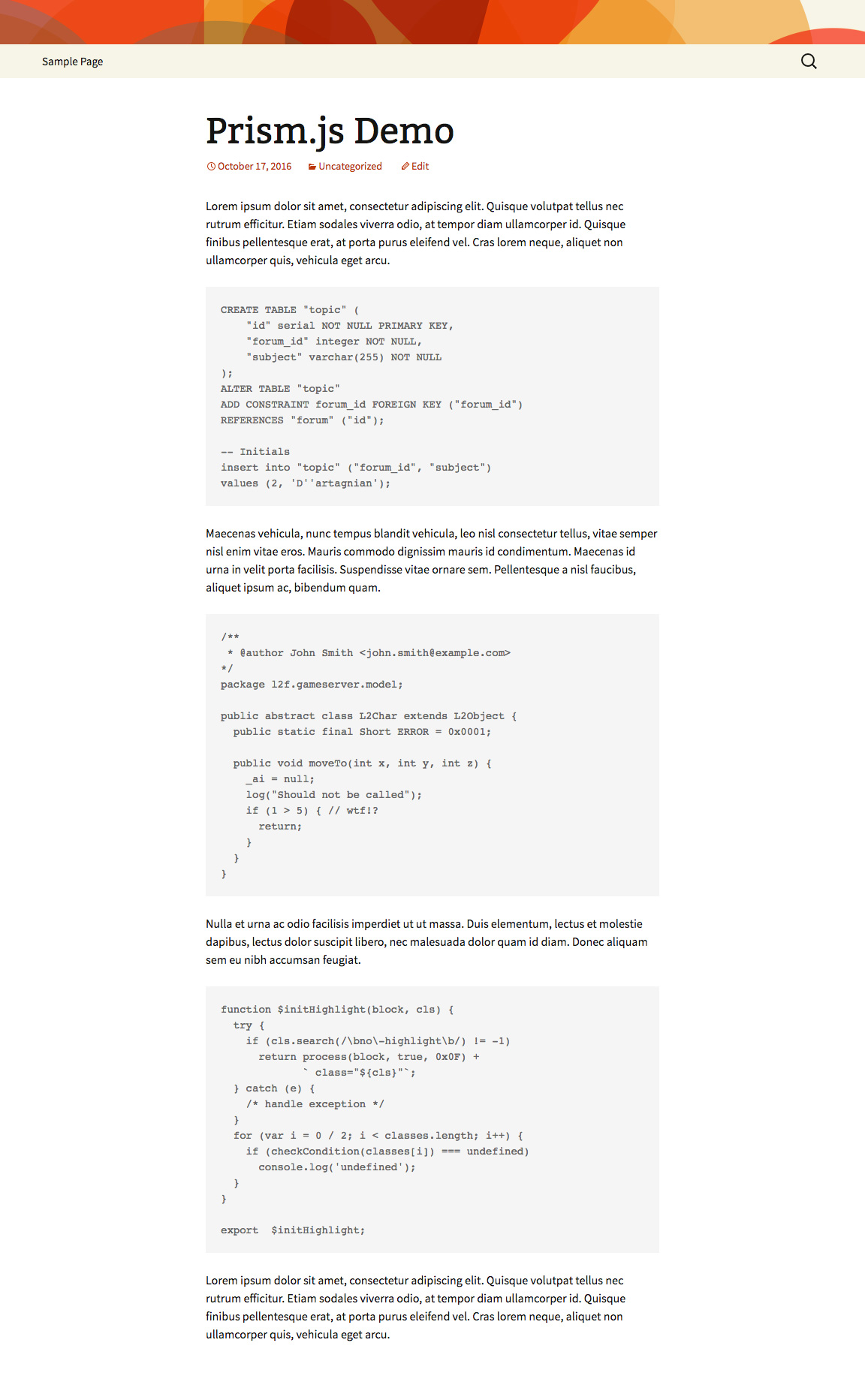
Yes, feel free to suggest a language
Yes, the plugin provides a “Prismatic” block that makes it easy to add code snippets that will be highlighted on the front-end. Also provides “add code” buttons for the Classic TinyMCE (Visual/Text) Editor. Add code, choose a language, done!
If for some reason you want to view syntax-highlighted code inside of the Block Editor, you can do it with the Classic Block:
- Select the Classic Block
- Click on the Prismatic TinyMCE button
- Enter your code and save changes
The code won’t be highlighted initially, but if you refresh the page after making changes, or visit the page again in the future, the code will be displayed with syntax highlighting applied.
As of Prismatic version 2.3, code snippets inside of ACF fields are highlighted automatically. Simply add the required class (e.g., language-php) just like any other code snippet, and the plugin will detect and highlight the code. To also escape the highlighted code, enable escaping for post content via the setting, Prism > Code Escaping > Content. Note: ACF is supported only on single post views.
For Prismatic plugin to work with Autoptimize, a script needs to be excluded. Follow these steps:
- Go to Autoptimize Settings > Javascript Options > Exclude scripts from Autoptimize
-
Add the following to the excluded scripts list:
wp-content/plugins/prismatic/lib/highlight/js/highlight-core.js
Save changes and done. You may need to empty cache and/or force-reload your web browser for the script to load and changes to take effect.
If you are not using Gutenberg Block Editor, you can disable the plugin’s block stylesheet. Simply enable the plugin setting, “Block Styles”. Save changes and done.
FYI: the Prismatic block styles are included via: /prismatic/css/styles-blocks.css
Currently the only way to display nested <code> tags is to use the following shortcode:
[prismatic_code][/prismatic_code]
Currently this works only for inline <code> tags. More details here.
Apparently some themes have problems displaying line numbers on highlighted code snippets. A possible solution is to add the following code via theme template or simple plugin:
function prismatic_add_body_class($classes) {

    $classes[] = 'line-numbers';

    return $classes;

}
add_filter('body_class', 'prismatic_add_body_class');
All that’s doing is adding a class named line-numbers to the body tag of your web pages. Should do the trick to get line numbers working on stubborn themes. Original idea posted here.
Check out Filtered Language Menus with Prismatic WordPress Plugin.
Check out Disable Highlighting in Comments with Prismatic WordPress Plugin.
Thanks to @hupe13, you can add this snippet to make sure the shortcode is included when working with blocks:
function prismatic_block_shortcode_mod($block_content, $block) {
    if ($block['blockName'] === 'prismatic/blocks') {
        if (strpos($block['innerHTML'], 'prismatic_code') === false) {
            return str_replace('[', '[', $block['innerHTML']);
        }
    }
    return $block_content;
}
add_filter('render_block', 'prismatic_block_shortcode_mod', 10, 2);
Send any questions or feedback via my contact form
Changelog
Thank you to everyone providing feedback! If you like Prismatic, please take a moment to give a 5-star rating. It helps to keep development and support going strong. Thank you!
3.7.5 (2026/04/18)
- Fixes bug with reset options
- Updates plugin settings page
- Improves readme.txt documentation
- Tests on WordPress 7.0
Full changelog @ https://plugin-planet.com/wp/changelog/prismatic.txt
" width="120" height="120">
Available Versions
| Version | Download | Type |
|---|---|---|
| 3.7.5 | Download | Stable |
| 3.7.4 | Download | Stable |
| 3.7.3 | Download | Stable |
| 3.7.2 | Download | Stable |
| 3.7.1 | Download | Stable |
| 3.7 | Download | Stable |
| 3.6 | Download | Stable |
| 3.5 | Download | Stable |
| 3.4.4 | Download | Stable |
| 3.4.3 | Download | Stable |
| 3.4.2 | Download | Stable |
| 3.4.1 | Download | Stable |
| 3.4 | Download | Stable |
| 3.3 | Download | Stable |
| 3.2.2 | Download | Stable |
| 3.2.1 | Download | Stable |
| 3.2 | Download | Stable |
| 3.1.1 | Download | Stable |
| 3.1 | Download | Stable |
| 3.0 | Download | Stable |
| 2.9.1 | Download | Stable |
| 2.9 | Download | Stable |
| 2.8 | Download | Stable |
| 2.7 | Download | Stable |
| 2.6 | Download | Stable |
| 2.5 | Download | Stable |
| 2.4 | Download | Stable |
| 2.3 | Download | Stable |
| 2.2 | Download | Stable |
| 2.1 | Download | Stable |
| 2.0 | Download | Stable |
| 1.9 | Download | Stable |
| 1.8 | Download | Stable |
| 1.7 | Download | Stable |
| 1.6.1 | Download | Stable |
| 1.6 | Download | Stable |
| 1.5 | Download | Stable |
| 1.4 | Download | Stable |
| 1.3 | Download | Stable |
| Development | Download | Trunk |
