
Post Type Transfer
Active Installs
3,000+
Last Updated
June 10, 2026
First Released
February 27, 2018
Download History (Last one month)
Contributors
Get Pro Version | Documentation | Support Forum | Rate the Plugin
Post Type Transfer lets you change the post type of any WordPress content. It works with standard Posts, Pages, and all custom post types.
Open a post. Pick the new post type from a dropdown. Click Update. The content transfers. Nothing is deleted. Nothing is lost. Only the post type classification changes.
No developer needed. No database access. No technical knowledge required. More than 3000+ active sites use Post Type Transfer to keep their content structure clean.
Post Type Transfer is free to download and use. The core transfer features have no restrictions. Need more? Post Type Transfer Pro adds bulk transfer, drag-and-drop post reordering, post duplication, WP-CLI support, and priority support.
Why You Need Post Type Transfer
Wrong post type assignments happen on every WordPress site. Here are the situations that come up constantly:
• A case study published as a blog post because the custom post type did not exist yet
• A landing page sitting under Pages when it belongs in a custom post type
• Hundreds of legacy posts that need migrating to a new structure after a site redesign
• A client site with no content organization that needs sorting before launch
• Content published under the wrong type by a team member who did not know the difference
Without this plugin, fixing any of those means manually recreating content, editing the database, or paying a developer. Post Type Transfer handles it from the WordPress dashboard you already use every day.
How It Works
Choose any of the two available methods to transfer a post between post types. Each method takes less than a minute.
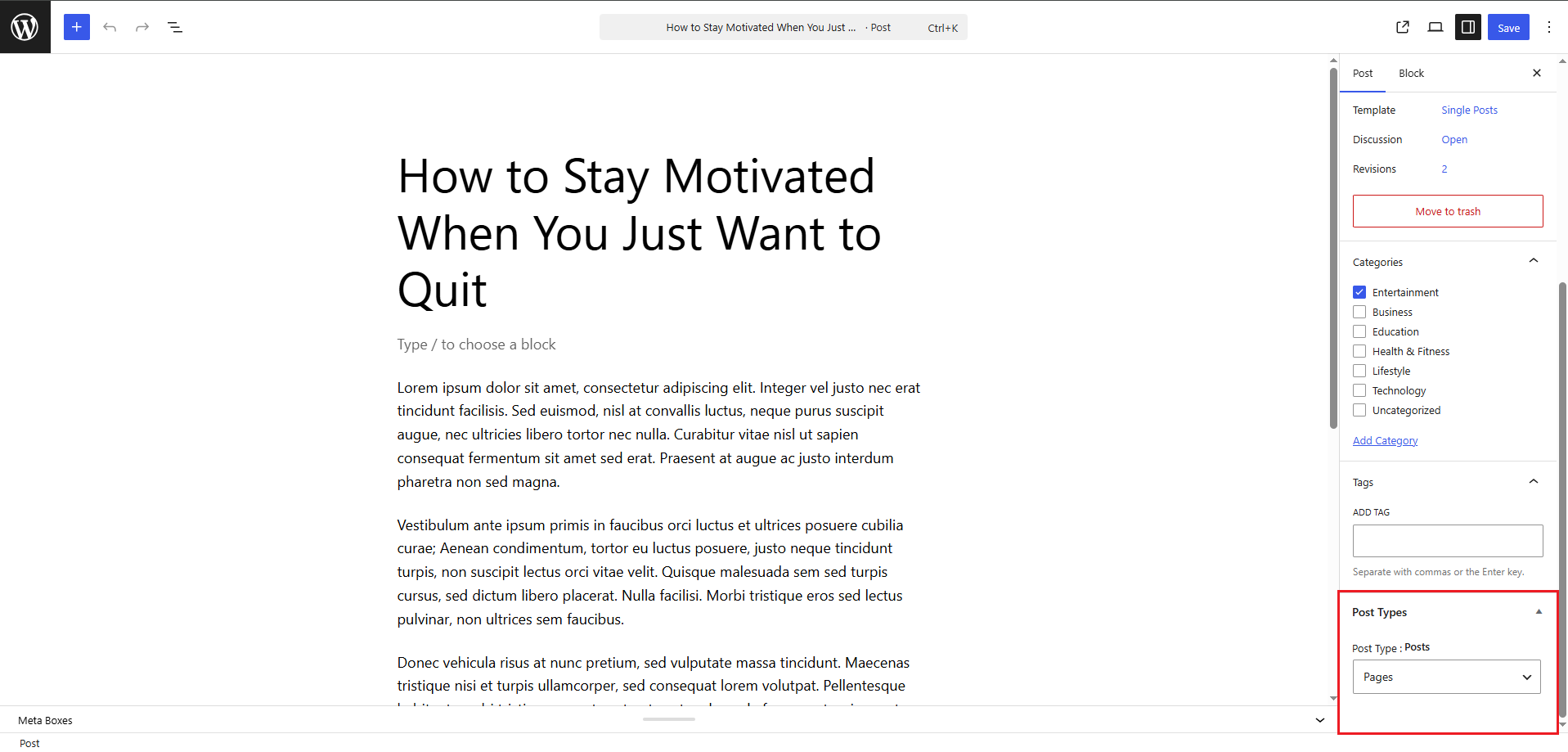
Method 1: Transfer from the Post Editor
- Log in to your WordPress Admin Dashboard.
- Navigate to the post you want to transfer and click Edit.
- In the right-hand sidebar, select the Post tab and locate the Post Type section.
- Choose the desired post type from the dropdown menu.
- Click Update to save your changes.
The post is transferred instantly while retaining all existing content, metadata, and settings.
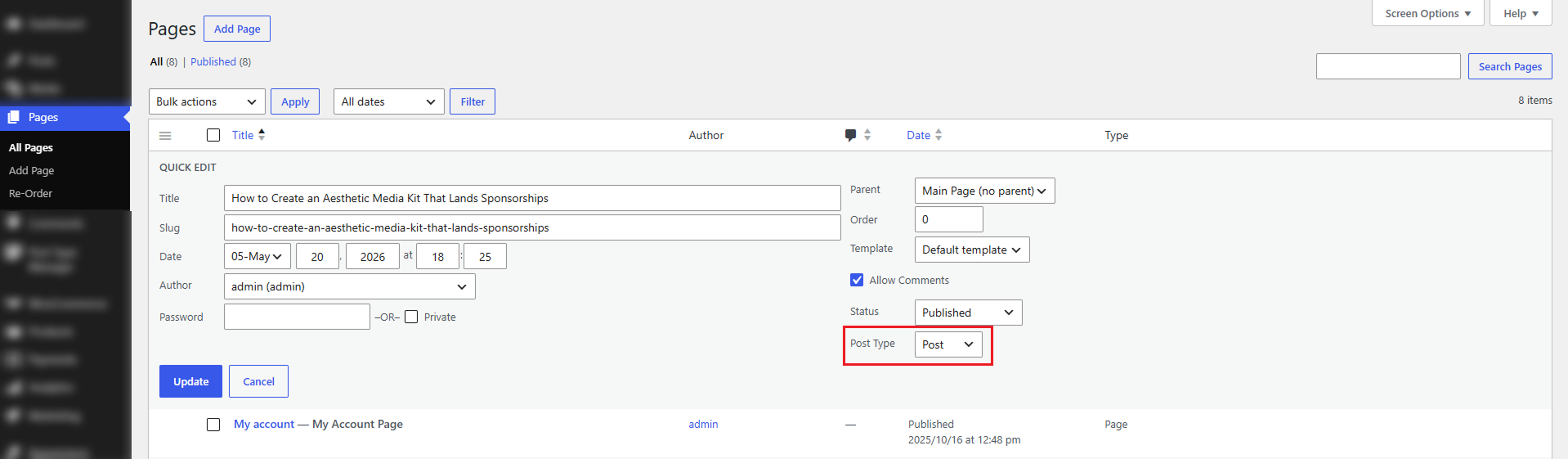
Method 2: Transfer Using Quick Edit
The Quick Edit option transfers a post without opening the full editor.
- Go to the Posts listing screen.
- Hover over the post you want to transfer and click Quick Edit.
- Locate the Post Type dropdown within the Quick Edit panel.
- Select the target post type.
- Click Update.
The post is transferred immediately without loading the editor screen.
What Post Type Transfer Includes
Features marked [PRO] are available in the Pro version.
- Post Editor Transfer: Change the post type directly from the editor sidebar with a dropdown selection.
- Quick Edit Transfer: Convert any post without opening the full editor. Works directly from the post listing page.
- Custom Post Type Support: Supports all registered WordPress post types automatically, Whether it’s WooCommerce products, CPT UI post types, ACF post types, or any custom post type added by plugins or themes, they will be available for transfer.
- Zero Content Loss: The transfer changes the post type label. That’s it. Content, custom fields, metadata, settings — none of it moves. It’s still all there after.
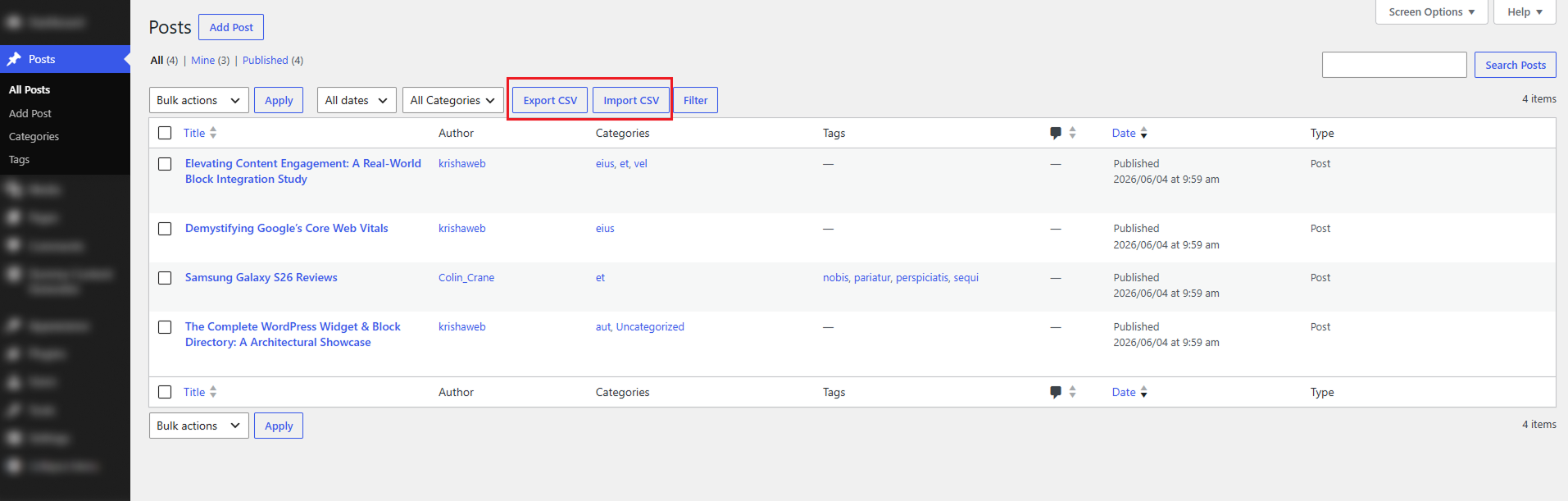
- CSV Export: One click downloads a spreadsheet(CSV) of any post type, drafts included. Titles, content, featured image URLs, categories, tags, original publish dates. Good for backups, content audits, and handing a site off to a new owner without losing the history.
- CSV Import: Upload a previously exported CSV file to recreate those posts on any WordPress site or move them between post types on the same install. Publish dates come across as-is.
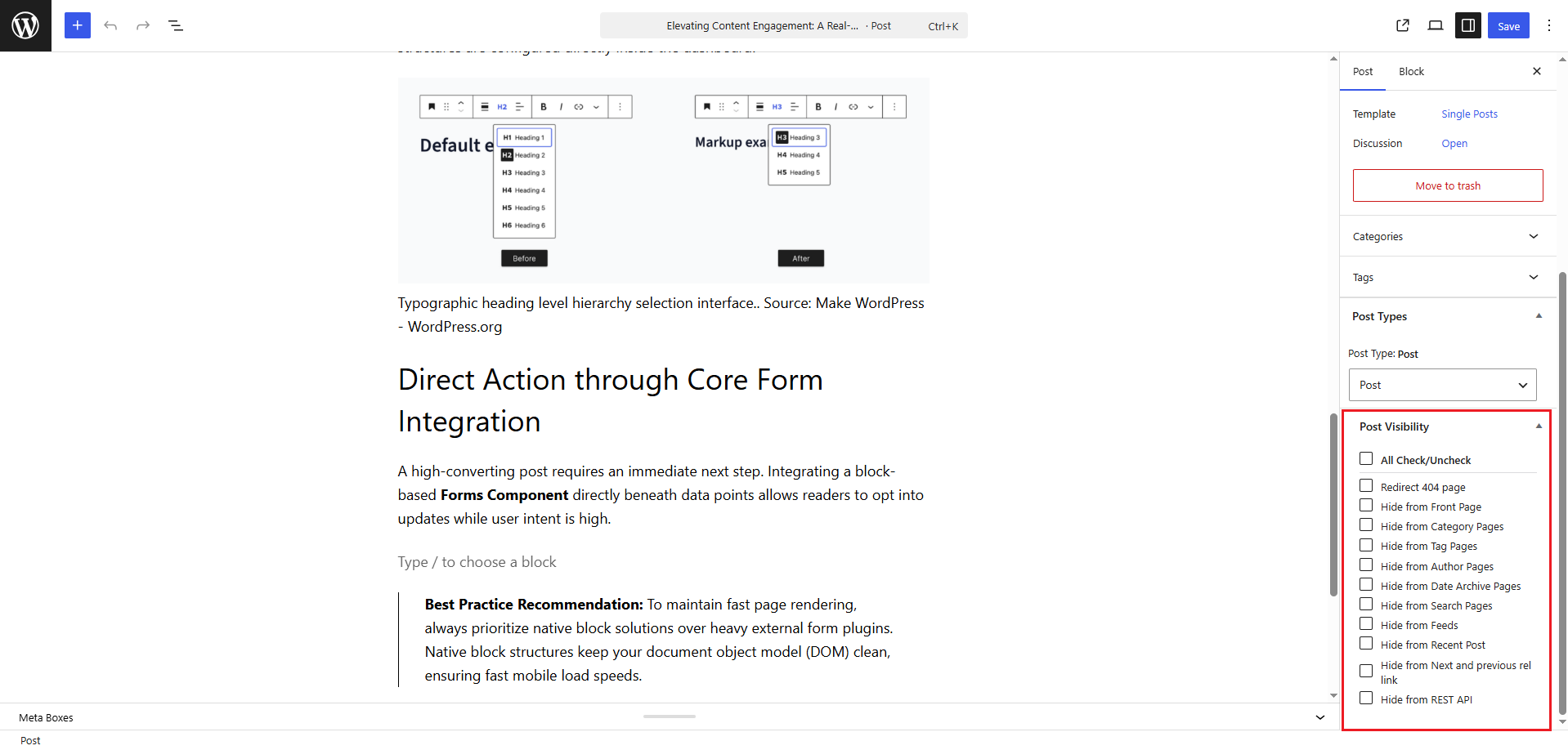
- Post Visibility Controls: Keep posts published but hide them from specific parts of the site. Eleven independent visibility toggles. See the full list below..
- Translation Ready: Fully translatable and compatible with multilingual WordPress websites.
- Selective Enablement [PRO]: You decide which post types show the transfer option. No need to have the dropdown everywhere. Turn it off where it’s not relevant and the admin stays clean.
- Bulk Edit Transfer [PRO]: Check multiple posts, open Bulk Edit, pick the new type, and click Update. All of them move at once. This is the method that actually saves time on larger sites.
- Taxonomy Management [PRO]: Choose how categories, tags, and custom taxonomies behave during each transfer. Keep existing, map to new, or create a fresh taxonomy.
- Drag-and-Drop Post Reordering [PRO]: Rearrange posts within any post type using a drag-and-drop interface in the admin listing.
- AutoSort [PRO]: AutoSort pushes the custom back-end post order to your front end automatically.
- Advanced Re-order Page [PRO]: Dedicated reorder interface with pin, Move to Top, Move to Bottom, Undo, Save Order, and Reset to Default
- Post Duplication [PRO]: Clone any post as a draft with full control over what copies: title, content, custom fields, taxonomies, and featured image.
- Page Builder Ready [PRO]: Works smoothly with Elementor, WPBakery, Divi, and other major page builders for hassle-free content reordering.
- WordPress Multisite Support [PRO]: Post transfers, reordering, and duplication all work across WordPress multisite networks.
Post Type Transfer Pro
Post Type Transfer Pro includes all free features plus advanced features for agencies, developers, and content-heavy websites.
- Taxonomy Management: Control exactly how categories, tags, and custom taxonomies behave during every transfer. Keep existing, map to new, or register a fresh taxonomy on the fly.
- Drag-and-Drop Post Reordering: Set the display order of any post type directly from the admin listing using drag-and-drop handles.
- AutoSort: The custom back-end order you set automatically mirrors on the front end of the site.
- Advanced Reorder Interface: A full ordering screen in its own interface. Pin posts to keep them fixed at the top, bulk move others up or down, undo anything you don’t want, and save or reset when you’re done.
- Post Duplication: Clone any post as a draft and choose exactly what carries over. Title, content, excerpt, custom fields, taxonomies, featured image, and check what you need, leave out what you don’t.
- Page Builder Ready: Works smoothly with Elementor, WPBakery, Divi, and other major page builders for hassle-free content reordering.
- WordPress Multisite Support: All features work across sites in a multisite network.
- Upgrade to Pro: Get access to advanced transfer, organization, and content management tools with Post Type Transfer Pro.
Get Pro Version: Post Type Transfer Pro
- In your WordPress Dashboard go to “Plugins” -> “Add Plugin”.
- Search for “Post Type Transfer”.
- Install the plugin by pressing the “Install” button.
- Activate the plugin by pressing the “Activate” button.
- From the post edit screen, above the “Publish” button is the “Post Type Transfer” interface.
- Change post type as needed.
Screenshot Gallery
Open the post in the editor, locate the Post Type section in the right sidebar, select the new post type from the dropdown menu, and click Update. The post is transferred immediately without affecting its content or settings.
Yes. The plugin supports all registered post types, including WooCommerce products, CPT UI post types, ACF-generated post types, and custom post types created by themes or plugins.
No. The plugin only changes the post type assignment. Your content, custom fields, featured image, metadata, taxonomies, and other settings remain unchanged.
Yes. It is available in PRO version, you need to select multiple posts from the listing screen, choose Bulk Edit, select the target post type, and click Update to transfer all selected posts at once.
Changing a post type may affect the permalink structure depending on how the post type is configured. If URLs change, you should create 301 redirects to preserve inbound links and maintain search engine rankings.
The free version includes post type transfers from the editor, and Quick Edit, along with custom post type support, CSV import and export, and post visibility controls.
The Pro version adds Bulk Edit, selective enablement, Taxonomy Management, Drag-and-Drop Post Reordering, AutoSort, Advanced Reorder Interface, Post Duplication, and WordPress Multisite Support.
Export posts to a CSV file from the plugin settings. The exported file includes post titles, content, featured image URLs, categories, tags, and publication dates. You can import the same file into another WordPress site or use it to recreate content on the current site.
Use the ptt_csv_export_filename filter to customize the CSV filename before download.
Parameters:
– $filename (string): Default export filename.
– $post_type (string): Current post type being exported.
Use the ptt_csv_export_columns filter to add, remove, or reorder columns in the exported CSV.
Parameters:
– $columns (array): Ordered list of CSV column names.
– $post_type (string): Current post type being exported.
Use the ptt_csv_export_row filter to modify individual CSV row data or populate custom column values.
Parameters:
– $row (array): Associative row data (column => value).
– $post (WP_Post): Current post object.
– $post_type (string): Current post type being exported.
Use the ptt_csv_import_skip_row filter to programmatically skip importing a CSV row.
Parameters:
– $skip (bool): Whether the row should be skipped.
– $data (array): Parsed CSV row data.
– $post_type (string): Target post type.
– $row_num (int): CSV row number.
Use the ptt_csv_import_post_data filter to change post data before it is passed to wp_insert_post() or wp_update_post().
Parameters:
– $post_data (array): Post data that will be saved.
– $data (array): Parsed CSV row data.
– $post_type (string): Target post type.
– $existing (WP_Post|null): Existing matched post object, if available.
Use the ptt_csv_import_meta_value filter to modify post meta values before they are stored. Return null to prevent a specific meta key from being saved.
Parameters:
– $value (mixed): Meta value.
– $key (string): Meta key.
– $post_id (int): Post ID.
– $post_type (string): Target post type.
Use the ptt_csv_import_image_url filter to modify the featured image URL before it is downloaded and attached. Return an empty string to skip importing the image.
Parameters:
– $url (string): Original image URL.
– $post_id (int): Post ID.
You can request help through the WordPress.org support forum or contact us directly at support@krishaweb.com.
Changelog
1.6
- Tested up to 7.0
- Add import/export feature
- Add post visibility feature
1.5
- Code quality improvements
- Tested up to 6.8
1.4
- Fixed: Compatibility with ACF Pro repeater field
1.3
- Bugfix
1.2
- Compatible with ACF
1.1
- Compatible with Gutenberg editor
- Tested up to 5.0
1.0
- Release
