
Font Awesome
Active Installs
400,000+
Last Updated
August 13, 2026
First Released
September 18, 2012
Download History (Last one month)
Contributors
The official way to use Font Awesome Free or Pro icons on your WordPress site, brought to you by the Font Awesome team.
Features
Our official plugin makes it easy to add Font Awesome icons to your pages, posts, and templates and includes the following features:
- Use Pro or Free icons, from the latest release or a specific release.
- Use custom icons from your Pro Kits.
- Use a Font Awesome Kit to add any of our icons (including the latest Duotone styles and custom icons!), or select the Font Awesome CDN for Version 5 icons only.
- Turn on automatic compatibility for Font Awesome Version 4 if you – or your plugins – are still using Version 4 syntax.
- Troubleshoot and resolve issues when multiple versions of Font Awesome are loading on your site from other plugins/themes, which can cause unexpected icon display or technical issues.
How to Use
Install And Enable The Plugin
(See the Installation tab for details)
How to Add and Style Icons
Full docs on how to use the plugin and add icons are available on the Font Awesome Docs site.
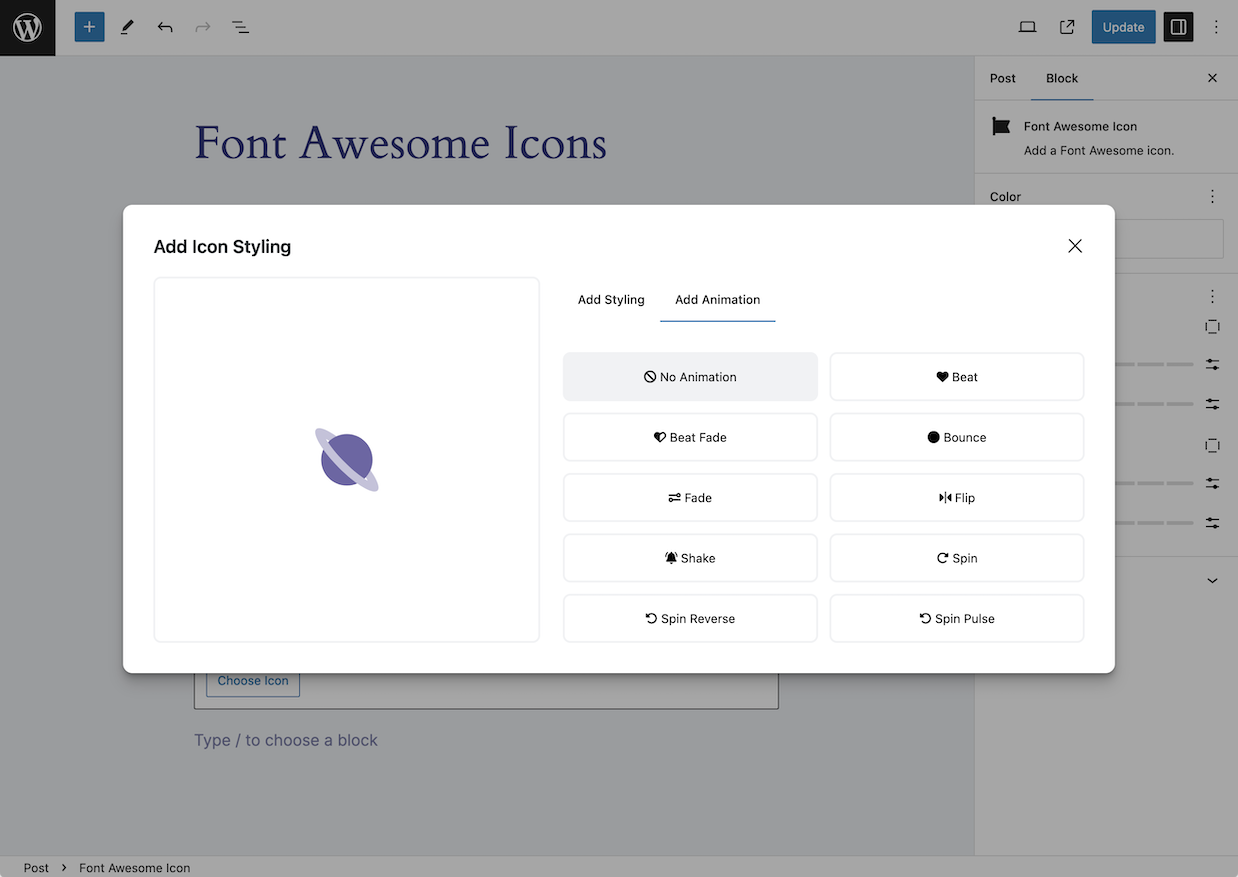
Add Icons in the Block Editor
Once you’ve set up your plugin, you can add icons as blocks or inline with text.
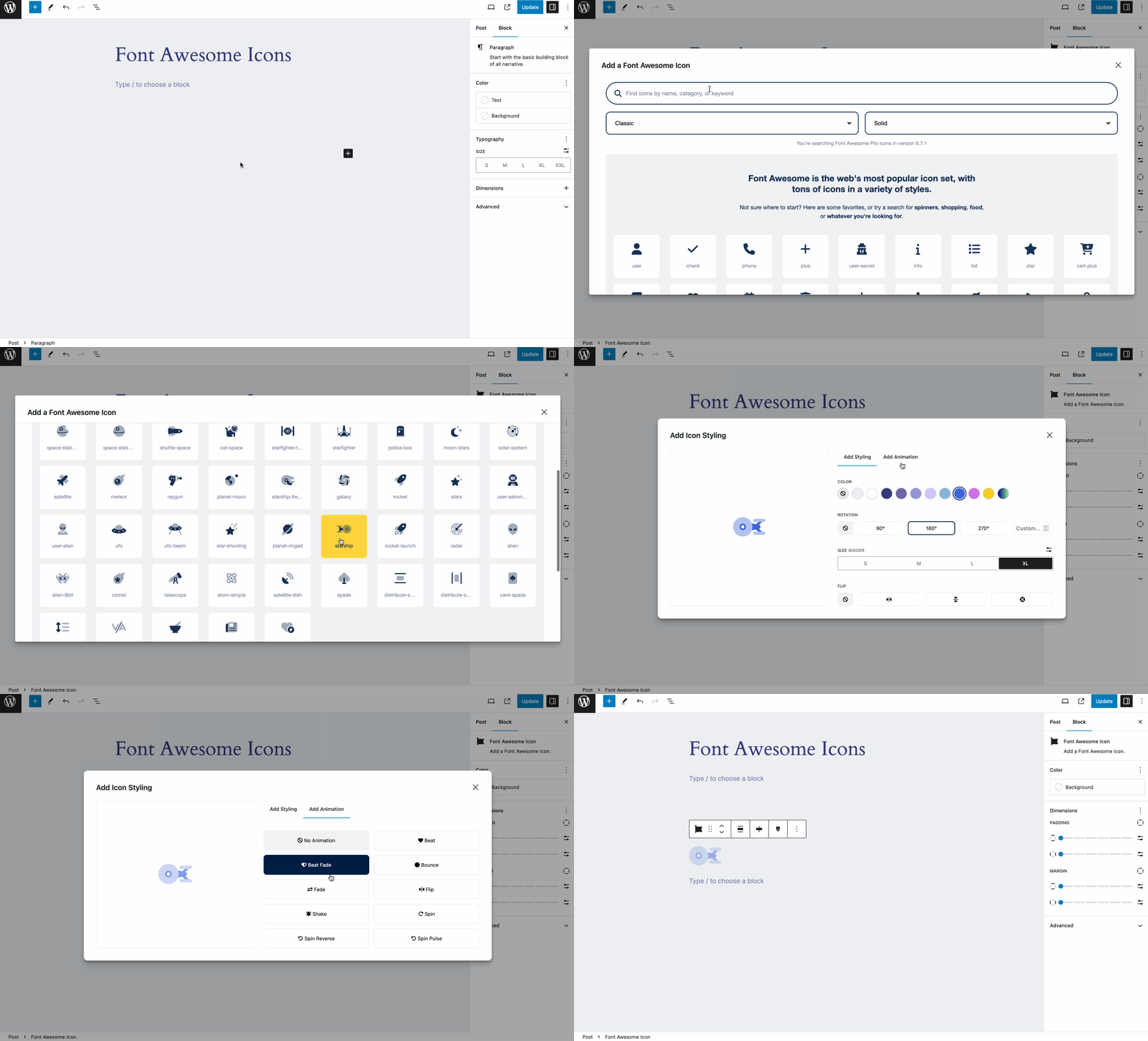
To add icons as blocks, select the “Font Awesome Icon” block, and then click the “Choose Icon button” to open the Icon Chooser.
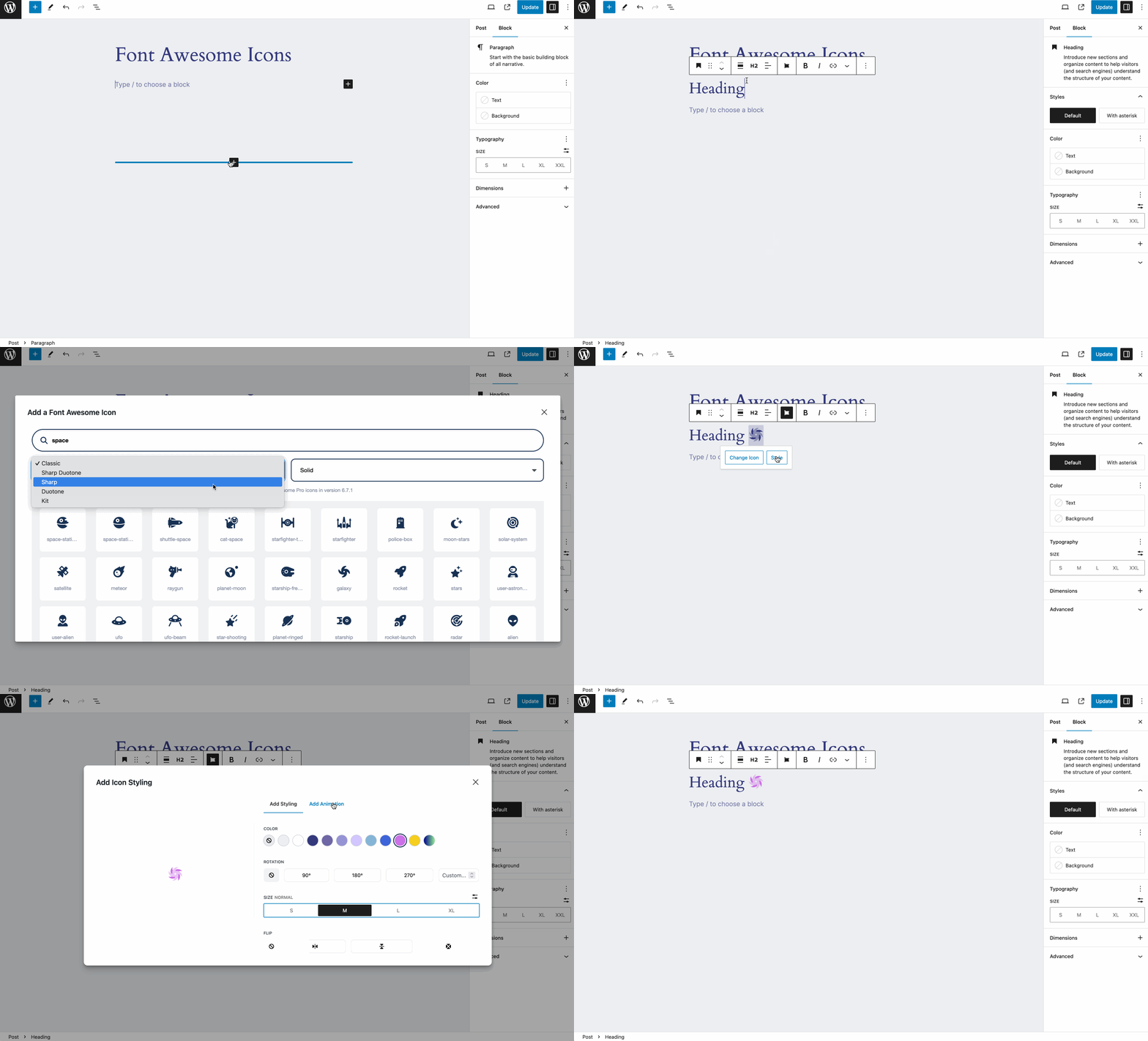
To add icons inline, select the Font Awesome option in the format toolbar to open the Icon Chooser. (Note: Inline icons require at least WP 6.3.)
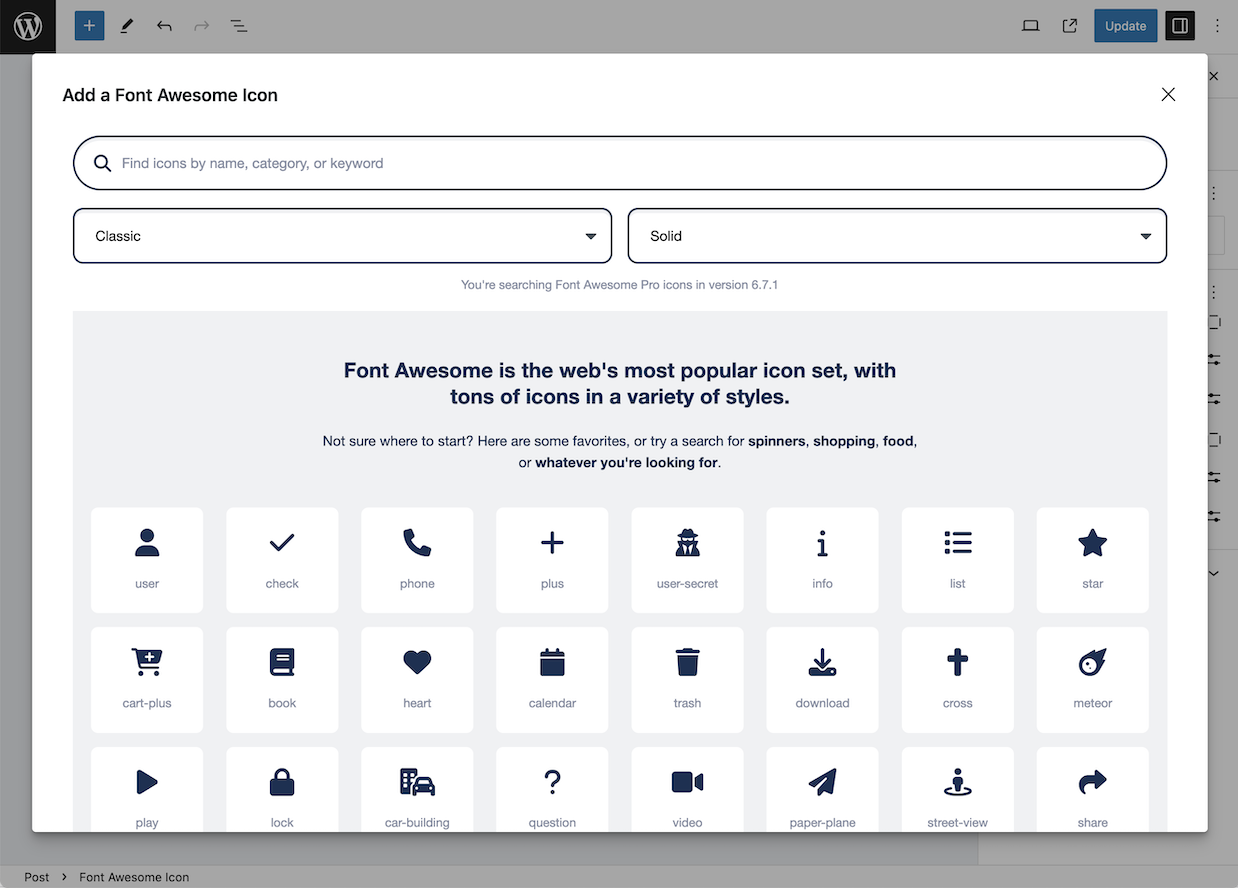
Once you open the Icon Chooser, add icons by:
- Searching for the icon you want – you can search by icon name, category, or keyword.
- Changing the Family and Style using the drop downs if you want an icon in a different style.
- When you see the icon you want, clicking it to enter it into the content of your page or post.
Note: If you want to search and add Pro icons in the Icon Chooser, make sure you set your plugin to use a Pro Kit.
Add Icons in The Classic Editor
If you need to add icons in the classic editor, you can use the icon names in shortcodes or HTML. Add an icon using shortcodes to any text area – just add the name of the icon and a style prefix, where the prefix is the style of icon you want to use. Note that you don’t need to include the fa- part of the icon name. And if you don’t include any style prefix, the icon will default to the Classic Solid style.
The shortcode for an icon looks like this:
[icon name="stroopwafel"]

[icon name="stroopwafel" prefix="fa-sharp fa-light"]
You can also use basic HTML with standard Font Awesome syntax, like this:
<i class="fa-solid fa-stroopwafel"></i>
Using Pro Icons and Features
To use a Kit to power your icons, create a Kit on FontAwesome.com and select “Pro icons” in the Kit Settings tab. Then grab your API Token from your Font Awesome Account page and add it to your WordPress plugin settings.
To use the CDN to power your icons, know that you will only be able to use icons from Version 5. To enable Pro icons, add your site’s domain to the list allowed domains on your Font Awesome CDN Settings page and then use shortcodes or HTML to add the icons into your content.
Troubleshooting with the Plugin
Font Awesome icons are popular, so lots of themes and plugins also load Font Awesome, and sometimes their version can conflict with yours. So we created a way to help you find and prevent those conflicting versions from affecting your icons: The Conflict Detection Scanner.
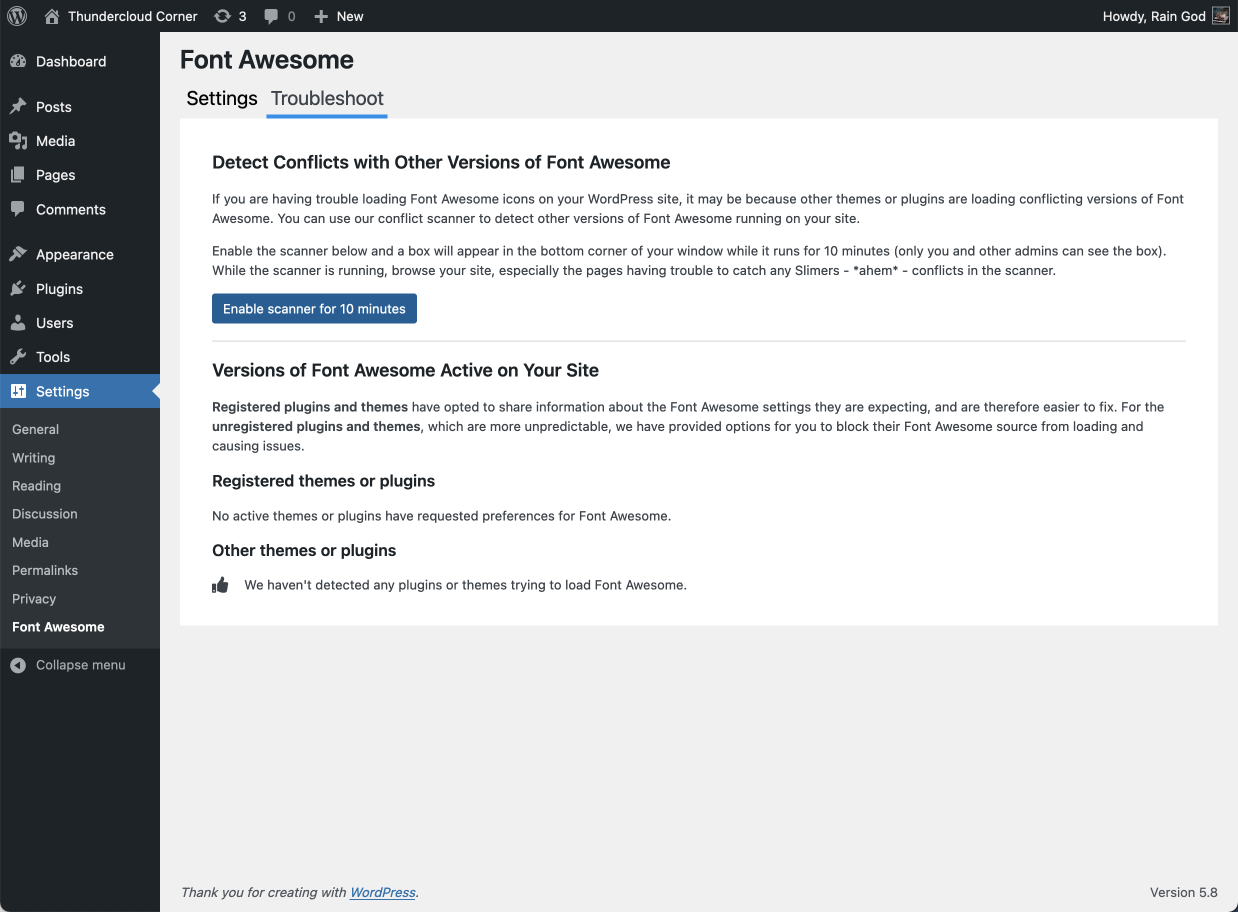
If the plugin seems to be set up correctly and your icons still aren’t loading and you’re not sure why, head over to the Troubleshoot tab, which has two parts:
- Detect Conflicts with Other Versions of Font Awesome – which lets you start the conflict detection scanner to find versions of Font Awesome loading on your site.
- Versions of Font Awesome Active on Your Site – which shows the results of the scanner and lets you prevent any conflicting versions from loading other versions of Font Awesome on your site.
Get more information about using the scanner for troubleshooting on the Font Awesome WordPress docs.
Configuring
The plugin is set to serve Font Awesome Free icons as a Web Font via the Font Awesome CDN by default. You can change the CDN settings right in the plugin. If you want just the basic Free icons, you probably don’t need to make any changes to the default configuration.
You can get more information about all the available settings and troubleshooting on the Font Awesome WordPress docs.
Upgrading from Plugin Version 4
[icon]shortcodes found in Block Editor content and elsewehre will continue to work as before,
though new icons added with the Icon Chooser in the Block Editor will be inline SVGs.
Previously added[icon]shortcodes will not be automatically be converted into the new inline SVG
format. If you want to convert an[icon]shortcode, delete it and re-add the icon using the Icon Chooser in the Block Editor.
See Also
The README on GitHub has details for WordPress site owners and developers.
You can get more information about all the available settings and troubleshooting on the Font Awesome WordPress docs.
And there are API docs for developers.
From the Plugins Directory in WordPress Admin
From the “Add Plugins” page in WordPress admin:
-
Search the plugins directory by
author: fontawesome -
Click “Install” on the Font Awesome plugin in the search results
-
Click “Activate”
Installing a Zip Archive
-
Click Download on this plugin’s directory entry to get the
.zipfile -
On the “Add Plugins” page in WordPress admin, click “Upload Plugin” and choose that
.zipfile
Access Font Awesome Plugin Settings
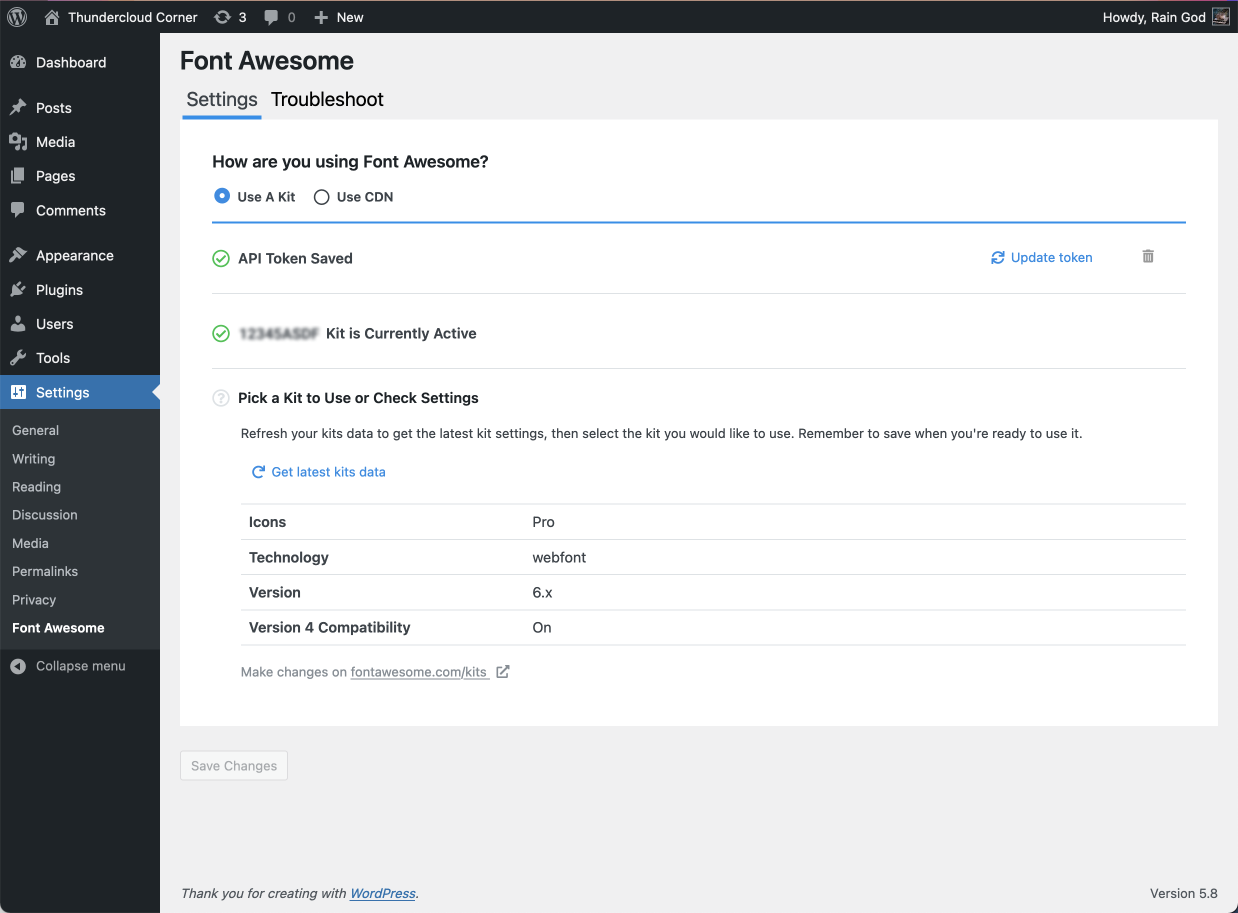
Once you activate the Font Awesome plugin, you will see Font Awesome in the Settings menu in your WordPress admin area, or you can click “Settings” on the plugin listing on the Plugins page.
The plugin is set to serve Font Awesome Free icons as a Web Font via the Font Awesome CDN by default. You can change the CDN settings right in the plugin. If you want just the basic Free icons, you probably don’t need to make any changes to the default configuration.
Using Pro Icons and Features
To add icons using a Kit, create a Kit on FontAwesome.com and select “Pro icons” in the settings. Then grab your API Token from your Font Awesome account page to add into the WordPress Kit settings.
To add Pro icons (V5 only) using the CDN, you will need to add your site’s domain to the list allowed domains on your Font Awesome CDN Settings page and use shortcodes or HTML to add the icons into your content.
If you’re using the Icon Chooser, you’ll need to use a Pro Kit. (The CDN can only search and add Free icons – use shortcodes or HTML to add Pro icons when using the CDN).
Screenshot Gallery
You can get more information about using the plugin, details for available settings, and answers to frequently asked questions on the WordPress docs on Font Awesome.
Changelog
5.2.1
- Fix the registration of script translations to enable non-English languages to work
correctly in the plugin’s admin interface.
5.2.0
- Update the icon chooser to be Kit subset aware. Only icons included in a Kit’s subset will be available for search and selection. If it surprises you to see fewer icons available in the Icon Chooser, the solution is to add more icons to your Kit’s subset on fontawesome.com. You could even use a Full Library kit to include them all.
- Fix for WordPress 7 compatibility: loading assets within the block editor content iframe.
5.1.5
- Minor update to the icon chooser, fixing a bug in the previous update.
5.1.4
- Update the icon chooser package. This is only for compatibility with other tools that may be
loaded on a page that also use the icon chooser package. It does not change how the icon chooser
functions in this plugin.
5.1.3
- Resolve a compatibility conflict with Toolset Types in the classic editor.
5.1.2
- Fix a bug where clicking “Style” on a rich text icon (inside a paragraph block, for example), would
result in an error in the block editor. This bug was introduced in 5.1.1 and does not affect
icons created as blocks–only those added as inline rich text.
5.1.1
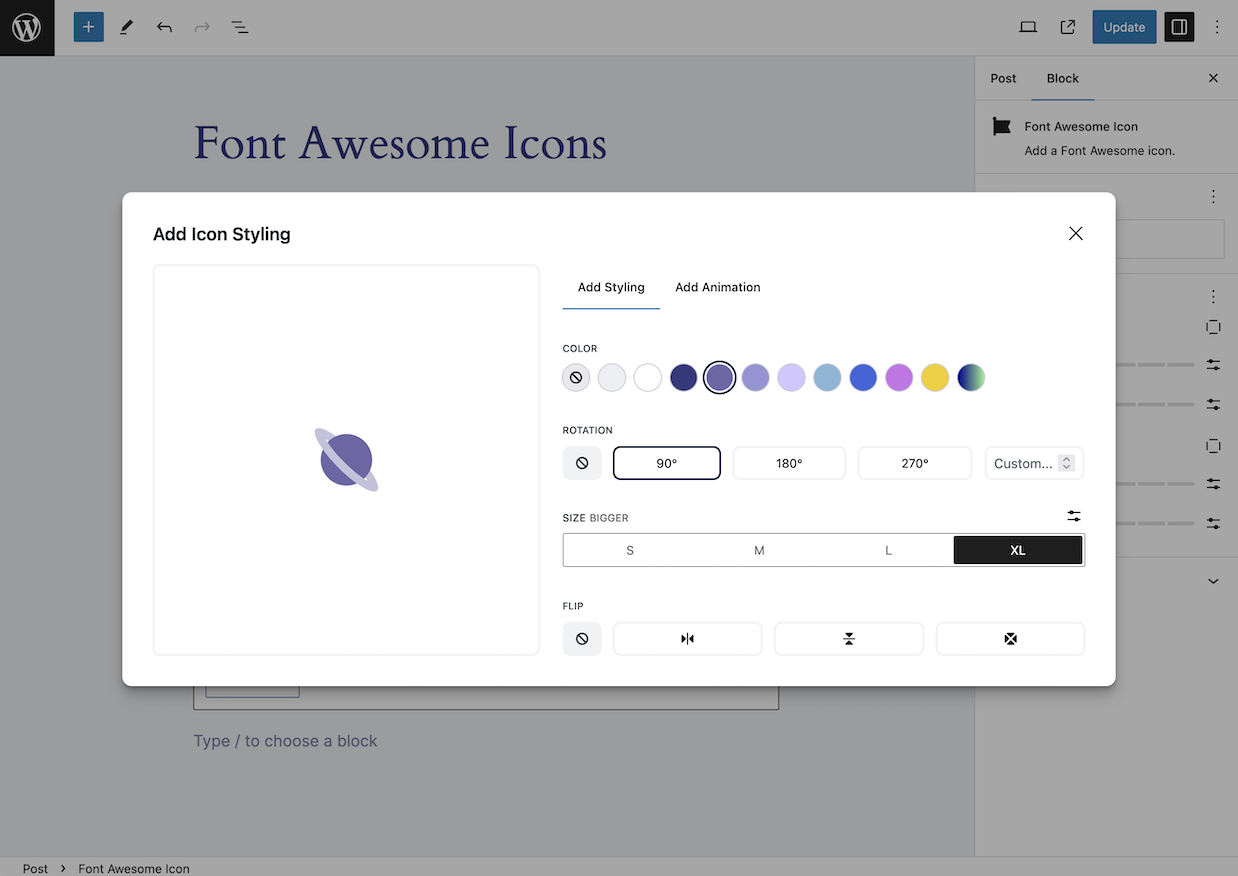
- Enable changing the icon within the block editor styling UI.
- Fix a bug in block editor icon styling UI where the theme color palette options were incorrect when
any custom colors were defined in the theme. - Fix animations on SVGs in some use cases when added in the block editor. This loads a different SVG
support stylesheet that includes the animations CSS rules. - Fix a bug where when there are multiple empty icon blocks, changing an icon in one might affect others.
The now function independently of one another as expected.
5.1.0
- Minor updates to support Font Awesome 7.
- Allow kits to use a version “7.x”.
- Update icon chooser to support Font Awesome 7.
- Use the new svg.css for SVG support styling. (Reverted in 5.1.1)
5.0.2
- Fix a bug in the Classic Editor involving interaction with some other plugins, where the Font Awesome
media button would not be visible. - Make it an admin warning instead of an error when the plugin can’t fetch SVG support stylesheet.
- Add a
font_awesome_disable_block_editor_supportfilter to allow disabling the block editor support entirely. - Changes to enable usage of the self-hosted SVG support stylesheet on systems where file system access is not available.
5.0.1
-
Automatically fetch the SVG stylesheet any time the WP admin dashboard or Font Awesome plugin settings
page is loaded. This stylesheet is required for the new embedded SVG icons to display correctly when they
are added using the Icon Chooser in the Block Editor. If you do not use the Block Editor, and do not want
this additional stylesheet to be loaded, you can disable it from loading by adding the following to
your theme’s functions.php or equivalent:add_action("wp_enqueue_scripts", function () {
wp_dequeue_style("font-awesome-svg-styles");
});
5.0.0
- Enhance support for the Block Editor. Add icons as blocks or as inline Rich Text using the
Icon Chooser. Icons added in the Block Editor using the Icon Chooser are added as inline SVGs,
and can be visually previewed, styled, sized, and animated within the Block Editor. This works
for pages, posts, and in the Full Site Editor. - Improve Icon Chooser performance.
- Remove support for Font Awesome 3 icon names in the
[icon]shortcode. - Change minimum supported WordPress to 5.8.
- Change minimum supported PHP to 7.4.
4.5.0
- Update the Icon Chooser to support all available family styles for the active version of
Font Awesome. The available family styles are dynamically loaded so that when new
family styles are introduced in new versions of Font Awesome, they will be immediately
available in the Icon Chooser. - Make the Icon Chooser available in the Full Site Editor.
- Change the format of some network requests in order to accommodate common Web Application
Firewall settings. This resolves a common cause of error messages, such as:
“Something has gone horribly wrong” in the Icon Chooser, or “Couldn’t save those changes” on
the plugin’s settings page.
4.4.0
- Update the Icon Chooser to fix the use of Sharp Solid in more recent versions of Font Awesome,
and include Sharp Regular and Sharp Light. - Add the “defer” attribute to script tags when in “Use a Kit” mode. This was already the behavior
under “Use CDN” mode. - Fix some deprecation notices for php 8.2.
4.3.2
- Security Fix: escape shortcode attribute values.
4.3.1
- Increase network request timeout to accommodate some slow-running Icon Chooser searches.
We’ve recently added some new functionality to the Font Awesome API server. We’re in
the process of optimizing it for performance. In the meantime, some icon searches that
return lots of search results are running slowly. Increasing the timeout
allows those searches to run longer before considering it an error.
4.3.0
- Introduce support for Sharp Solid.
The Icon Chooser now includes Sharp Solid among the available styles when using
a Font Awesome Pro Kit. - Introduce support for WordPress multisite. Allows installing the plugin network-wide
and configuring each site separately.
Previous versions of this plugin were not compatible with multisite, though it was
possible to install and get partial functionality on multisite. However, this
could also result in a confusing database state. If you’re running multisite,
it’s important that any installation of a previous plugin version is totally cleaned
up before trying to install this version. Upgrading on multisite without cleaning up
first will probably result in an error. A previous installation can usually be
cleaned up by deactivating and uninstalling it. Uninstall must be done by clicking
“Delete” on the deactivated plugin’s entry in the plugin list in the admin dashboard.
It may also work to install the previous 4.2.0 version and then uninstall it, just
to get its cleanup code to run.
This has no impact on sites that are not running in multisite mode. If you’re not
running multisite, upgrading to this version should be smooth and problem-free.
4.2.0
- Make Font Awesome 6 the default version on new activations.
- On the version selection dropdown, distinguish between the latest 5.x and the latest 6.x.
- Maintenance updates to JavaScript dependencies.
- Developers: the latest_version() method has been deprecated and replaced by two alternatives:
latest_version_5() and latest_version_6().
4.1.1
- Simplified upgrade logic: makes the upgrade process on the first page load
after upgrade quicker and smoother.
4.1.0
- Added support for using Font Awesome Version 6 Free with CDN. In order to use
Version 6 Pro with this plugin, it’s still necessary to use a Kit,
since Version 6 Pro is not available on the classic CDN. - Renamed the “Version 4 Compatibility” option as “Older Version Compatibility”,
since compatibility features may now involve both Version 4 and Version 5. - Updated version of the conflict detection script used when configured for CDN.
- FIX: in some cases, when running the conflict detector on the back end,
there was an error about an undefined variable called $should_enable_icon_chooser.
Fixed. - FIX: in some cases, when running php 8.0 or higher, there was an error related to
calling method_exists(). Fixed. - Developers: The v4_compatibility() method has been deprecated and will be removed
in a future release. It’s now just compatibility(). - Developers: The preference named “v4Compat” in the array argument to the register()
method has been deprecated and renamed “compat”. Any uses of “v4Compat” are automatically
translated to “compat”. - Developers: There are no breaking changes. Any code that uses the above deprecated
features will continue to work the same without modification in this release.
4.0.4
- FIX: add hash values to JavaScript chunk file names to resolve the problem where
sometimes an old cached version of a JavaScript file would load in the browser
instead of the intended updated one. This caused some users to see a blank
settings page after upgrading from a previous version of the plugin.
4.0.3
- FIX: When in the Classic Editor in WordPress 5, do not load block editor
script dependencies that assign to the global wp.editor object.
This prevents problems with other plugins on the page that may depend on that
global. - FIX: When in the Classic Editor where multiple editor instances are present,
ensure that the Add Font Awesome media button on each is wired up to
load the Icon Chooser on click, not just those buttons that were on the page
at the time this plugin’s initialization code is run.
4.0.2
- FIX: re-enable the Icon Chooser in the Classic Editor on WordPress 4.
- FIX: in some cases where the path to the plugin was a non-standard
location–such as when installed via composer–the admin settings page and
Icon Chooser would not load correctly. Fixed. - FIX: the global version of the lodash JavaScript library was again being overwritten
by the version used by this plugin. Fixed. - The Icon Chooser’s integration with the Block Editor (Gutenberg) has been disabled
for WordPress 5.0, 5.1, 5.2, and 5.3, due to incomptabile JavaScript libraries.
All other features of the plugin work normally on those versions, including
Icon Chooser integration with the Classic Editor.
4.0.1
- FIX: In scenarios where both Gutenberg (Block) and TinyMCE (Classic)
editors were being loaded onto the same page, the Gutenberg editor was not
displaying properly.
Now, in that multi-editor situation, the Icon Chooser integration is only enabled
for the block editor.
In those cases, you can still use icon shortcodes or HTML in
the TinyMCE editor boxes; those editors just won’t have the “Add Font Awesome”
media button for opening the Icon Chooser.
The Icon Chooser is still available from the Classic Editor when the block editor
is not present on the page. - FIX: In scenarios where there are multiple TinyMCE editor instances on the same page,
such as WooCommerce product editing pages, only the “Add Font Awesome” media
button on the first of those editors was working correctly. Now all of them work
correctly. - FIX: In the Classic Editor, when other themes or plugins added media buttons after
the “Add Font Awesome” button, those buttons were showing up as combined together
and not working properly. Now they’re separated and working great. - The Icon Chooser integration for the Classic Editor in WordPress 4 has been temporarily
disabled. Everything else works as before in WP4, just not the new Icon Chooser.
4.0.0
- OFFICIAL 4.0.0 STABLE RELEASE
- FEATURES: Includes all the features from the early 4.0.0 release candidates (details below)
- FEATURE: Visual icon chooser lets you search and easily insert the correct shortcode.
- Fixed regression on overriding global lodash version.
- Added PHP API method to get current Kit token.
- Removed the filter to process all shortcodes in widget text. This seems to have been
an overly eager approach on our part. If you want shortcodes to be processed
in widget text – all shortcodes, not just this plugin’s icon shortcode – you can
add a line like this to your theme’s functions.php file:
add_filter( 'widget_text', 'do_shortcode' );
4.0.0-rc23
-
FIX: plugin now handles Kits with version “5.x” or “6.x”
-
FEATURE: shortcode supports attributes: style, role, title, aria-hidden,
aria-label, aria-labelledby
4.0.0-rc22
-
Metadata about available Font Awesome releases is now stored as a normal option
in the WordPress database, instead of as a transient. Thus, it does not expire
and does not disappear if the transient cache is purged.This is in part to avoid the scenario where a request to the Font Awesome API
server may be required to refresh metadata in response to a front end page load
when that transient expires.Some site owners had occassionally experienced problems where a sudden burst of
requests to the API server from many WordPress sites caused this plugin to fail
when making a request with an error like ‘An unexpected response was received
from the Font Awesome API server.’ This change means that it is significantly
less likely that such a scenario will occur.
(Additionally, changes have been made on the API server, also making it
significantly less likely that this over-load failure will occur again.) -
Developers: the refresh_releases() API method has been deprecated to discourage
unnecessary blocking network requests to the API server.
4.0.0-rc21
- optimize normal page loads by loading much less metadata from the database (GitHub #96)
- move the Font Awesome settings link from the main admin nav menu back down under Settings, where it used to be
- update the version of the conflict detection script to one that also detects conflicting Kits
- minor maintenance changes to keep JavaScript dependencies up to date
- fix a bug involving the pseudo-elements setting when moving back and forth between using a Kit and using CDN (GitHub #82)
4.0.0-rc20
- developer-oriented update to support building themes that use this code as a composer package
4.0.0-rc19
- another minor update with additional error logging
4.0.0-rc18
- minor update with additional error logging
4.0.0-rc17
SECURITY: fixes a vulnerability in how API tokens were being stored, when configured to use a Kit. All users of 4.0.0-rc15 or 4.0.0-rc16 should update immediately. Find more details and instructions for updating your API Token on the Font Awesome blog.
- a minor bug in how network errors are handled
4.0.0-rc16
- Fixes to the upgrade process
4.0.0-rc15
MAJOR UPDATE, some breaking changes for developers. Improves conflict detection, adds support for Kits and internationalization.
- Includes auto-upgrade logic so that most users can upgrade with no impact, except those that have “registered client” themes or plugins. Users who had previously enabled the “remove unregistered clients” option should verify that the auto-upgrade worked successfully – check that your icons are appearing correctly. If not, run the Conflict Scanner from the Troubleshoot tab.
- New conflict detection and resolution: The new conflict detection scanner can be enabled to more precisely discover conflicting versions of Font Awesome and provides more granular conflict resolution.
- Expanded error handling with detailed reports in the web console for more advanced diagnostics.
- Adds support for Kits.
- Adds comprehensive internationalization in both PHP and JavaScript.
- New design of the admin UI.
- Developers: Significant changes to the way the settings are handled internally: Font Awesome will always load in the way the WordPress admin chooses. Registered themes or plugins may register preferences (which are displayed to the admin), but the site admin will determine the configuration.
- Developers: Registered client plugins and themes need to be updated before they will work as expected.
- Developers: The PHP API contains significant changes. See the GitHub README for an overview and the PHP API docs for details. This release is intended as a final API-changing release before stabilizing the API at 4.0.0. Once 4.0.0 is released, it will follow semantic versioning best practices.
4.0.0-rc13
- Improve diagnostic output for unhandled errors.
4.0.0-rc12
- Bug fix: Fix loading of admin page assets when removal of unregistered clients is enabled. This bug has been
hiding under a rock for a while. rc11 turned over the rock, and this bug scurried out.
4.0.0-rc11
- Bug fix: enqueue Font Awesome assets in admin and login areas, not just in the front end
4.0.0-rc10
- Attempt to fix a problem where the admin settings is sometimes being confused by unexpected output from the WordPress
server. This condition has been reported when certain other plugins are active, and (possibly) when PHP output
buffering works differently than this plugin expects.
4.0.0-rc9
-
Enhance Font Awesome version 4 compatibility: add shimming of the version 4 font-family to enable version 4
icons defined as pseudo-elements to be rendered via the version of Font Awesome 5 loaded by this plugin. -
Add warnings to the admin UI to indicate that using svg and pseudo-elements may result in slow performance,
and that svg with pseudo-elements and version 4 compatibility is not supported at all.
4.0.0-rc8
-
Remove dependence on third party libraries, eliminating a class of potential conflicts with other plugins.
-
Breaking changes to the API used by theme and plugin developers (no breaking changes for WordPress site owners).
See commit log
4.0.0-rc7
- Fix detection and removal of unregistered clients by changing the internal resource name this plugin uses to enqueue its resource.
Change it to something unlikely to be used by other themes or plugins.
4.0.0-rc6
- Fix error when updating options on admin page: handle null releaseProviderStatus in cases where the release provider
does not have to make a network request to update release metadata.
4.0.0-rc5
- Remove tilde character from JavaScript filenames to avoid violating some URL security rules
4.0.0-rc4
-
Cache releases data in the WordPress database to reduce the number of server-side network requests.
-
Ensure that releases data are always loaded fresh from fontawesome.com when loading the admin
settings page so site owners can see when new versions are available. -
Add more specific error message on admin dashboard in the event that the WordPress server is not able to
reach fontawesome.com in order to get an initial set of available releases data.
4.0.0-rc3
- Add missing v3 shim file
4.0.0-rc2
- Fix handling of v3 deprecation warnings in admin settings page
4.0.0-rc1
- Add admin settings page
- Lots of back end code changes to support theme and plugin developers
- Package plugin as a composer dependency
- API Changes
- Comprehensive API documentation for developers
- Cache load specification unless client requirements change
- Handle changing configurations as new plugins or themes are activated, de-activated or updated
- Lock working load specifications and only rebuild when new requirements are conflict-free
- Load Font Awesome release version metadata from the fontawesome.com releases API
3.2.1
- Last stable version of the old plugin
Available Versions
| Version | Download | Type |
|---|---|---|
| 5.2.1 | Download | Stable |
| 5.2.0-1 | Download | Stable |
| 5.2.0 | Download | Stable |
| 5.1.5 | Download | Stable |
| 5.1.4 | Download | Stable |
| 5.1.3 | Download | Stable |
| 5.1.2 | Download | Stable |
| 5.1.1 | Download | Stable |
| 5.1.0 | Download | Stable |
| 5.0.2 | Download | Stable |
| 5.0.1 | Download | Stable |
| 5.0.0 | Download | Stable |
| 4.5.0 | Download | Stable |
| 4.4.0 | Download | Stable |
| 4.3.2 | Download | Stable |
| 4.3.1 | Download | Stable |
| 4.3.0 | Download | Stable |
| 4.2.0 | Download | Stable |
| 4.1.1 | Download | Stable |
| 4.1.0 | Download | Stable |
| 4.0.4 | Download | Stable |
| 4.0.3 | Download | Stable |
| 4.0.2 | Download | Stable |
| 4.0.1 | Download | Stable |
| 4.0.0 | Download | Stable |
| 4.0.0-rc23 | Download | Beta |
| 4.0.0-rc22 | Download | Beta |
| 4.0.0-rc21 | Download | Beta |
| 4.0.0-rc20 | Download | Beta |
| 4.0.0-rc19 | Download | Beta |
| 4.0.0-rc18 | Download | Beta |
| 4.0.0-rc17 | Download | Beta |
| 4.0.0-rc16 | Download | Beta |
| 4.0.0-rc15 | Download | Beta |
| 4.0.0-rc13 | Download | Beta |
| 4.0.0-rc12 | Download | Beta |
| 4.0.0-rc11 | Download | Beta |
| 4.0.0-rc10 | Download | Beta |
| 4.0.0-rc9 | Download | Beta |
| 4.0.0-rc8 | Download | Beta |
| 4.0.0-rc7 | Download | Beta |
| 4.0.0-rc6 | Download | Beta |
| 4.0.0-rc5 | Download | Beta |
| 4.0.0-rc4 | Download | Beta |
| 4.0.0-rc3 | Download | Beta |
| 4.0.0-rc2 | Download | Beta |
| 4.0.0-rc1 | Download | Beta |
| 3.2.1 | Download | Stable |
| 3.1 | Download | Stable |
| 1.1 | Download | Stable |
| Development | Download | Trunk |
