
Contact Form X
Active Installs
300+
Last Updated
April 17, 2026
First Released
June 8, 2018
Download History (Last one month)
Contributors
Displays a user-friendly contact form that your visitors will love.
CFX: Contact form reinvented. Fast and friendly. Fresh and clean. Awesome for everyone 🙂
Overview
Install, activate, and then display the form anywhere, using the widget, shortcode, or template tag. Here is an overview of Contact Form X:
- Easy to use
- Simple and secure
- ADA and WCAG compliant
- Lightweight and super fast
- Provides multiple form styles
- Customize just about everything
- Display the contact form anywhere
- Add Checkbox, Radio, and Select fields
- Customize the order of all form fields
- Send email to multiple recipients
- Complete documentation via Help tab
- Excellent free plugin support 😎
“The famous spam filter SpamAssassin” scores CFX = zero spam!
For more details, check out the “Screenshots” section, below.
Form Fields
Easily choose which fields to display in the form. Each field may be set as required, optional, or disabled. Choose from these fields:
- Name
- Website
- Subject
- Custom Field 1 (can be dropdown, checkbox, radio, text, or phone number)
- Custom Field 2 (can be dropdown, checkbox, radio, text, or phone number)
- Custom Field 3 (can be dropdown, checkbox, radio, text, or phone number)
- Challenge Question
- Message
- Google reCaptcha (v2 or v3 Invisible)
- Cloudflare Turnstile (Invisible Captcha)
- Carbon Copy
- Agree to Terms
You can change the order of these fields and customize their labels and placeholders, everything is super flexible.
For a live demo of Contact Form X, visit my support page at Plugin Planet, and also my contact page at Perishable Press. Feel free to send a test email to see how it works, I won’t mind 😉 Also check out CFX in the “Screenshots” section (below) for a better idea of how the default form is styled out of the box.
Geeky Stuff
Lots of goodness for the geeks among us:
- Built with WordPress APIs
- Ajax-powered form submission
- Remembers all form data on error
- Cloudflare Turnstile (Invisible Captcha)
- Google reCaptcha (v2 or v3 Invisible)
- Drag/drop ordering of all form fields
- View your email messages on the WP Dashboard
- Option to enable/disable storing of email data in database
- Display form via widget, shortcode, or template tag
- Five CSS themes: Default, Classic, Micro, Synthetic, Dark
- Optionally disable all plugin styles and use your own CSS
- Optionally collect user data like IP, host, and referrer
- Works perfectly with or without Gutenberg Block Editor
- Focused on performance, security, and usability
- Include extra form and user info with each message
- Customize the form’s success and error messages
- Provides plenty of useful hooks for developers
- Targeted loading of CSS and JavaScript assets
- One-click remove email data from database
- One-click restore default options
- Translation ready
Contact Form X is a fresh new, lighter alternative to the heavier contact forms out there. CFX is lightweight yet fully featured. As they say, “everything you want, nothing you don’t”.
Privacy
To help protect user privacy, Contact Form X provides the following features:
- Agree to terms checkbox, customizable
- Choose which fields to include with the form
- Option to disable collection of user IP address and other data
- Note: this plugin uses cookies to enhance form functionality
Basically, this plugin enables visitors to send a message via contact form. Any information the user enters into the form will be sent directly to the recipient(s) according to plugin settings. When enabled in the plugin settings, details about each sent message will be stored in the WordPress database. Visit the “Advanced” plugin settings to control and/or disable this and other data-collection features.
Note: CFX provides an option to enable Google reCaptcha, which is provided by Google as a third-party service. For details on privacy and more, please refer to official documentation for Google reCaptcha.
Contact Form X is developed and maintained by Jeff Starr, 15-year WordPress developer and book author.
Support development
I develop and maintain this free plugin with love for the WordPress community. To show support, you can make a donation or purchase one of my books:
- The Tao of WordPress
- Digging into WordPress
- .htaccess made easy
- WordPress Themes In Depth
- Wizard’s SQL Recipes for WordPress
And/or purchase one of my premium WordPress plugins:
- BBQ Pro – Blazing fast WordPress firewall
- Blackhole Pro – Automatically block bad bots
- Banhammer Pro – Monitor traffic and ban the bad guys
- GA Google Analytics Pro – Connect WordPress to Google Analytics
- Head Meta Pro – Ultimate Meta Tags for WordPress
- REST Pro Tools – Awesome tools for managing the WP REST API
- Simple Ajax Chat Pro – Unlimited chat rooms
- USP Pro – Unlimited front-end forms
Links, tweets and likes also appreciated. Thanks! 🙂
Installing the plugin
- Upload the plugin to your blog and activate
- Configure the plugin settings as desired
- Display the form on any post or page via shortcode:
[contactformx]
Visit the Help tab on the plugin settings page for complete documentation.
More info on installing WP plugins
Uninstalling
This plugin cleans up after itself. All plugin settings and email data will be removed from the WordPress database when the plugin is deleted via the WP Plugins screen.
Like the plugin?
If you like Contact Form X, please take a moment to give a 5-star rating. It helps to keep development and support going strong. Thank you!
Screenshot Gallery

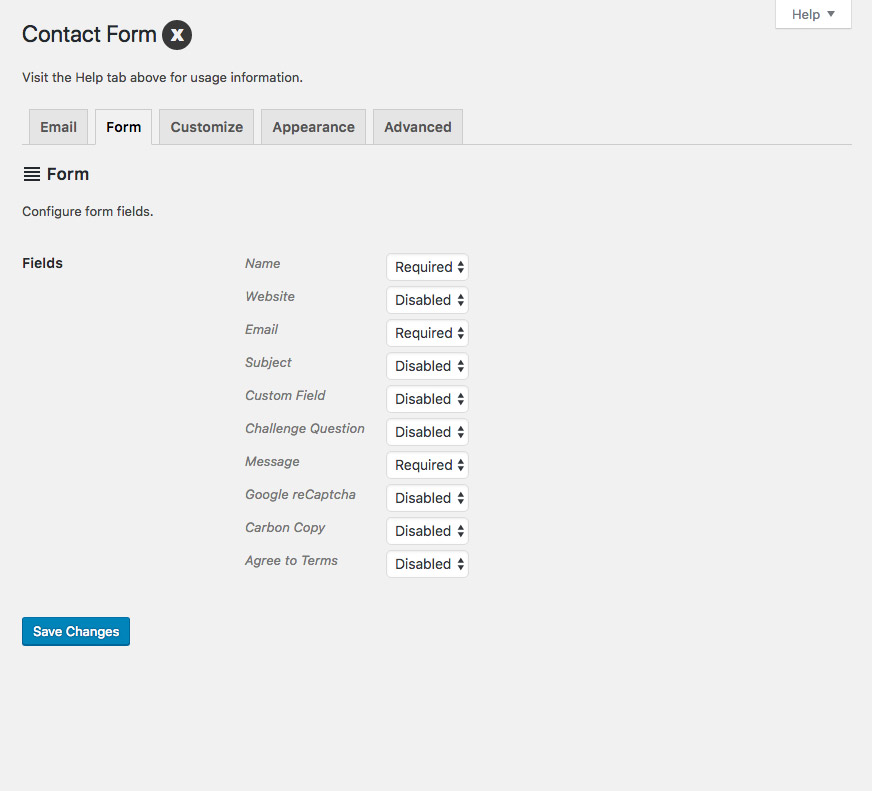

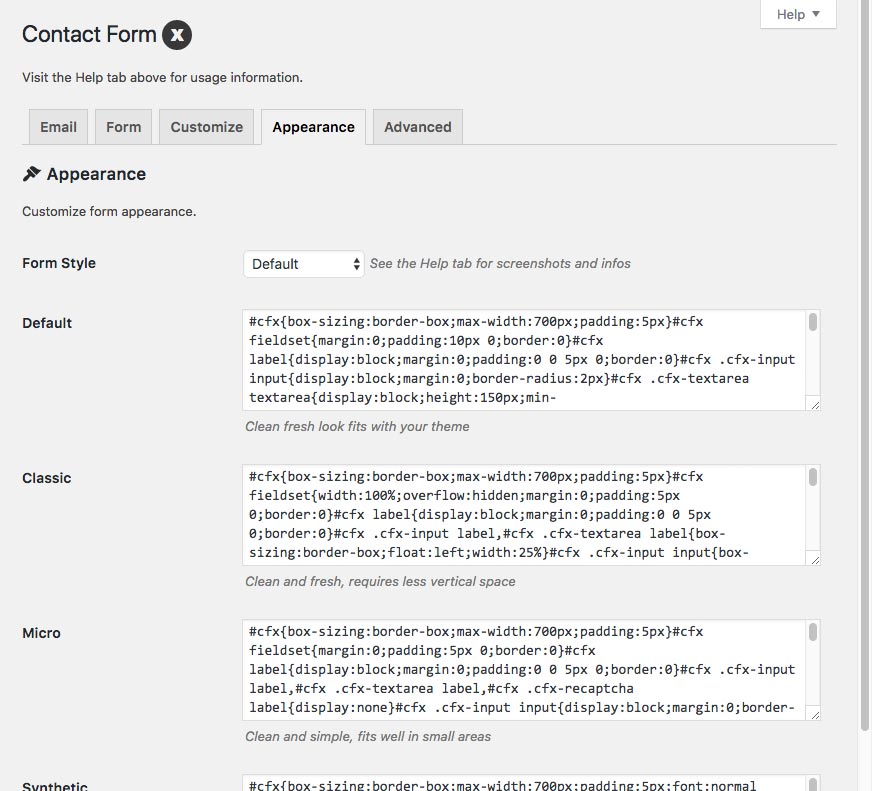


The plugin provides five form styles (themes): Default, Classic, Micro, Synthetic, and Dark.
The first three themes (Default, Classic, Micro) employ minimal, mostly structural styles. One of the benefits of using the minimal styles is that they allow your WordPress theme to set the form’s appearance. And that’s good because it helps keep your pages looking visually consistent across your site.
The last two themes (Synthetic, Dark) go much further with the stylings. The Synthetic and Dark styles will override any/most CSS applied via your WordPress theme. So if the contact form looks weird or whatever when trying Default, Classic, or Micro, try either Synthetic or Dark should do the trick.
And of course, there is an option to disable all plugin styles. So you can use your own custom CSS 🙂
By default, Contact Form X loads its assets (CSS and JavaScript) on every front-end page. So if you display a contact form in your sidebar, it will work on all pages.
Some sites prefer to have a “Contact” page, and then just display the contact form in one location. In this scenario, it doesn’t make sense to include plugin assets on every front-end page. So CFX provides a setting called “Targeted Loading” (under the Advanced tab). There you can enter the URL of the page that displays the contact form. That way, the plugin will know to load assets only on that page. This is an excellent way to help keep things optimized for performance and so forth.
In the plugin settings, visit the “Appearance” tab. There you will see the first option, “Form Style”. That tells you which styles are used for the form. So to change the button color, scroll down to locate the styles that you are using (e.g., Default, Classic, Micro, et al). To change the color of the submit button, add the following line to whichever styles you are using:
#cfx .cfx-button { background: red !important; }
Change the red to whatever color you want. Can use hex values, rgba, or any valid CSS properties. Save changes and done.
Visit the Advanced tab and enable “Extra Email Info” option. Save changes and done.
The recommended way to defer or async load JavaScript is to use a trusted plugin or custom script.
It is possible to set a maxlength attribute on the Message field, a textarea. To do so, add the following code via (child) theme or custom plugin:
function contactformx_textarea_maxlength($chars) { return 500; }
add_filter('contactformx_textarea_maxlength', 'contactformx_textarea_maxlength');
You can adjust the number of characters by changing 500 to any number.
Enable the Advanced option, “Widget Shortcodes”. Save changes and done.
By default, the Google reCaptcha field is displayed in English. To change that to some other language, first locate the two-digit abbreviation for your language here. Then add the following code to your theme (or child theme) functions.php, or add via simple custom plugin:
function contactformx_recaptcha_querystring($query) { return 'en'; }
add_filter('contactformx_recaptcha_querystring', 'contactformx_recaptcha_querystring');
Notice where it says en, that is the two-character language code you want to replace with your own. Then save changes and done.
According to Google docs, it’s fine to hide the reCaptcha badge (the little blue badge that displays in the corner of the page), as long as the official requirements are met. So if you’ve got the requirements covered, it’s fine to add the following CSS to hide the reCaptcha badge:
.grecaptcha-badge { visibility: hidden; }
You can append that bit of CSS to your chosen form styles under the Appearance tab, in the CFX settings. Save changes and done. Or alternately, you can add the CSS using a custom plugin, or via any other method.
Contact Form X (CFX) should be compatible with any SMTP plugin that uses WP APIs and standards, etc. For example, from user reports we know that:
- CFX is compatible with Easy WP SMTP out of the box
- CFX is compatible with SMTP Mailer when the setting “Email Address From” is the same as the email set up in SMTP Mailer settings
Thanks to @sixaxis for this information.
Please let us know if you have any information about CFX compatibility with SMTP plugins, thank you.
There are two ways to customize/set the Subject line:
First way is to simply disable the “Subject” field (under the “Form” tab), and then set the option “Default Subject” (under the “Customize” tab) to whatever you want.
Second way is to add this snippet of jQuery to your site:
<script>
jQuery(document).ready(function($) {
    $('.cfx-subject').hide();
    $('.cfx-submit').click(function() {
        $('#cfx-subject').val('Whatever you want');
    });
});
</script>
Make sure to change the “Whatever you want” to.. well, whatever you want to use for the Subject field in all sent messages. No other changes need made, save changes and done.
To change the message that is displayed at the beginning of all carbon copy emails, add the following slice of code to your WordPress site:
function contactformx_send_carbon_message($message) {
    return 'This message is displayed at the beginning of the carbon copy email.'. "\n\n";
}
add_filter('contactformx_send_carbon_message', 'contactformx_send_carbon_message');
Make sure to change the return message to whatever you would like. No other changes need made, save changes and done. Just fyi, here is a guide that explains some ways to add custom code to WordPress.
Send any questions or feedback via my contact form
Changelog
If you like CFX, please take a moment to give a 5-star rating. It is super appreciated and really helps to keep plugin development going strong.
3.0.2 (2026/04/17)
- Updates plugin settings page
- Improves readme.txt documentation
- Removes
contactformx_initfromuninstall.php - Tweaks Extra Data email information
- Tweaks
contactformx_get_custom() - Tests on WordPress 7.0
Full changelog @ https://plugin-planet.com/wp/changelog/contact-form-x.txt
" width="120" height="120">
Available Versions
| Version | Download | Type |
|---|---|---|
| 3.0.2 | Download | Stable |
| 3.0.1 | Download | Stable |
| 3.0 | Download | Stable |
| 2.9.2 | Download | Stable |
| 2.9.1 | Download | Stable |
| 2.9 | Download | Stable |
| 2.8.4 | Download | Stable |
| 2.8.3 | Download | Stable |
| 2.8.2 | Download | Stable |
| 2.8.1 | Download | Stable |
| 2.8 | Download | Stable |
| 2.7.2 | Download | Stable |
| 2.7.1 | Download | Stable |
| 2.7 | Download | Stable |
| 2.6.1 | Download | Stable |
| 2.6 | Download | Stable |
| 2.5 | Download | Stable |
| 2.4.1 | Download | Stable |
| 2.4 | Download | Stable |
| 2.3 | Download | Stable |
| 2.2.1 | Download | Stable |
| 2.2 | Download | Stable |
| 2.1 | Download | Stable |
| 2.0 | Download | Stable |
| 1.9.2 | Download | Stable |
| 1.9.1 | Download | Stable |
| 1.9 | Download | Stable |
| 1.8 | Download | Stable |
| 1.7 | Download | Stable |
| 1.6 | Download | Stable |
| 1.5 | Download | Stable |
| 1.4 | Download | Stable |
| 1.3 | Download | Stable |
| 1.2 | Download | Stable |
| 1.1 | Download | Stable |
| Development | Download | Trunk |
