
Gridster
Active Installs
20+
Last Updated
April 22, 2013
First Released
April 2, 2013
Download History (Last one month)
Contributors
Gridster is a WordPress plugin that makes building intuitive draggable layouts from elements spanning multiple columns. You can even dynamically resize, add and remove elements from the grid, as edit the elements content inline.
You can fork Gridster at Github or tell me about your issues.
General – Features
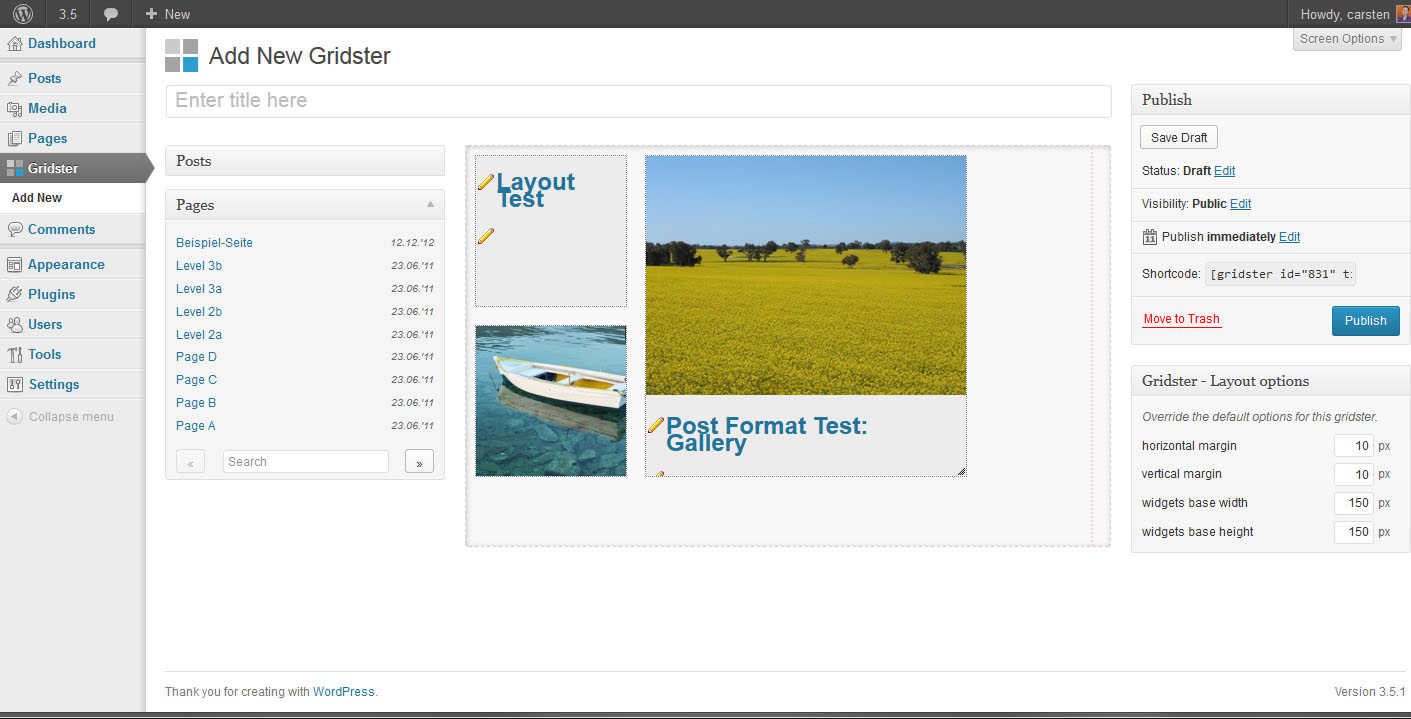
- manage your contents within a grid
- drag & drop contents as gridster widgets from your last posts, pages or custom post types
- resize gridster widgets on the fly
- use custom templates for all your gridster-widgets, or per post_type
- override side wide settings for every gridster
- inline edit every content loaded via your templates
- images within your gridster-widgets are re-loaded on every resize of a widget, to best fit its dimensions
- add gridsters by simply adding a generated shortcode, you’ll get from the gridsters post-list
- this plugin recognizes your defined content width from your theme and will help you create best fitting gridsters
- scripts & styles are loaded only if shortcode is really used, this saves load time
- visual shortcode replacement, like you know from [gallery]-Shortcode
- TinyMCE Button to add gridster layouts with user-friendly GUI
- clean uninstall: all options, gridster-posts and related post-meta fields are deleted on uninstalling (not deactivation)
Templates
Adjust the HTML output of the gridster-widgets by overriding the default template from cbach-wp-gridster/views/gridster-default.php.
Just copy this file into a new created directory gridster-templates within your theme folder and change it to your needs.
Furthermore you can add different templates per post_type, when you create files like gridster-YOUR_POST_TYPE_NAME.php within these folder.
By using the later described gridster_locate_templates_from filter you are able to add more conditions to make your templates match more customized conditions.
Inline editing
With help of the Jeditable library it is possible to edit loaded content directly inside the gridster workbench.
So if you are using a post called “My grandmothers apple pie is the best”, you could adjust the text inside your gridster-widget to shorter version, ie. “best apple pie” without editing the original post.
Just add some CSS class to the wrapper element, where your title will appear.
For editing single lines of text, like titles add class="gridster_edit".
If you want to edit texts in more comfortable textarea use class="gridster_edit-area"
Have a look at the /views/gridster-default.php inside the plugin directory to get a clue.
Arbitrary section
Filters and Hooks
You can adjust the behavior of this plugin by using following filters:
- Change the
get_post_types()call for usable post_types by filteringgridster_get_post_types_as_widget_blocks_args - Change final array of used post_types by modifying
gridster_post_types_as_widget_blocks - Filter the list of visible / usable posts per post_type by hooking into
gridster_get_posts_by_type_query_args - Adjust the naming convention for used templates by filtering
gridster_locate_templates_from - Add custom CSS classes to each Gridster widget individually from a multiple select field enhanced by chosen.js, using the
gridster_choose_from_custom_css_classes_for_widgetsfilter.
The return of your applied function should be an array() like thisarray( 'alignleft' => __('Align text from left'), 'alignright' => __('Align text from right'), where the array_keys are the CSS classes to apply and the values are the readable text for you or your editors. - Change the capability, which allows users to overwrite the default settings for each gridster individually by filtering
gridster_overwrite_post_options_with_cap. By default “edit_theme_options” is used.
Or you can hook in your own functionality by using the following action hooks:
- Do something before and/or after the shortcode ouput by using
gridster_before_shortcode_renderorgridster_after_shortcode_render. Both action hooks come with three additional arguments you are able to work with, the$post_id, the$titleand the$widgets_htmlof the current gridster-post.
Have a look inside the plugin file to see, what variables you are able to use within your filter hooks.
Translations
- English (en_US)
- German (de_DE)
Many Thanks goes out to
- The guys of Ducksboard and the many github Contributors for their work on gridster.js
- Mika Tuupola for his work on Jeditable
- Yusuke Kamiyamane for his Diagona Icons licensed under Creative Commons (Attribution 3.0 Unported)
- MidTone Design for their Web Injection Icons
- Dmitry Costenco for his Free Applications Icons
- New Moon for their Ultimate Gnome Icons
- Harvest for developing chosen.js a Javascript Plugin to make
<select>s more user-friendly
- Extract the zip file
- Drop the contents in the
wp-content/plugins/directory of your WordPress installation - Activate the plugin from plugins page
Screenshot Gallery


![An embeded Shortcode inside the Editor is replaced by visual placeholder, to keep things easy for your editors. No need to write (short-)code. Besides it's possible to update, edit and delete the shortcode via icons, formerly known from the [gallery]-shortcode. (with WordPress 3.5.1)](https://ps.w.org/cbach-wp-gridster/assets/screenshot-7.jpg?rev=690718)

How can I customize the layout of the Gridster Widgets on the frontend?
There a some CSS classes you can use
.gridster-not-loadedis appended to the<body>element, when a shortcode is found on the current page.gridster-loadedreplaces the former mentioned.gridster-not-loadedbody-class, when Gridster Javascript is successfully loaded.gridster-wrapis the wrapper for the whole shortcode output.gs_wis the generic class aplied to every Gridster Widget
How to avoid the loading of `gridster_frontend.css`
The Plugin comes with minimal styling for the Gridster Markup, but maybe you’ll add theese few lines of CSS to your own theme stylesheet to reduce server requests.
Just set the constant GRIDSTER_FRONTEND_CSS to false in your themes functions.php file.
/**
 *  Do not use gridster frontend styles
 */
define( 'GRIDSTER_FRONTEND_CSS', false );
How to get best fitting image-sizes to work?
Gridster uses the generated images used as post-thumbnails by default. When you add existing content to a new gridster, the plugin will look for the best fitting image size, according to the width and height of your current gridster-widget.
So if you have defined the base width to 100px, base height to 100px and your margins to 10px, the plugin will look for images of 100 * 100 px.
Now, when you resize this gridster-widget to, let’s say, 1 row with 2 columns, the plugin will reload this gridster-widget with an image of 220 * 100 px.
To avoid ugly cropping or unwanted scaling of the post-thumbnails, you go best with defining some additional post-thumbnail sizes within your functions.php like so.
/**
 *  Add some additional post-thumbnail sizes, that can be used by the Gridster Plugin
 *  e.g. we have base-width: 100px, base-height: 100px and margins both 10px
 *
 *  @see    https://codex.wordpress.org/Function_Reference/add_image_size
 *
 */
if ( function_exists( 'add_image_size' ) ) {
    add_image_size( 'gridster-1col-1row', 100, 100, true );

    add_image_size( 'gridster-2col-1row', 220, 100, true );
    add_image_size( 'gridster-3col-1row', 340, 100, true );
    add_image_size( 'gridster-4col-1row', 460, 100, true );

    add_image_size( 'gridster-1col-2row', 100, 220, true );
    add_image_size( 'gridster-1col-3row', 100, 340, true );
    add_image_size( 'gridster-1col-4row', 100, 460, true );

  /** ... and so on ... */
}
Do you have some question?
Drop me a line at gridster@carsten-bach.de
Changelog
1.4
- Tested compatibility with WP 3.6 – everything fine 😉
- Added support for new
shortcode_atts_{shortcode}-filter, introduced in WP 3.6; use it like thisadd_filter( 'shortcode_atts_gridster', 'YOUR-FILTER-FUNCTION-NAME' ); - Introduced a new filter to modify the HTML generated by the shortcode, use
add_filter( 'gridster_shortcode_output', 'YOUR-FILTER-FUNCTION-NAME' ) - Added two actionhooks, one before and one after the rendering of the shortcode output
- Fix for Activation-, Deactivation and Uninstall-Hooks
- Added a CSS id of the gridster-title to the shortcode output
- Fixed the “Edit this Gridster”-Link located upon the shortcode replacement, to work on post-new.php
- Removed PHP Notice
Undefined Property $widget->classes on line 2191 - “Insert Gridster” modal now recognizes to insert a new shortcode or to replace an existing one
- updated german translation
1.3.2
- Fix pagination of posts (of all types) inside widget-blocks
- Bugfix: for gridster_get_posts_by_type_query_args filter, thanks to jide.fr
- Added a check for required WordPress- and PHP-Version
- Updated F.A.Q. with infos to used image-sizes
1.3.1
- Fix for not loading any posts (of all types) into there widget-blocks, because search was triggered with searchphrase “null”
1.3
- Added filter
gridster_overwrite_post_options_with_capto define capability, which allows users to overwrite defaull layout settings for each gridster individually - CSS adjustment of the Style selector width
- Fix for updating the height of the gridster element, during resize of gridster-widgets
- Fix for not being able to resize a gridster-widget below the very last row. Works now 😉
- Fix: Searchfield had value of “null”, if you did no search
- Removed meta_box for the post_slug on this post_type because we really don’t need it
- Fix for using “Return” on the searchform, to avoid the saving of the current gridster and relaoding the page
- Removed “Preview”-Link, “Quick Edit”-Link and option to password protect gridster-posts
1.2.1
- Removed some debugging code to avoid Fatal Error on activation in PHP < 5.3
1.2
- Added two CSS classes for
<body>,.gridster-not-loadedwhen shortode is used as a Noscript fallback and.gridster-loadedwhen JS is available and the Layout is loaded properly - Fix to use Return key on search-fields inside the post-lists
- Layout improvements for showing the post_thumbnail inside the Gridster-Widget on the workbench
- Removed some debugging stuff from stable version
- Enabled line-breaks in editable HTML, marked with
.gridster_edit-area - Fixed saving of wrong & unescaped HTML within the layout-seetings
- Added constant GRIDSTER_FRONTEND_CSS to disable loading of frontend stylesheet
- JSLint’ed all javascript files
- Added Style Select to add custom CSS classes to each Gridster Widget individually, select is populated by the new
gridster_choose_from_custom_css_classes_for_widgetsfilter and is not used by default
1.1
- Added TinyMCE Button to add shortcode
- Added visual shortcode replacement inside the editor, similar to the gallery-shortcode, with handle-buttons for changing the current shortcode, editing the related gridster and deleting the shortcode from the content
- Added Pagination to post-lists available as gridster-widgets
- Added Search to post_type blocks, to look for posts (and pages and custom post_types) usable as gridster-widgets
- Updated german translation
- Updated Icons
- Clean post_metas on post deletion
- Redirect Editor to workbench, if there are no gridster posts to show on /wp-admin/edit.php
1.0
- Initial release
" width="120" height="120">
