
All-in-One WP Migration and Backup
Active Installs
5,000,000+
Last Updated
September 15, 2026
First Released
January 7, 2014
Download History (Last one month)
Contributors
The Most Trusted WordPress Migration & Backup Plugin Since 2013
All-in-One WP Migration is the gold standard for WordPress site migration and backup, used by over 60 million websites worldwide – from small blogs to Fortune 500 companies and government agencies. Whether you need to migrate WordPress to a new host, create a full site backup, or restore a previous backup, our plugin offers enterprise-grade reliability with beginner-friendly simplicity.
Why Choose All-in-One WP Migration?
- Effortless Migration: Migrate your entire site with a single click – including database, media, themes, and plugins
- One-Click Backup: Create a complete WordPress backup before you migrate, so you can restore anytime
- Zero Downtime: Complete your migration with no service interruptions
- Universal Compatibility: Migrate between any hosting providers – from budget shared hosting to high-end dedicated servers
- Technical Excellence: Engineered for reliability with memory-efficient processing (512KB chunks), ideal for resource-limited environments
- No Technical Skills Required: Intuitive interface lets anyone migrate or backup a WordPress site without technical expertise
- Cross-Database Support: Migrate seamlessly between MySQL, MariaDB, and SQLite databases
- Secure & Reliable: Trusted by Boeing, NASA, Harvard, Stanford, Automattic, and government agencies worldwide
How to Migrate WordPress – Simple as 1-2-3:
- Install the migration plugin on your source and destination sites
- Backup & Export your site to a .wpress backup file with one click
- Import & Migrate using our drag-and-drop importer on your destination site
For Developers & Power Users:
- Advanced Find & Replace: Control exactly what changes when you migrate
- Selective Migration & Backup: Include or exclude specific content types from your migration or backup
- PHP 5.3-8.4 Compatibility: Works across virtually all hosting environments
- Custom WPress Format: Our optimized archive format ensures data integrity
- Hook System: Extensive API for custom integration and workflows
- Command-Line Support: Automate migrations and backups via WP-CLI
Premium Extensions:
Enhance your migration and backup workflow with our premium extensions:
- Unlimited Migration Size: Migrate sites of any size with no file limits
- Cloud Backup & Migration: Backup and migrate directly to/from Dropbox, Google Drive, OneDrive, and more
- Multisite Migration: Migrate complex WordPress multisite networks
- Scheduled Backups: Automated, recurring WordPress backups on your schedule
- Database Filtering: Exclude specific tables or data from your migration or backup
Features Spotlight:
- WCAG 2.1 AA Level accessibility compliance
- Mobile-responsive interface
- Browse WPRESS files online or extract locally
- Automatic URL and path replacement during migration
- WordPress Playground integration – migrate between SQLite and MySQL
- Regular bi-weekly updates ensuring your backup and migration plugin stays compatible
- Available in 50+ languages including Japanese
Trusted by the Government and Big Corporations:
Many enterprise customers, government organizations, and universities use, love, and trust All-in-One WP Migration. Here are some: Boeing, NASA, VW, IBM, Harvard University, Stanford University, Lego, P&G, Automattic, State of California, State of Hawaii.
This broad adoption demonstrates how safe, reliable and adaptable this WordPress migration and backup plugin is for any website migration need.
Update Frequency:
Our team is dedicated to keeping this WordPress migration and backup plugin up-to-date and secure. We release updates every two weeks or at least once a month, ensuring your migration and backup workflows remain compatible with the latest WordPress versions, including beta releases. Our proactive testing and feedback to the WordPress core team help in preemptively addressing any potential issues, so you can always migrate and backup with confidence.
Full Compatibility and Support:
All-in-One WP Migration has been extensively tested and confirmed to be compatible with most WordPress plugins and themes, so you can migrate and backup without worrying about conflicts.
This means you don’t experience cross-plugin compatibility issues that can slow down or break your WordPress site when you migrate.
All-in-One WP Migration has partnered with multiple theme and plugin vendors to distribute their products with us as a single, easy-to-install migration and backup package.
These vendors trust our migration plugin to provide their customers with reliable product delivery, support, migrations, and backups.
Cloud Storage Supported:
All-in-One WP Migration supports backup and migration to all major cloud storage services.
The plugin comes preinstalled on all Bitnami WordPress sites running on AWS, Google Compute Cloud, and Microsoft Azure – ready to migrate and backup out of the box.
Case Studies:
- Small Business Migration: A small online retailer used All-in-One WP Migration to migrate to a more robust hosting solution, creating a full backup before the migration and completing the move without downtime during peak shopping season.
- Educational Migration: A prominent university utilized All-in-One WP Migration to migrate and consolidate multiple departmental sites into a single WordPress network, with automated backups ensuring no data was lost during migration.
- Government Migration: Following a directive to improve digital accessibility, a government agency used our migration plugin to migrate their content to a new, compliant platform without impacting public access to critical information.
Contact us
- Report a security vulnerability
- Get free help from us here
- Report a bug or request a feature
- Find out more about us
Privacy Policy
All-in-One WP Migration is designed to fully respect and protect the personal information of its users. It asks for your consent to collect the user’s email address when filling the plugin’s contact form.
All-in-One WP Migration is in full compliance with General Data Protection Regulation (GDPR).
See our GDPR Compliant Privacy Policy here.
- All-in-One WP Migration can be installed directly through your WordPress Plugins dashboard.
- Click “Add New” and Search for “All-in-One WP Migration”
- Install and Activate
Alternatively, you can download the plugin using the download button on this page and then upload the all-in-one-wp-migration folder to the /wp-content/plugins/ directory then activate throught the Plugins dashboard in WordPress
Screenshot Gallery
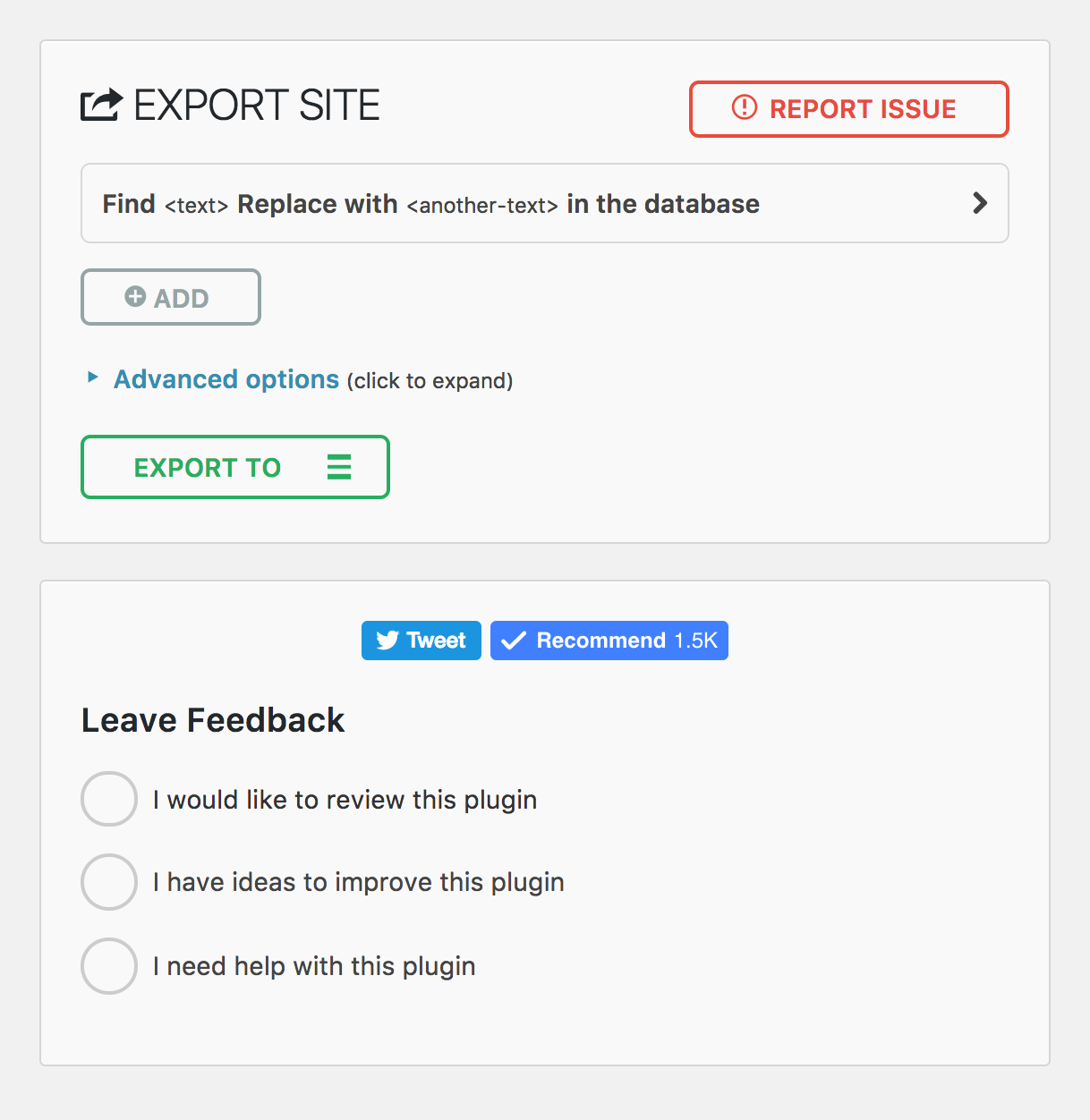
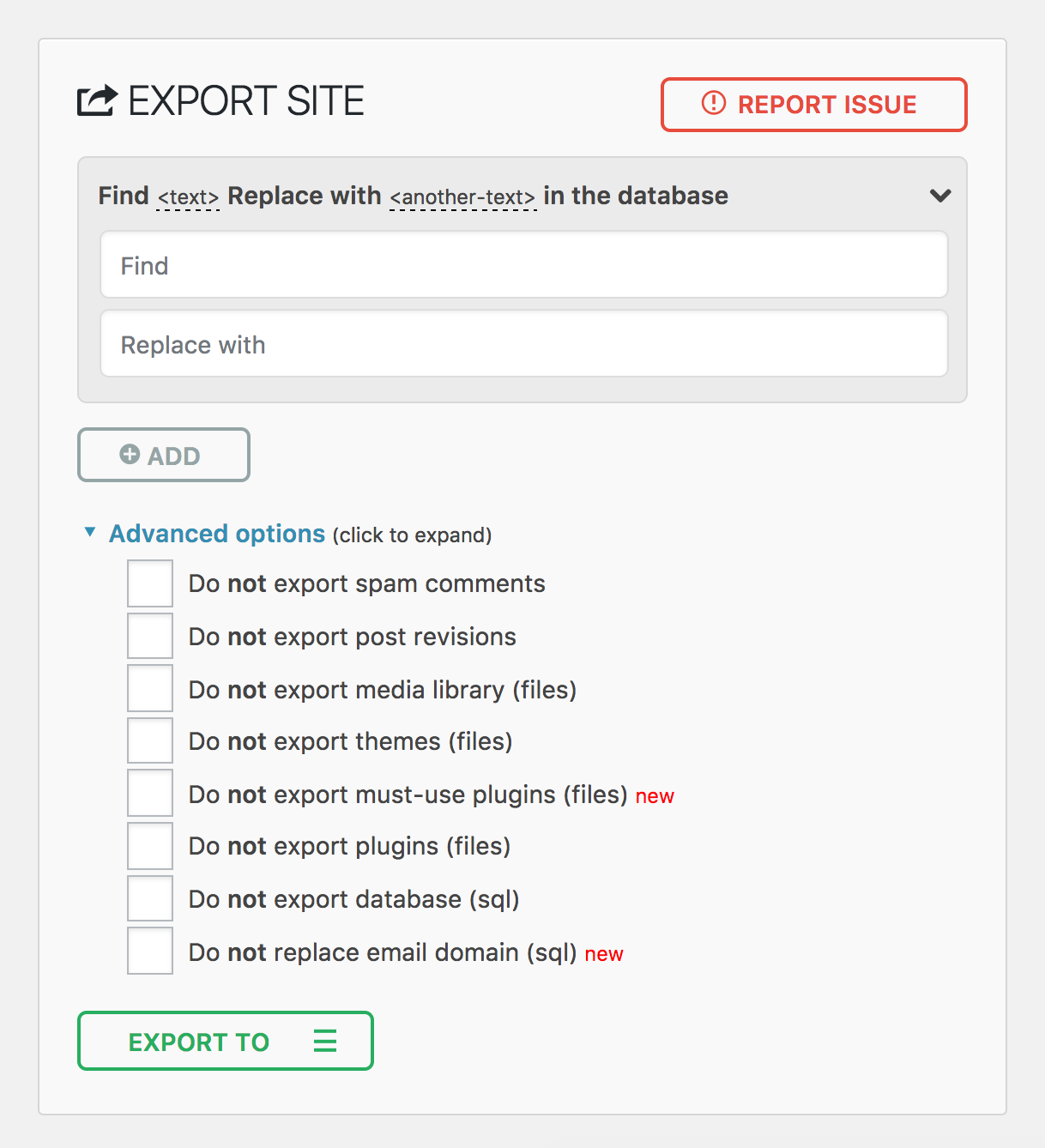
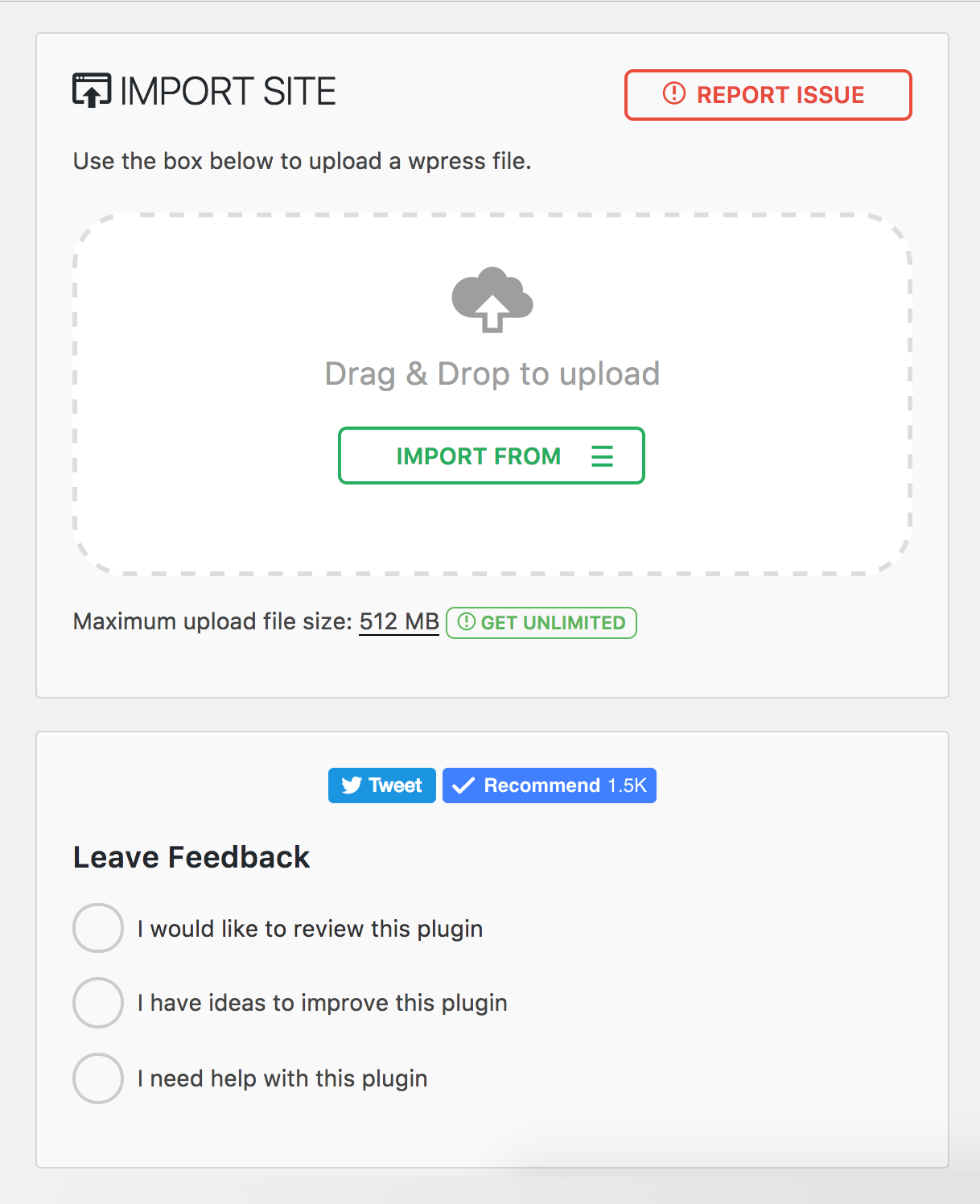
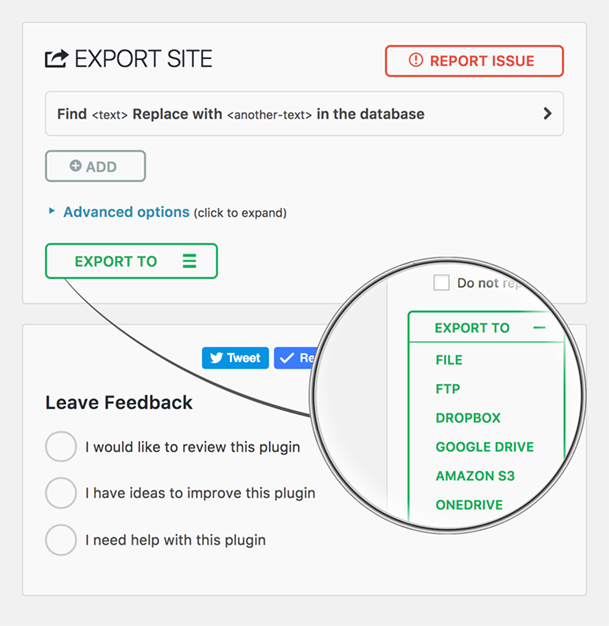
Install All-in-One WP Migration on your current site and click Export. The plugin creates a single .wpress file containing your entire WordPress site – database, media, themes, and plugins. Then install a fresh copy of WordPress on your new host, install the plugin there as well, and use the Import feature to upload the .wpress file. The plugin will migrate everything automatically, including updating all URL references and handling serialized data safely. You can migrate between any hosting providers – from shared hosting to dedicated servers.
Before you migrate, we recommend lowering your DNS TTL to 300 seconds at least 48 hours in advance, and keeping your old host active for 7–14 days as a safety net in case you need to roll back.
To create a backup, go to All-in-One WP Migration > Export and choose your backup destination – local download or cloud storage. The plugin creates a complete backup of your entire WordPress site in a single .wpress file. To restore a backup, go to All-in-One WP Migration > Import and upload or select your .wpress backup file. The plugin will restore your database, themes, plugins, and media files automatically. After restoring a backup, clear all caches and re-save your permalink settings under Settings > Permalinks.
For best results, use a hybrid backup strategy: cloud storage for automated daily backups and local copies for fast recovery. Follow the 3-2-1 rule – maintain three copies of your data across two different storage types, with one stored off-site.
Yes. The Multisite Extension allows you to migrate an entire WordPress multisite network as a single .wpress file. You can also extract a single subsite – when you migrate a subsite, the plugin automatically converts table prefixes and reorganizes media file paths. Multisite migrations require special handling because the network uses shared database tables for users and per-site tables with unique prefixes. We recommend at least 512 MB of PHP memory for large multisite migrations.
If your server rejects a backup file as too large during import, you have several options. You can increase the PHP upload limit by adding php_value upload_max_filesize 512M and php_value post_max_size 512M to your .htaccess file, or set client_max_body_size 512m for Nginx servers. For sites that require unlimited upload size, the Unlimited Extension removes all file size restrictions set by your host.
You can migrate a WooCommerce store the same way you migrate any WordPress site – export on your current host and import on the new one. However, after you migrate a WooCommerce store, you should immediately verify that payment gateway API keys are configured correctly, update any webhook URLs to reference your new domain, and run a small real transaction to confirm checkout works end-to-end. We recommend enabling maintenance mode on your old server after DNS propagation to prevent split orders during the transition. See our full WooCommerce migration guide for detailed steps.
If you migrate to the same domain on a new host, your SEO rankings should remain intact because All-in-One WP Migration preserves all your content, URLs, and metadata exactly as they were. If you migrate to a new domain, set up proper 301 redirects mapping every old URL to its new equivalent and use Google Search Console’s “Change of Address” tool. A temporary ranking fluctuation of 10–20% in the first 1–2 weeks after a domain migration is normal. Keep your redirects active for at least one year. See our SEO migration checklist for a complete guide to preserving your rankings when you migrate.
The most common issues after you migrate and their solutions:
- White screen: Enable
WP_DEBUGinwp-config.phpto see the actual error. Verify PHP version compatibility between your old and new servers. - Database connection error: Check that
DB_NAME,DB_USER,DB_PASSWORD, andDB_HOSTinwp-config.phpmatch your new server’s settings. - 404 errors on all pages: Re-save permalinks under Settings > Permalinks to regenerate rewrite rules.
- Broken images: Verify the
wp-content/uploads/directory transferred completely with correct permissions (755 for directories, 644 for files). - Import stuck or frozen: Increase PHP
max_execution_timeandmemory_limit, or use WP-CLI to migrate from the command line:wp ai1wm restore backup.wpress.
For a comprehensive list of migration troubleshooting tips, see our migration troubleshooting guide.
Yes, All-in-One WP Migration supports cross-database migration between MySQL, MariaDB, and SQLite. This is especially useful when you migrate sites to or from WordPress Playground, which uses SQLite. The plugin handles all database schema differences automatically – you simply export from one environment and import into the other.
Yes. All-in-One WP Migration includes full WP-CLI support for command-line automation. Use wp ai1wm backup to create a backup and wp ai1wm restore backup.wpress to restore or migrate from a backup file. This is ideal for developers who need to migrate sites in automated workflows, CI/CD pipelines, or scheduled backup scripts. Combined with cron jobs, WP-CLI lets you automate your entire backup strategy without touching the WordPress dashboard.
Changelog
7.111
Security
- Export and import now require the administrator capability. This closes a missing-authorization issue that allowed authenticated users without administrator privileges to run migrations. Credits to Charles Vosburgh for reporting it
- Backup actions (list, delete, label, browse, and download) are now restricted to users who can export or import
- HTTP authentication credentials are no longer captured for users who lack permission to run a migration. Credits to Jakub Herman for reporting it
- Backup list, archive browser, and downloads now fail closed with a clear error when the session has expired, instead of failing silently
Fixed
- Export REST route no longer accepts malformed find-and-replace pairs (previously ignored silently)
- SQLite export no longer removes the substring STRICT from column names that contain it
7.110
Fixed
- Find and replace on values ending in a backslash. Special thanks to Jack Taylor for responsibly disclosing this issue
- Wrong warning message when leaving the page during export
7.109
Fixed
- File option in the Import From menu did not open the file picker, which prevented importing a backup from a local file
7.108
Fixed
- Site import on multisite now requires network-level capabilities. Special thanks to Mohamed Bassia for responsibly disclosing this issue
- CiviCRM attachments, contact images and extensions no longer dropped on import, only config and caches are excluded
7.107
Added
- Bulk select and delete for backups
Fixed
- REST export and import now restricted to network super-admins on multisite
- Site import now restricted to users with stronger capabilities
7.106
Added
- REST API for AI-native WordPress migration
Fixed
- Unauthenticated path traversal in ai1wm_error_path. Special thanks to Jakub Herman for responsibly disclosing this issue
- SQLite export producing invalid MySQL CREATE TABLE statements
- Stale archive file size caused by a cached stat result in ai1wm_archive_bytes()
- WP-CLI command now registered on cli_init instead of plugins_loaded
- Duplicate import done status dispatch during clean up
- Internationalization issues in export views and the decrypt modal
7.105
Fixed
- PHP 8.5 “Cannot use bool as array” fatal error in export pipeline when reading past end-of-file
- Database column name replacement incorrectly matching column type keywords (e.g., UUID) in database tables
7.104
Added
- CRC32 checksum integrity verification for wpress archive file format
Fixed
- Infinite loop in compressor when timeout fires at exact end-of-file boundary
Improved
- Minimum required versions enforcement for extensions
- WordPress 7.0 compatibility
7.103
Added
- MariaDB-specific database driver with support for INET4, INET6, UUID, XMLTYPE, and VECTOR column types
- Server version parsing utility for improved database version detection
Fixed
- Path traversal vulnerability in download_file() that could allow arbitrary file reads
- Path traversal validation when extracting files from archives
- Stale backups path option after server migration now auto-resets to default
Improved
- Database export and import refactored for better separation of concerns — column types, column options, table options, and collations are now handled independently
- Expanded collation downgrade support including utf8mb4_0900_as_ci, utf8mb4_0900_as_cs, utf8mb3_* variants
- MariaDB-specific table options now properly handled (Aria engine, page compression, system versioning, encryption)
- Additional MariaDB storage engines (S3, ColumnStore, Spider, CONNECT, Mroonga) now convert to InnoDB on import
- Social share buttons replaced with lightweight static links (removed third-party JavaScript from Facebook, Twitter, and YouTube)
- Cached database server info calls for better performance
- functions.php now loads before constants.php for correct initialization order
7.102
Added
- Clean storage folder option on backups page
- Archive validation before listing files for improved reliability
- Minimum required versions check
Fixed
- Offset handling in archiver for correct data processing
- File extractor offset and file read operations
- Missing esc_html() function call for improved security
- FDP must-use plugin disabled to prevent plugin activation issues during import
Improved
- CSS styling alignment with schedules page
- WordPress 6.9 compatibility
7.101
Fixed
- File size and modification time type handling in archive for improved compatibility with PHP strict mode
- Post revisions exclusion to properly exclude associated postmeta entries during export
Improved
- Upgraded to full Vue 3 framework for enhanced performance and reduced bundle size
7.100
Improved
- Upgraded PHP and JavaScript dependencies to their latest versions
7.99
Added
- Gzip compression support for file operations to improve backup file handling
Fixed
- jQuery deprecated bind() method replaced with on() for better compatibility
- File upload security by removing stripslashes_deep on $_FILES input
Improved
- Stream operations replaced with ai1wm_write() for enhanced reliability
- Update javascript dependencies to use latest versions
7.98
Added
- WP_IMPORTING constant for better hosting providers compatibility
Fixed
- Stored Cross-Site Scripting vulnerability in file upload (CVE-2025-8490). Thank you WordFence and Jack Pas for reporting this. What you need to know.
- File upload exceptions handling for better error reporting
Improved
- PHP 8 compatibility issues in MySQLi database handler
- File uploader refactored for enhanced security and reliability
7.97
Added
- SQLite support in AUTO_INCREMENT check
Fixed
- Database replacement for serialized values to handle edge cases with string length validation
7.96
Added
- Admin notice warning when AUTO_INCREMENT is missing on wp_options table
7.95
Added
- New action hook ai1wm_status_export_init for developers on export initialization
Fixed
- Theme export progress display showing incorrect percentage
- Uninstall.php script functionality
- Export and import button ordering
- Dropdown height styling issues
7.94
Added
- Refresh Elementor plugin cache on import
7.93
Fixed
- Compatibility issue with PHP 7 and PHP 5 due to trailing comma in style registration
7.92
Improved
- Passed Plugin Check Plugin (PCP) validation
- Archive name generation
7.91
Added
- CiviCRM for WordPress support
7.90
Added
- Introduced a constant to disable MySQL late row lookups for enhanced database performance
Improved
- Enhanced SQLite database integration for improved stability and efficiency
- Strengthened serialization replacement mechanism to address an unauthenticated PHP Object Injection vulnerability (CVE-2024-10942). Special thanks to Webbernaut for responsibly disclosing this issue
- Preserved the wp_rocket_settings option during exports for improved user experience
Fixed
- Resolved PHP 8.4 deprecation warnings
7.89
Improved
- Upgraded to Node.js 22 for better performance and security
- Updated all plugin dependencies to keep things running smoothly and securely
7.88
Fixed
- Fixed an issue where the upload progress was stuck at 100%
- Fixed an issue where the upload could not be cancelled before it was completed
Improved
- Improved user-facing messages to be friendlier, direct, consistent, and more informative.
7.87
Fixed
- Resolved a vulnerability where error logs were publicly accessible with a known name by appending random affixes to error log filenames, making them unguessable. Error logs are now automatically deleted daily and during plugin updates. Special thanks to villu164 for responsibly disclosing this issue.
- Resolved a vulnerability where an administrator user could inject arbitrary PHP code through specific inputs. This vulnerability requires administrator-level access to exploit, ensuring that unauthorized users cannot perform this action. Special thanks to Ryan Kozak for responsibly disclosing this issue.
7.86
Fixed
- Resolved an issue with PHP 8.4 compatibility and restoring backup files via WP-CLI
7.85
Added
- PHP 8.4 compatibility
7.84
Added
- New hooks during the export and import processes to allow for custom actions and integrations
7.83
Fixed
- Resolved an issue where downloading backup files was failing on WordPress Playground environments
7.82
Added
- SQLite support
- WordPress Playground support
7.81
Added
- Reset Hub Page: Introducing a new reset hub page, providing users with powerful reset tools for efficient site management. This feature allows for easier resets of WordPress environments, facilitating smoother development and testing workflows.
Improved
- Better W3TC Support
- PHP Compatibility Checks: Display a warning notification, when you move/restore your site to a different PHP version.
7.80
Added
- Support for update-services plugin
- Domain name conversion to dashes from dots in the backup name for improved hosting providers compatibility
Improved
- Better support for Multisite to Standalone and Standalone to Multisite exports and imports, streamlining the migration process
7.79
Added
- Support for WordPress v6.4
7.78
Added
- Implemented a new Schedules page within the plugin, displaying various advanced features exclusive to premium extensions
7.77
Added
- Tested the new version of WordPress 6.3
7.76
Fixed
- Removed the [beta] label from advanced settings
" width="120" height="120">
Available Versions
| Version | Download | Type |
|---|---|---|
| 7.111 | Download | Stable |
| 7.110 | Download | Stable |
| 7.109 | Download | Stable |
| 7.108 | Download | Stable |
| 7.107 | Download | Stable |
| 7.106 | Download | Stable |
| 7.105 | Download | Stable |
| 7.104 | Download | Stable |
| 7.103 | Download | Stable |
| 7.102 | Download | Stable |
| 7.101 | Download | Stable |
| 7.100 | Download | Stable |
| 7.99 | Download | Stable |
| 7.98 | Download | Stable |
| 7.97 | Download | Stable |
| Development | Download | Trunk |
